
Teacher who types a lot
You create handouts with longer texts and want to check that the required document software, keyboard layout and PDF export are all right for you.


If you often type longer texts, start with the software your school requires and a suitable keyboard. For simpler handouts, you could also consider an iPad or Android tablet, provided it supports the app you need and can export to PDF. At a small café table, a compact size matters, while a larger screen gives you more room for both your source material and document. Check which stylus, keyboard and adapter are included with each configuration.
You create handouts with longer texts and want to check that the required document software, keyboard layout and PDF export are all right for you.
You work at a small café table and need to balance a compact screen with enough room for your source material and document.
You want to add sketches or handwritten corrections to your teaching materials, so you need to check stylus support and what comes in the box.
Start with the school software you need and how you’ll share your handout. Then choose a screen size and input method that suit your workspace.
| What to consider | What should you check? | Who is this important for? |
|---|---|---|
| Text and PDF export | Check that the required school app works, find out which keyboard layout you’ll get and see whether a test document displays correctly as a PDF. | If I’m typing longer documents, I want to know that the app and PDF formatting will work for my handout. Around 33% of consumers put word processing and PDF export at the top of their buying priorities. |
| Portability and table space | Compare the screen size and how much room the tablet takes up with its case, stand or keyboard. | At a small café table, I want to leave enough space for my source material and document without carrying an awkwardly large device. Portability comes first for around 27% of consumers. |
| Handwriting and sketching | Check stylus compatibility and whether the stylus is included with the configuration you’ve chosen. | If I want to add handwritten corrections or diagrams, the stylus needs to work with the tablet and suit the way I work. Handwriting and sketching are the top buying priority for around 20% of consumers. |
| School files and workflow | Try the files and export options you need in the app you plan to use. If you’ll be handling pupil data, check your school’s storage and access policies. | If my teaching materials rely on specific school files or software, I want to test them in advance. Compatibility with school files and workflows comes first for around 20% of consumers. |
A suitable keyboard, stylus or adapter may vary by configuration or be sold separately. That means the combination you choose could work out differently from what you expected.
Check which accessories are included with the specific model and make sure they’re compatible.
According to the Consumers’ Association, larger tablets are less convenient to carry around. At a small table, the screen may also take up space you need for your keyboard, source material or notes.
Consider both the screen space and the room the complete setup will take up.
Schools have privacy obligations when processing pupil data. Conditions may also apply when copying and sharing copyright-protected publications, regardless of which tablet you choose.
The Dutch Data Protection Authority explains schools’ privacy obligations. You should also check your school’s policies and the Dutch government’s guidance on sharing protected material.
Apple lists support for the 11-inch and 13-inch iPad Air models, as well as the Magic Keyboard and Apple Pencil Pro.
The Galaxy Tab S10 FE range is an Android option with stylus input. Samsung lists an S Pen as included with the FE offer reviewed.
The Idea Tab Pro Gen 2 is a 13-inch Android option. Lenovo lists bundles with a stylus and keyboard, although the contents can vary.
The Surface Pro is worth considering if a Windows workflow is essential for creating your handout.
These Joybuy products are suited to creating or annotating teaching materials on a tablet. Check that the document software and accessories you need are right for your workflow with each model.
 No image available
The included stylus is useful if you want to add handwritten corrections or notes to your documents.
12.1-inch screen; 8 GB RAM; 256 GB storage; stylus included.
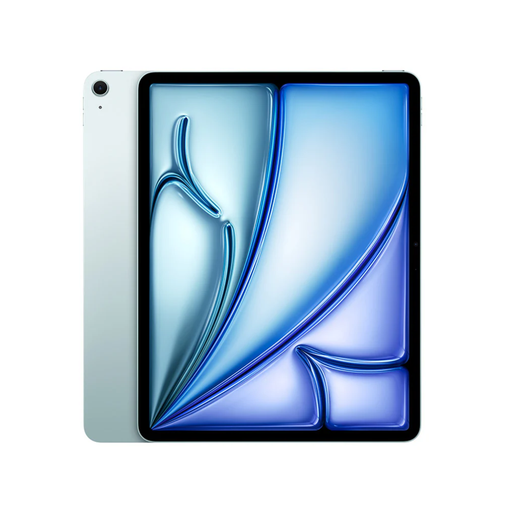 No image available
Support for Magic Keyboard and Apple Pencil Pro could suit you if you want to type and use a stylus.
13-inch screen; 128 GB storage; Wi-Fi. According to the product information, Magic Keyboard and Apple Pencil Pro are sold separately.
 No image available
The stylus and PDF annotation features are useful if you want to add handwritten comments to your teaching materials.
8.2-inch E Ink screen; stylus. The product description also lists a weight of 230 g and a thickness of 5 mm.
 No image available
The product description lists an included Tab Pen for writing and creative work.
11-inch IPS screen; 8 GB RAM; 128 GB storage; 90 Hz; Android 15. According to the product description, a charger isn’t included.
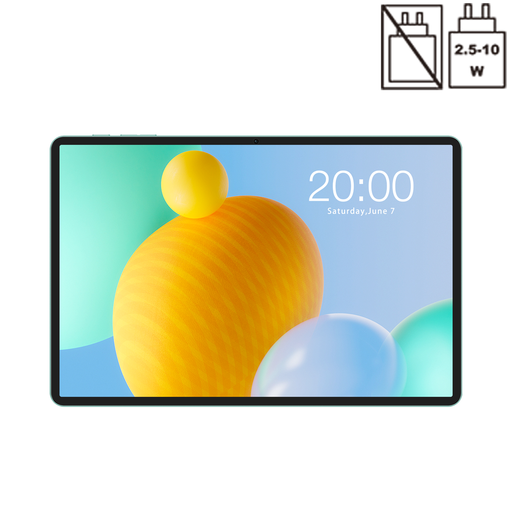 No image available
The listed 4G LTE connection could be useful if you need mobile connectivity on the go.
11-inch IPS screen; 128 GB storage; 4G LTE; Dual SIM; 32 GB RAM, comprising 6 GB RAM and 26 GB virtual RAM.
Create a test document in the app you plan to use, then open the exported PDF on another device. Microsoft explains how to save a PDF from Word on Android tablets using the print option; other apps may work differently.
No. According to Microsoft, the Surface Pro 12-inch keyboard is compatible with this edition; the Surface Pro keyboards listed for 13-inch models aren’t compatible.
In the Netherlands, you’re covered by the statutory guarantee for as long as the product should reasonably be expected to last. ACM ConsuWijzer explains that the statutory guarantee applies in addition to any guarantee from the retailer or manufacturer.
First, check which conditions apply. According to the Dutch Data Protection Authority, schools processing pupils’ personal data must take appropriate technical and organisational measures. The Dutch government sets out conditions for copying and sharing protected publications; these don’t automatically apply to a handout that contains no such data or reproduced works.