
Maps and sources annotator
You want to view historical maps, images and PDF sources, and add handwritten references. Screen space and a practical way to import and export files are important factors in your choice.


For colour historical maps and handwritten source references, a standard tablet with a spacious screen, a compatible stylus and a suitable PDF workflow is a good fit. If your main priorities are focused reading and writing, a digital paper tablet is another option. Before buying, check whether the stylus is included with the exact model and whether you can import and export your own maps and annotations easily. A larger screen gives you more room, but is less convenient to carry around.
You want to view historical maps, images and PDF sources, and add handwritten references. Screen space and a practical way to import and export files are important factors in your choice.
You move between workspaces and take maps and notes with you. Finding the right balance between screen space and portability matters to you.
You mainly make handwritten source notes and want to know whether a digital paper tablet with PDF annotation will do the job, without the features of a standard tablet.
A good fit if: you want to view and annotate colour historical maps, images and PDFs in a versatile app environment.
Bear in mind: the right stylus can vary by model and is not always included in the box. Also check how your chosen app imports and exports PDFs.
A good fit if: handwritten notes and PDF annotations matter more to you than the wide choice of apps available on a standard tablet.
Bear in mind: check that the colour display is suitable for your maps and whether you need a subscription for the cloud or sync features you want.
Try your own map file and note-taking workflow before you decide. Having a stylus alone does not guarantee that your chosen app will save your source material in the way you want.
| What to consider | What should you check? | Who is this most important for? |
|---|---|---|
| Handwritten source references | Check stylus compatibility with the exact model, then try importing, annotating and exporting a PDF. | If you want to keep handwritten references with your sources, the stylus and PDF workflow are crucial. Around 36% of consumers prioritise source annotation. |
| Reading maps and details | View one of your own maps at the screen size you’re considering, and check that details and notes fit comfortably side by side. | If map details need to be easy to read on screen, you’ll want to assess the map at its actual size. Around 29% of consumers give map readability top priority. |
| Screen space and portability | Compare the size and weight of the exact model, and factor in any accessories you’ll be carrying. | If you often move between workspaces, you’ll want to carry your research kit easily without giving up more usable space than necessary. Around 21% of consumers prioritise portability. |
| Writing and ongoing features | Check PDF import and export, language support, and whether the cloud features you want require a subscription. | If you mainly want to write by hand without distractions, you’ll want to know whether the more limited software environment suits your workflow. Around 14% of consumers prioritise the writing experience. |
Stylus support varies between tablets, and the stylus is not always included in the box. This means the model you choose may not be ready for handwritten annotations straight away.
Compare everything included with each model and check which stylus is compatible before you buy.
You may need to buy a compatible stylus separately for some models. Also check which accessories are included in the bundle you choose.
According to Samsung, Samsung Notes imports a copy of the PDF that you can add text and drawings to; this does not edit the original PDF content.
Keep your original file unchanged and test how to export and find your annotated copy.
reMarkable describes unlimited cloud storage and sync as features of the Connect subscription.
Decide in advance whether PDF import and export will be enough, or whether you need subscription features.
If you need cloud storage or sync, the Connect subscription may be an additional running cost.
The 11- and 13-inch iPad Air M4 models are an option for working with maps, images and PDFs in a standard tablet environment.
Galaxy Tab models with an S Pen offer an Android option for PDF annotations; the Galaxy Tab S12+ reviewed here has a large screen.
The Idea Tab Plus is an Android option for anyone comparing a spacious screen with a model that comes bundled with a stylus.
Paper Pro is a digital paper option for handwritten notes and PDF annotations.
These Joybuy picks are suited to viewing maps and making handwritten notes or PDF annotations. The selection includes colour tablets, compact models and digital paper options.
 No image available
A model bundled with a stylus for viewing maps and making handwritten annotations on documents.
12.1-inch 2.5K screen; 8 GB RAM and 256 GB storage; stylus included according to the product listing.
 No image available
An option for anyone looking to pair a large screen with handwritten notes and an included stylus.
12.7-inch 2K screen; 256 GB storage; the title lists 20 GB (8 GB + 12 GB virtual) RAM.
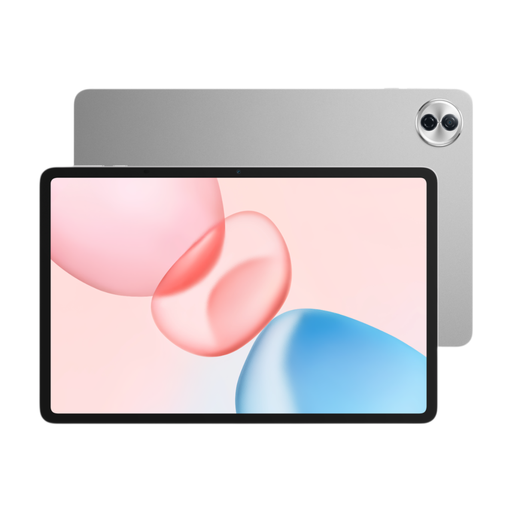 No image available
A large colour screen for viewing detailed map material. Check separately which stylus and annotation app suit your workflow.
12.1-inch 2.5K screen with 120 Hz; 8 GB RAM and 256 GB storage; Snapdragon 7 Gen 3 according to the product title.
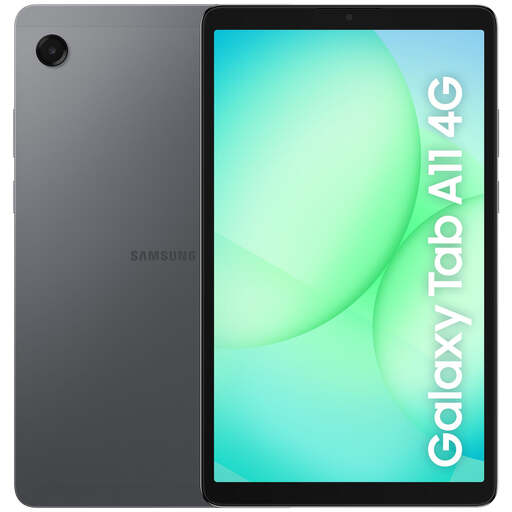 No image available
A compact option for taking with you; the smaller screen leaves less room to view a map and notes at the same time.
8.7-inch screen; LTE; 4 GB RAM and 64 GB storage.
 No image available
A compact digital paper option for reading PDFs and taking notes directly on them with the stylus.
8.2-inch E-Ink screen; the product title lists a stylus. The smaller screen leaves less room to view a map and notes at the same time.
It depends on the file and the app. Apple describes Markup tools for PDFs and images, among other things; Samsung Notes can import a copy of a PDF for you to add text and drawings to; and reMarkable lists PDF import and export. Try your own map file and export process before choosing a device.
Not with every model. Samsung lists an S Pen with the Galaxy Tab S12+, and Lenovo lists a stylus with the Idea Tab Plus bundle mentioned here; Apple does not list a Pencil in the specified iPad Air box contents. Check the exact bundle and, for Apple, that your chosen Pencil model is compatible.
According to reMarkable, handwriting conversion supports Dutch (Netherlands). The listed system languages are English, German, French and Spanish, so conversion support does not mean the system menu is available in Dutch.
According to ACM ConsuWijzer, online purchases generally come with a cooling-off period of up to 14 days after delivery, subject to legal exceptions. The seller must also put right, free of charge, a product that does not do what you could reasonably expect when used normally. This could mean a repair, replacement or refund. Don’t assume that every tablet comes with a fixed two-year statutory warranty period.
The relevant EU rules for products including slate tablets set requirements on topics such as repair and operating system updates. Check whether the rules apply to the specific model; they do not tell you whether a particular stylus, archive app or map workflow is suitable.