
Coastal map researcher
You compare coastlines or map layers with written material and want enough screen space to work with them. Rijkswaterstaat displays changes to the coastline on a map; the most useful window layout depends on how you work.


Choose a larger screen if you want to view a coastal map and study materials at the same time; a more compact model is easier to take with you. A stylus is particularly useful if you want to annotate maps or texts, and may be sold separately depending on the model. Test your own calling app to see whether audio continues when you open the map: support for windows alone doesn’t guarantee that it will.
You compare coastlines or map layers with written material and want enough screen space to work with them. Rijkswaterstaat displays changes to the coastline on a map; the most useful window layout depends on how you work.
You want to view a map while taking part in a group call. Try it with the calling app you use, as audio settings can vary between apps.
You take your tablet with you and want to add marks or notes wherever you are. So don’t just look at the processor: consider the screen size, weight and which stylus comes with the model you choose.
First, decide how much you want to see on screen at once and how often you’ll take your tablet with you. Then check whether you need a stylus and try using your map and calling apps together.
| What to consider | What should you check? | Who considers this important? |
|---|---|---|
| Map and study text | Compare screen size and window layout; try your own map viewer alongside a document. | If I want to view map layers and study text at the same time, usable screen space matters most. Around 33% of consumers prioritise working with maps. |
| Calls while working with maps | Test whether your calling app keeps playing audio when the map is in the foreground; check the microphone and speaker settings. | If I want to follow a group call while a map is open, I want to know what happens in my own app when I switch between them. Around 27% of consumers prioritise keeping calls going. |
| Stylus and annotations | Check stylus compatibility and the contents of the exact model; see whether you need to buy a stylus separately. | If I want to mark up coastal images or documents by hand, the right stylus and what’s in the box are deciding factors. Around 20% of consumers make annotating their top priority. |
| Portability and connectivity | Compare weight and connectivity options; consider how you’ll get online to access map layers and calls when you’re out and about. | If I take my tablet with me often and want to work online while I’m out, portability and connectivity are my main considerations. Around 20% of consumers prioritise using their tablet on the go. |
You may be able to use several apps side by side, but that doesn’t confirm that every calling app will keep playing audio when you open the map.
Try the app you actually use with the coastal map in the foreground, and check the audio settings.
A tablet may work with a particular stylus, even if it isn’t included with every model.
Check the exact model and the listed contents before deciding which accessories you need.
More screen space can be useful for viewing a map and notes side by side, but size and weight matter too if you take your tablet with you often.
Compare screen size and weight together, and try the map viewer you plan to use.
The iPad Air is available in 11- and 13-inch sizes and supports Apple Pencil. Apple also describes using windows to work with multiple apps.
Samsung lists the Galaxy Tab S10 FE series as an Android option for those weighing up screen size and stylus use.
The Idea Tab Pro has a 12.7-inch screen for those looking for more room for maps and notes.
The Pad 8 is an Android option with an 11.2-inch screen for those weighing up portability and screen detail.
This Joybuy selection includes tablets for coastal maps and study materials, with a range of screen sizes and models for anyone who wants to make notes.
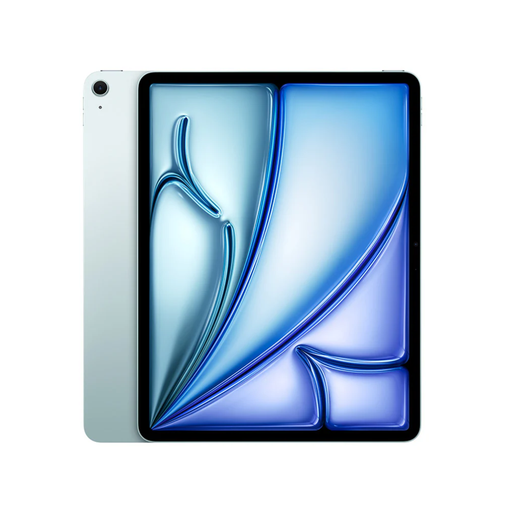 No image available
The 13-inch model gives you room to view a coastal map and study materials at the same time.
Apple Pencil Pro and USB-C Apple Pencil are sold separately.
 No image available
The listed 13.4-inch screen offers plenty of room to view a map and study materials side by side.
The product name also lists 120 Hz and Android 16.
 No image available
This model includes a Tab Pen Pro for making notes and marking up materials while you study.
The product name lists an 11.1-inch screen with 3.2K resolution, Android 15, 12 GB RAM and 256 GB storage.
 No image available
The product name lists an included stylus for making notes and a 12.1-inch screen for viewing maps.
According to the product name, this model has a 2.5K screen, 8 GB RAM and 256 GB storage.
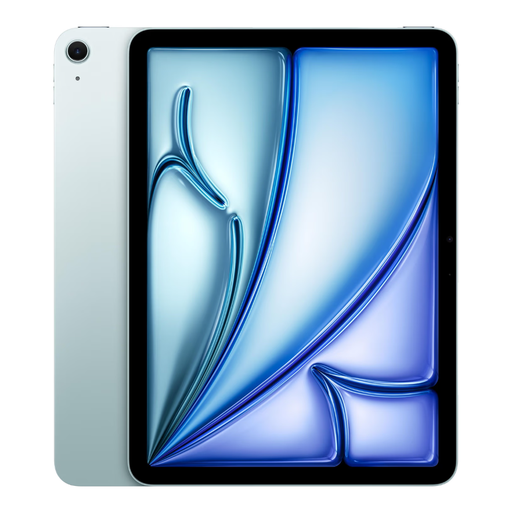 No image available
The 11-inch size is a more compact option if you want to take a tablet with you for map work and study.
The product description lists iPadOS windows and support for Apple Pencil Pro.
It depends on the calling app and its settings: general support for windows doesn’t guarantee that audio will continue when the map is in the foreground. Apple describes using windows on iPad, while Samsung describes multitasking on the Tab S10 FE series; try the combination with your own apps.
Rijkswaterstaat’s coastline map shows a trend calculated from measurements taken over the last ten years. Look at the map layers and legend on the map itself; the tablet screen doesn’t change what the measurements mean.
Use the mobile app your group uses and check that it can access the microphone and speaker. Microsoft Support explains how to join Teams meetings using mobile apps and how to set up audio on your device and in the app.
Check whether a stylus or power adapter is included with each model and which accessories you’ll need. According to the Dutch government, there is no fixed statutory guarantee period in the Netherlands; if a product is faulty, contact the seller and check the information for your order.
According to the Dutch government, online purchases often come with a 14-day cooling-off period, although there are exceptions. Check the seller’s information for your specific order.