
Desk-based map reader
You want to see complete waterway charts and small details at a glance, and can set the tablet down. The Dutch Consumers’ Association points out that larger tablets may be less comfortable to hold for long periods.


If you often view a complete waterway chart or archive page at a desk, start by looking at a tablet around 13 inches. If you read for longer periods while holding it, compare smaller, lighter models too. The Dutch Consumers’ Association warns that larger tablets can quickly become uncomfortable to hold for long periods. Apple lists the Wi-Fi versions of the iPad Air at 464 grams for the 11-inch model and 616 grams for the 13-inch model. Test your own scan at the magnification you want, too: a larger screen won’t automatically make an image scan searchable. You may need OCR for that.
You want to see complete waterway charts and small details at a glance, and can set the tablet down. The Dutch Consumers’ Association points out that larger tablets may be less comfortable to hold for long periods.
You read for longer periods without a stand and want to weigh up screen size, weight and adjustable brightness. Apple explains how to adjust brightness and colour display manually or automatically on the iPad.
You compare scans and want to highlight or write down your findings. Adobe describes OCR as a way to make text in scans searchable; an image in a PDF isn’t automatically searchable text.
Choose this if: you often want to view a complete chart or archive page alongside the details.
The trade-off: more page space doesn’t automatically make small print in your scan readable, and a larger model may be less comfortable to hold for long periods.
Choose this if: you often hold the tablet while reading and don’t mind zooming in more often.
The trade-off: at the same zoom level, you’ll see less of a large page at once.
Choose this if: a screen around 12 inches may give you enough of an overview of your scans.
The trade-off: screen size alone won’t tell you whether your scan, PDF app or stylus workflow will work well. Check with your own files.
| What to consider | What should you check? | Who should pay particular attention? |
|---|---|---|
| Overview and detail | Open a representative chart and a densely printed page at your preferred zoom level. Compare screen sizes with the scan itself. | If I want to view a complete chart without constantly scrolling, I need to know whether the details in my scan will remain readable. Around 33% of consumers give an overview and detail in large scans top priority. |
| Holding it for long periods | Compare the weight of the exact model and, if possible, try holding the tablet with the case you plan to use. | If I don’t use a stand while reading, a comfortable size and weight matter a lot to me. Around 20% of consumers prioritise comfort when holding and carrying a tablet for long periods. |
| Annotating and finding information again | Check whether your PDF app saves annotations and lets you search text. Also check whether a stylus is included with the model you’ve chosen. | If I want to add highlights and find passages again later, I need to know whether my scan contains text or needs OCR. Around 27% of consumers say annotating and finding information again is their top priority. |
| Evening viewing | Check the brightness and colour settings in your PDF app. Also compare important chart colours without any colour shift. | When reading in the evening, I want to adjust the brightness without losing sight of colour differences in historical charts. Around 20% of consumers give evening viewing top priority. |
Screen size tells you nothing about the text layer in the original file. A PDF made up only of images may need OCR before you can search its text.
Test an actual scan and check text search separately from readability and zoom performance. Adobe recommends comparing recognised text with the original image if you’re unsure.
OCR can take extra time, as you’ll need to check the recognised text against the scan.
A large screen can be useful for viewing charts at a desk, but less practical when you’re reading for longer periods while holding it. The Dutch Consumers’ Association warns about the weight and handling of larger tablets.
Compare a smaller model and try the position you use when reading in the evening, with a case or stand if you plan to use one.
Stylus support doesn’t mean one comes with every model or bundle. Apple lists support for Pencil models, but that doesn’t confirm that a Pencil is included.
Check what’s included with the exact model before ordering.
The older Idea Tab Pro and Idea Tab Pro Gen 2 are different tablets. Lenovo lists a 13-inch screen for the Gen 2 model reviewed here, so don’t assume the specifications of another model apply.
Check the full model name and variant before comparing screen or stylus specifications.
The iPad Air is available in 11- and 13-inch versions, so you can weigh up how much page space you need against the weight.
The Galaxy Tab S10 FE+ is a large-screen option for viewing scans and making notes.
The Idea Tab Pro Gen 2 is a 13-inch option for desk work. Lenovo also describes an 8 GB/256 GB version that comes with a stylus.
The Pad Go 2 has a 12.1-inch screen, making it a mid-sized option if you’re not looking for a 13-inch tablet.
This selection includes larger tablets for desk work and smaller models for reading in your hand. Check with your own scans whether the screen size, PDF app and any stylus suit the way you review documents.
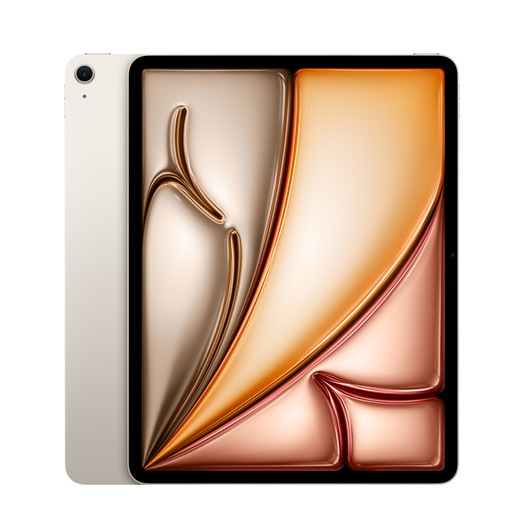 Image unavailable
The 13-inch version may suit you if you view charts and archive pages at a desk.
The product description mentions a Liquid Retina display and Apple Pencil support. The Pencil is sold separately.
 Image unavailable
The 12.7-inch screen and included stylus may be useful if you want to view scans on a larger display and make notes.
The product name lists 2K, 20 GB RAM (8 GB + 12 GB virtual), 256 GB storage and an included stylus.
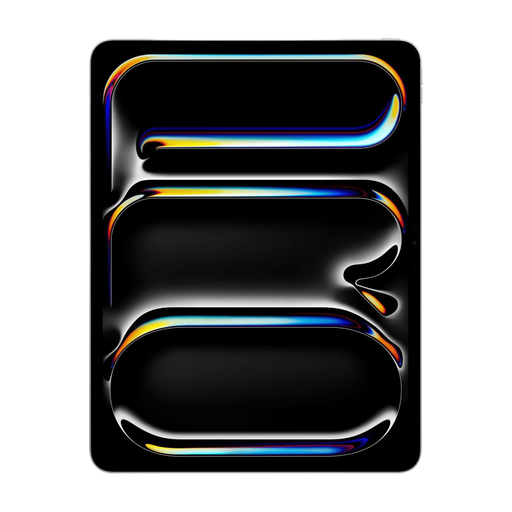 Image unavailable
The 13-inch screen may be suitable for viewing large scans at a desk. Check readability with your own files.
The product description lists an OLED display with a resolution of 2752 × 2064 pixels and peak brightness of up to 1000 nits. Apple Pencil must be bought separately.
 Image unavailable
This smaller screen may suit reading and writing while holding the tablet. See how much you need to zoom in on large charts.
The product name lists a 10.65-inch E-Ink screen. The description mentions reading and writing functions.
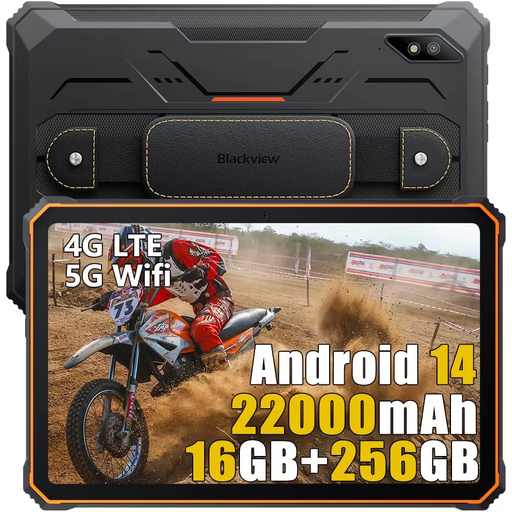 Image unavailable
This screen size may suit you if you’re looking for a tablet to view documents on. Check whether your waterway scans are easy to read on this size of screen.
The product name lists a 10.36-inch HD screen, 16 GB RAM (8 GB + 8 GB) and 256 GB storage.
No. A larger screen won’t automatically make a scan searchable. If a PDF contains images only, it may need OCR. For old handwriting and scan artefacts, check recognised text against the original image.
Apple describes settings for brightness, Dark Mode, True Tone and Night Shift. If your scans contain important colour differences, compare them without a warmer colour setting too. The dark system interface won’t necessarily change the light-coloured page in a PDF.
Alongside your annotations, keep a clear reference to the archive, catalogue and inventory number. Check that your chosen app can save an edited copy and open it again with your files.
According to ACM ConsuWijzer, online purchases generally come with a statutory 14-day cooling-off period after delivery. Check which exceptions and returns terms apply. If a product is faulty, the seller is responsible under the legal guarantee. This is separate from a commercial manufacturer’s warranty.
Not automatically. The National Archives says images can be freely reused if they have a download button and are marked ‘Public Domain’ or ‘CC0’. For other material, check the rights and terms set by the relevant archive and source.