If you’ll mainly be writing on PDFs and diagrams during the workshop, start by looking for a tablet that’s compatible with the exact stylus you want, and check whether it’s included. A larger screen is worth considering if you’ll be viewing maps and documents alongside your notes. If you’ll be carrying your tablet around a lot, its weight matters too. Save your course files in advance and check whether you’ll need live internet access during the workshop.
Who is this guide for?
Annotating PDFs
You want to write directly on course materials or mark up diagrams during the workshop. So check which stylus is compatible with the tablet and whether it’s included with the version you’ve chosen. Samsung explains how to annotate PDFs using Samsung Notes, while Apple explains how to mark up PDFs on an iPad.
Reading maps
You’ll mainly be looking at maps, measurement data and documents, and weighing up a larger workspace against how easy the tablet is to carry and hold.
Practical workshop attendees
You want to be able to open course files and notes while you’re out and about. Check the programme, the connection you’ll need and any accessories in advance so you can choose a version that suits your needs.
What should you look for?
Start with the task that matters most during the workshop: writing on course materials, viewing maps or opening files while you’re out and about. Then compare the stylus bundle, screen and connectivity your programme actually requires.
| What to consider |
What to look for |
Who is this important for? |
| Writing and annotating |
Check the exact tablet model, compatible stylus, box contents and the PDF app you plan to use. |
If I want to write directly on course PDFs during presentations, stylus compatibility comes first. Around 36% of consumers prioritise handwritten annotations. |
| Maps and documents |
Compare the screen size and weight of the exact version, and, if possible, view a representative map or PDF on it. |
If I want to view maps and documents side by side clearly, screen space is a priority. Around 29% of consumers prioritise being able to read maps and documents easily. |
| Files on the go |
Ask whether you’ll need live data, save permitted course files locally in advance and test that you can open them without a network connection. |
If I’m moving between workshop locations, I want to be able to open my prepared materials; live data may require a connection. Around 21% of consumers prioritise access to materials while they’re out and about. |
| Total cost |
Compare the exact bundle and only include accessories you need; assess any extra cover separately from your existing rights. |
I don’t want to pay for accessories my workshop doesn’t require. Around 14% of consumers prioritise the lowest total cost that meets their needs. |
Common buying mistakes
-
Assuming stylus support means the stylus is included
What’s in the box varies by model and version. For example, Apple doesn’t list a Pencil in the box contents for the iPad (A16), while Lenovo lists a stylus with the specific Idea Tab Pro ZAE40020SE version.
Before buying, check the full model number, compatible stylus and bundle contents.
A compatible stylus may need to be bought separately.
-
Assuming a larger screen is always more convenient
More screen space can be useful for maps and documents, but a large tablet may be less comfortable to hold for long periods or carry around frequently. According to Apple, the 13-inch Wi-Fi iPad Air weighs 616 grams.
Consider screen size and weight together and, if possible, view a representative PDF at the size you’re considering.
-
Confusing your statutory rights with the manufacturer’s warranty
According to the Dutch government, the Netherlands has no fixed statutory warranty period. What you can expect from a product depends, among other things, on the product and its price; if a product is faulty, you should contact the seller to resolve the issue.
Compare paid-for extra cover with your existing rights and check exactly what additional cover it provides.
Extra cover may cost you more without giving you any additional rights that are relevant to your situation.
Brands to compare
Samsung
The Galaxy Tab S10 FE series could suit you if you want to combine stylus use with PDF annotation. Samsung explains how to write with the S Pen in Samsung Notes; check the exact version and bundle.
- Samsung lists a 10.9-inch screen for the Galaxy Tab S10 FE and describes stylus features for the series.
- Manufacturer descriptions don’t tell you how an individual device will perform during your workshop; check what comes with the version you choose.
Apple
The iPad (A16) gives you the option of reading and annotating with a compatible Apple Pencil. The iPad Air is worth comparing if you’re looking for more screen space.
- Apple explains how to mark up PDFs on an iPad and lists support for specific Apple Pencil models with the iPad (A16).
- The listed box contents for the iPad (A16) don’t include a Pencil. According to Apple, the 13-inch Wi-Fi iPad Air weighs 616 grams.
Lenovo
The Idea Tab Pro ZAE40020SE is a large-screen option worth comparing if you’ll be viewing maps and course documents.
- Lenovo lists a 12.7-inch screen, 256 GB of storage and a stylus configuration for this version.
- Check whether the stylus is included with the version you’re looking at.
Xiaomi
The Pad 7 is an alternative worth comparing if screen proportions and reading space are important to you.
- Xiaomi specifies an 11.2-inch screen with a 3:2 aspect ratio for the Pad 7.
- Check separately whether a compatible stylus is right for your needs and included with your chosen version.
Tablets at Joybuy
This selection focuses mainly on tablets for handwritten notes and PDF annotation, with some larger-screen options for maps and documents too.
 Image unavailable
Lenovo Yoga Tab ZAG60028PL, 11.1-inch, 256 GB, with Tab Pen Pro
Worth a look if you want to take notes with a stylus and open course documents during the workshop.
The product title lists 8 GB RAM, 256 GB storage and Wi-Fi 7. The stated weight is 458 g.
View at Joybuy
 Image unavailable
Lenovo Idea Tab Plus WiFi, 12.1-inch, 256 GB, with stylus, Rose
Consider this version if you want to combine handwritten notes with a larger screen for course materials.
The product information lists a 12.1-inch 2.5K screen, 8 GB RAM, 256 GB storage and an included stylus.
View at Joybuy
 Image unavailable
Lenovo Idea Tab, MediaTek Dimensity 6300, 8 GB/128 GB
Worth comparing if you want to take notes with a stylus and view course materials on an 11-inch screen.
The product information lists an IPS screen, Android 15 and an included Tab Pen. A charger is not included.
View at Joybuy
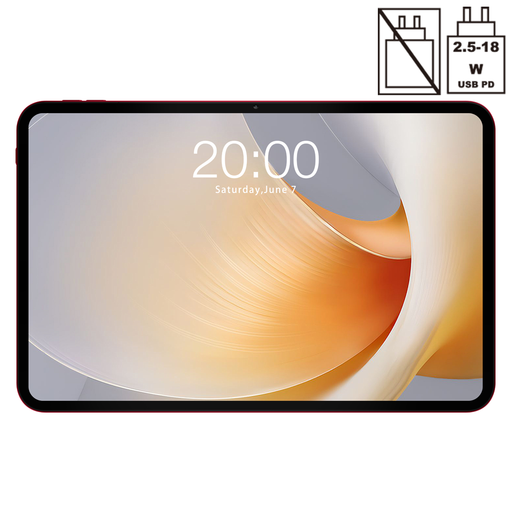 Image unavailable
TECLAST T65 Plus, 13.4-inch, 20 GB RAM + 256 GB ROM, Dual SIM 4G LTE
Worth a look if having plenty of room to read maps and documents is your priority.
The product title lists a 13.4-inch screen, 256 GB storage and Dual SIM 4G LTE.
View at Joybuy
 Image unavailable
iFLYTEK AINOTE Air 2, 8.2-inch E Ink tablet with stylus
A compact option worth comparing if reading PDFs and taking notes with a stylus matter more to you than having a large workspace for maps.
The product information lists 32 GB of storage and a weight of 230 g. Its screen is smaller than those of the larger-screen options in this selection.
View at Joybuy
Frequently asked questions
Do you need a tablet with mobile internet for Waterinfo?
Not necessarily. Rijkswaterstaat provides up-to-date water data through Waterinfo; ask whether you’ll need to access it live during the workshop and what connection will be available. Save any course files you receive locally in advance and test that you can open them without a network connection before you leave.
How should you prepare PDFs and notes?
Put any permitted course PDFs on your tablet in advance and try your chosen app with a sample file. Samsung explains how to import and annotate PDFs in Samsung Notes; Apple explains how to mark up PDFs in supported iPad apps. Also check where edited files are saved.
Do you need extra cover if you take your tablet to a workshop?
Extra cover does not replace your statutory rights. According to the Dutch government, the Netherlands has no fixed statutory warranty period; what you can expect from a product depends, among other things, on the product and its price. So consider paid-for cover only as a possible addition.
Can you return a tablet bought online in the Netherlands?
For a standard online consumer purchase, you’ll generally have a statutory cooling-off period of up to 14 days after delivery. Whether this applies and the conditions involved depend on the purchase; consult ACM ConsuWijzer to check which rules apply to your situation.


