What should you consider when choosing?
Start with your main task: viewing documents alongside notes, annotating maps, carrying the tablet around or running essential software. Your priority will determine which compromises matter most.
| What to consider |
What should you check? |
Who is this important for? |
| Documents and notes on one screen |
Open your own PDF and note-taking app at the same time. Check that the text remains easy to read and that there’s enough room to write. |
Do you want to refer to a document or map while writing? Around 36% of consumers prioritise this combination. |
| Writing and drawing with a pen |
Check pen compatibility, what’s included in the box and whether your apps can save annotations. |
If you mainly mark up maps and diagrams, you’ll want to write directly on them with a compatible pen. Around 29% of consumers prioritise this. |
| Portability and accessories |
Compare the size and weight, and check which required accessories are included with each model. |
Do you often take your tablet with you and want to know which accessories you’ll still need? Around 21% of consumers look at this first. |
| Essential course software |
Ask which programmes, plug-ins and peripherals are required, and check that they work with the specific tablet. |
If your course requires specific desktop software, check the system and processor requirements before choosing. Around 14% of consumers prioritise this compatibility. |
Tablets for documents and notes
These Joybuy product picks are intended for reading and taking notes on one device, with screen size and pen support as key considerations.
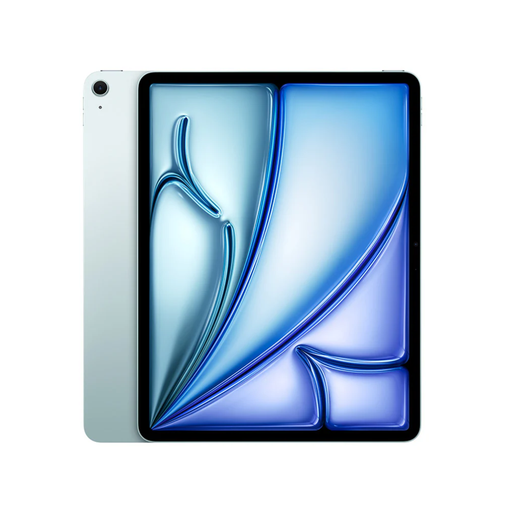 Image unavailable
Apple 13-inch iPad Air (M4), Wi-Fi, 128 GB, blue
The 13-inch screen gives you room to read study materials. Apple lists support for Apple Pencil Pro and Apple Pencil (USB-C) for the 13-inch iPad Air (M4).
128 GB of storage. If you want to write with a Pencil, check whether a compatible one is included with this model.
Joybuy
 Image unavailable
Apple 13-inch iPad Air (M4), Wi-Fi, 256 GB, space grey
The 13-inch screen gives you room to read documents. Apple lists support for Apple Pencil Pro and Apple Pencil (USB-C) for the 13-inch iPad Air (M4).
256 GB of storage. If you want to write with a Pencil, check whether a compatible one is included with this model.
Joybuy
 Image unavailable
TECLAST T65, 13.4-inch, 128 GB, with folio case
The 13.4-inch screen gives you plenty of room to read study materials. The product name says this model comes with a folio case.
Android 16 and 128 GB of storage. The product name doesn’t mention a pen, so check whether this model suits the way you take notes.
Joybuy
 Image unavailable
TECLAST ArtPad Pro, 12.7-inch, 2K, 256 GB, with stylus pen
The 12.7-inch screen gives you room for study materials. The product name says a stylus pen is included for writing and annotating.
2K screen and 256 GB of storage. Check that the stylus and your note-taking app’s features suit the way you work.
Joybuy
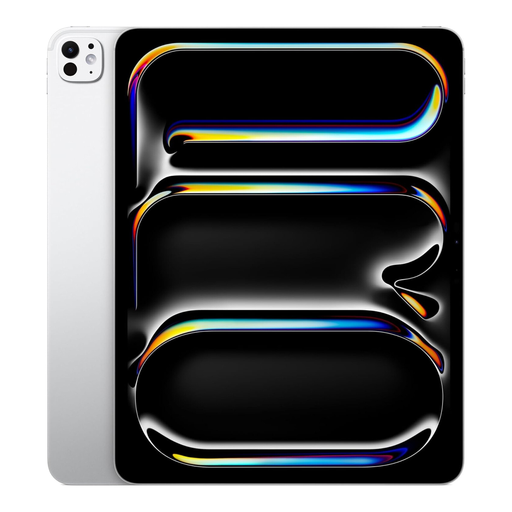 Image unavailable
Apple 13-inch iPad Pro (M5), Wi-Fi, 2 TB, silver
The 13-inch screen gives you room to read study materials. The product description lists support for Apple Pencil Pro.
2 TB of storage. If you want to write with a Pencil, check whether a compatible one is included with this model.
Joybuy
Frequently asked questions
Can you open a PDF and your notes on a tablet at the same time?
Yes, with suitable apps and the right settings. Apple describes ‘Apps in Windows’ for iPads running iPadOS 26 or later; Samsung describes split-screen use on Galaxy devices. Check that your PDF and note-taking apps support the setup you want.
How can you test whether a tablet is suitable for a study session without a second screen?
Open your own document and note-taking app at the same time, then check that the text, map legends and notes remain easy to read. Try annotating something, save it and reopen the document to make sure your markings have been kept.
In the Netherlands, do you always have to pay for a faulty tablet yourself after two years?
No, not automatically. According to ACM ConsuWijzer, the statutory guarantee applies for as long as the product should reasonably have continued to work under normal use. Its expected lifespan depends on the product and the circumstances. Report any problem to the retailer.
Can you try out a tablet bought online and send it back?
For a standard online consumer purchase, ACM ConsuWijzer says you usually have a statutory 14-day cooling-off period from delivery. Check the applicable exceptions and returns policy before buying.
Do new tablets sold in the Netherlands have to support wired USB-C charging?
The European Commission says the common USB-C charging rules have applied since 28 December 2024 to new tablets sold in the EU. This doesn’t mean a separate mains adapter is included in the box, so check what comes with the model you choose.


