For PDFs and other study apps, a standard tablet with a compatible pen is a good fit. If you want to view maps and notes side by side, a larger screen can help, but consider the extra weight too. A writing-focused tablet is another option if reading and writing matter more to you than general tablet features. Before you buy, check which pen is included and whether you can import, annotate and export your own files.
Which tablet is right for you?
PDF annotator
You want to add references and diagrams directly to reports or course materials, then find or share the edited files. The University of Twente describes handwritten digital notes on a tablet, while Samsung Notes and Apple Markup explain how to annotate PDFs.
Map reader
You compare maps, water data and text, and want to view details and your own notes side by side. The Dutch government explains the role of Rijkswaterstaat and water authorities in water management in the Netherlands.
Reader looking for a calmer experience
You mainly use your tablet for reading and handwriting, and prefer a writing-focused experience to general tablet features. reMarkable describes PDF import and annotation on the Paper Pro.
What should you look for when choosing?
First decide whether you mainly want to write directly on PDFs, view map details alongside your notes, or enjoy a calm reading and writing environment. The pen bundle, weight and any extra features can then help you make your decision.
Compact standard tablet with pen
A good fit if: you annotate PDFs on the go and want to use other study apps too.
Trade-off: there’s less room to view a map and notes at the same time; the pen varies by model and bundle.
Larger standard tablet with pen
A good fit if: you want to view map details or long report pages alongside handwritten notes.
Trade-off: according to Samsung’s specifications for the Wi-Fi models, the FE+ weighs 664 g compared with 497 g for the FE. The larger screen comes with extra weight.
Paper-like writing tablet
A good fit if: you mainly want to read and annotate PDFs and organise handwritten references.
Trade-off: check that the available file and app workflow suits your study materials; some extra features require a subscription.
| What to consider |
What to look for |
Who is this important for? |
| Writing on source PDFs |
Test with one of your own files to make sure you can import, write on, save and export it; check that the pen is compatible with the model. |
If you want to add references next to the relevant passage, the annotation workflow is crucial; around 31% of consumers prioritise writing on source PDFs. |
| Maps alongside notes |
View a representative map at your preferred reading size and try arranging it alongside a note. |
If you want to view map details and notes at the same time, workspace is a key consideration; around 25% of consumers are most concerned about maps and screen space. |
| Carrying it between study spaces |
Compare the tablet’s stated weight with the pen and case you plan to carry. |
If you carry your tablet around often, portability may matter more than having the largest screen; around 19% of consumers prioritise portability. |
| Calm reading and writing |
Check that your file formats and essential apps work, and find out how to retrieve annotated sources. |
If reading and writing are your main priorities, look for a workflow that suits your sources; around 13% of consumers prioritise a writing-focused reading experience. |
| Pen and extra features |
Compare the exact tablet and pen bundle, and only factor in subscriptions for features you need. |
If you want to understand the total cost of the pen, bundle and any extra features, compare the full configuration; around 12% of consumers make cost their top priority. |
Pitfalls to avoid when buying
-
Comparing tablets alone and forgetting the pen
Accessories included in the box vary by model. Samsung lists an S Pen in the box with the FE models reviewed; Apple lists support for certain Apple Pencils, but does not include a Pencil in the box contents for the iPad (A16).
Compare the exact tablet and pen combination, and check that the pen is compatible with the model you choose.
You may need to buy a compatible pen separately for handwritten notes.
-
Assuming a larger screen is always better for carrying around
Samsung lists the Wi-Fi FE+ at 664 g and the FE at 497 g.
Choose the extra workspace only if maps and reports matter more to you than portability.
-
Assuming a writing tablet works the same way with every study resource
reMarkable describes PDF import and additional Connect features. According to reMarkable, DRM-protected e-books are not supported.
Check the formats of your own resources and try retrieving an annotated file in the way you need.
According to reMarkable, some Connect features, such as unlimited cloud storage and searching handwritten notes, require a subscription.
Brands to consider
Samsung
The Galaxy Tab S10 FE and FE+ are standard tablets for anyone who wants to write on PDFs using an S Pen.
- Samsung lists an S Pen in the box with both FE models reviewed. Samsung Notes explains how to import, annotate, save and share PDFs.
- According to Samsung’s specifications, the FE+ has a larger screen than the FE and weighs more in the Wi-Fi models listed.
Apple
The iPad (A16) is a standard tablet for taking notes and marking up documents with a compatible Apple Pencil.
- Apple specifies support for Apple Pencil (USB-C) and Apple Pencil (1st generation); Apple Markup describes features for PDF files.
- Apple does not list a Pencil in the box contents for the iPad (A16). Check which pen works with your model and factor it into your buying decision.
Lenovo
The Tab P12 is a larger Android alternative; the ZACH0219SE model reviewed is listed as a bundle with Pen and Folio.
- Lenovo specifies a 12.7-inch screen for this model.
- The bundle details apply to the model listed; check whether a pen and case are included with the specific version available to order.
reMarkable
The Paper Pro is a specialist writing tablet for anyone who prioritises reading, PDF annotation and handwriting.
- reMarkable lists an 11.8-inch colour screen for the Paper Pro and describes PDF import.
- According to reMarkable, Connect adds features including unlimited cloud storage and searching handwritten notes. Check whether you need these features for your workflow.
Joybuy products for studying and annotating
This selection includes larger standard tablets for use with a compatible pen, as well as writing-focused tablets for reading and annotation. Check the pen bundle and the file workflow you need for each model.
 No image available
Apple 13-inch iPad Air (M4), Wi-Fi, 256 GB, Space Grey
Suitable for adding handwritten notes to PDF pages with a compatible Apple Pencil Pro, sold separately.
13-inch screen; 256 GB storage; supports Apple Pencil Pro.
View at Joybuy
 No image available
TECLAST ArtPad Pro, 12.7-inch 2K, 20 GB (8 GB + 12 GB virtual) RAM, 256 GB, with stylus
The product listing includes a stylus for taking notes and a 12.7-inch screen for studying and working with documents.
12.7-inch 2K screen; 20 GB RAM, comprising 8 GB + 12 GB virtual memory; 256 GB storage.
View at Joybuy
 No image available
iFLYTEK AINOTE 2, 10.65-inch E Ink tablet
A writing-focused tablet for reading and handwritten study notes; the product description mentions a stylus.
10.65-inch screen; the product description mentions note synchronisation.
View at Joybuy
 No image available
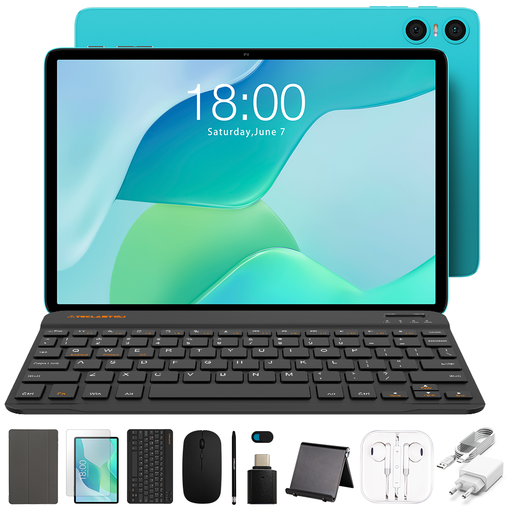
TECLAST P33, 10.1-inch, 64 GB, accessory bundle with stylus
The bundle includes a stylus for handwritten notes and accessories for studying.
10.1-inch screen; 9 GB RAM (3 GB + 6 GB virtual expansion); 64 GB storage. The listed bundle also includes a case, Bluetooth keyboard, Bluetooth mouse, tablet stand, charger, data cable, earphones, OTG adapter cable and camera protection.
View at Joybuy
 No image available
iFLYTEK AINOTE Air 2, 8.2-inch E Ink tablet with case
The product description mentions reading and writing notes directly on PDFs; the smaller screen offers less room to view a map alongside notes.
8.2-inch screen; according to the product description, the device weighs 230 g and comes with a stylus.
View at Joybuy
Frequently asked questions
How can I keep handwritten references with the relevant report page?
Import a PDF into an app that supports annotation, write next to the relevant passage, then check the saved or exported version. Samsung describes this workflow for Samsung Notes; reMarkable describes PDF import and markup. First, test with a sample file to make sure the file exchange you need works.
Which pen works with the iPad (A16)?
Apple lists support for Apple Pencil (USB-C) and Apple Pencil (1st generation). For the 1st generation, Apple specifies a USB-C to Apple Pencil Adapter for pairing and charging; a Pencil is not listed in the stated box contents for the iPad (A16).
Do I need a subscription to use PDFs on reMarkable?
According to reMarkable, standard PDF import is described separately from Connect. The manufacturer says Connect includes extra features such as unlimited cloud storage, searching handwritten notes and converting PDFs into editable notebooks. Consider which of these features you actually need.
What warranty and cooling-off period apply to online purchases in the Netherlands?
According to the Dutch government, products must be of satisfactory quality; there is no fixed statutory warranty period in the Netherlands. Many online distance purchases come with a 14-day cooling-off period, although exceptions apply. Check whether the rules apply to your specific purchase.


