
Planner who sketches schedules
Wants to quickly sketch a training plan or annotate documents between appointments. Focus on pen compatibility and what’s included with the model you choose.


Start by thinking about how you prepare a session. A compatible pen is important for handwritten schedules and annotations, while longer texts or specific desktop software may call for a keyboard or Windows tablet. Then compare screen size and connectivity for use on the go, factor in any accessories and check that your planning apps work on the exact model.
Wants to quickly sketch a training plan or annotate documents between appointments. Focus on pen compatibility and what’s included with the model you choose.
Writes longer session plans or uses specific software. First decide which app or desktop workflow you need, then choose your tablet and keyboard.
Moves between locations and wants to access documents when there’s no Wi-Fi. Compare portability, offline access and the connectivity option you need.
A good fit if: your planning tools and documents work in suitable iPad apps and you mainly want to read, annotate or type. Apple lists support for Apple Pencil (USB‑C) and Apple Pencil (1st generation) for the 11-inch iPad (A16).
Keep in mind: the right pen and any keyboard case depend on the model; also check whether your software is available in the form you need.
A good fit if: you mainly want to sketch schedules or annotate documents and your apps are available on Android. Samsung lists a 10.9-inch screen and S Pen support for the Galaxy Tab S10 FE.
Keep in mind: the pen and keyboard may vary by model or bundle; check what’s included and the update policy.
A good fit if: your planning depends on specific Windows programmes or a typing-intensive workflow. Tweakers names the Surface Pro 11 as a productivity alternative for those who need Windows.
Keep in mind: Tweakers finds Windows less enjoyable for tablet-only use and highlights possible accessory costs; this assessment applies to the configuration mentioned.
Next, decide which practical need matters most to you. The points below will help you assess the exact model and the complete package.
| What to consider | What should you check? | Who should give this more weight? |
|---|---|---|
| Schedules and annotations | Check which pen is compatible and whether it’s included with the exact model. | If I plan sessions visually, I want to sketch schedules and mark up documents on the spot. Around 33% of consumers say drawing and annotating are their top buying priorities. |
| Software and typing | Check that the required app works and that a compatible keyboard is available. | When I write longer plans or need existing software, I want to be able to carry on with my usual workflow. Around 25% of consumers prioritise software and typing. |
| Portability and connectivity | Compare the size of the model and decide whether you need offline files, Wi-Fi or mobile data. | When I’m between locations, I want to access documents without relying on Wi-Fi. Around 25% of consumers give access on the go top priority. |
| Client data | Consider what data you process and check that the security settings and app permissions are suitable for how you’ll use the tablet. | If I process client data on my tablet, I want security to be a key requirement from the outset. Around 17% of consumers say protecting client data is their top buying priority. |
Accessory support doesn’t automatically mean the accessory is in the box; what’s included can vary by model or bundle.
Check the contents and compatibility of the exact model before choosing the complete package.
You may need to buy a compatible pen or keyboard case separately.
A larger screen can give you more room to view a plan, but according to the Consumentenbond, tablets measuring 12 to 14 inches are less convenient to carry around.
View a representative document on the screen and consider how the tablet will fit in your bag between appointments.
A Wi-Fi model doesn’t automatically have its own mobile data connection. If your documents are only stored online, you’ll need an available connection to access them on the go.
Decide whether offline files or available Wi-Fi will be enough before choosing a model with mobile data.
Independent mobile access may require a model with mobile data and a mobile data plan.
An iPadOS option if your planning tools and documents work in suitable iPad apps.
An Android option for planning with a pen on a mid-sized screen.
Idea Tab models and bundles to compare when deciding what to include in your planning set-up.
A Windows option if specific Windows software matters more than using the device solely as a tablet.
This selection includes tablets for handwritten schedules and document annotations, as well as options for typing or staying connected on the go. For your own planning, check app compatibility, connectivity and what’s included in the box.
 No image available
The product information lists an included Lenovo Pen for notes, sketches and document annotations.
The product name lists a 12.1-inch screen, 2.5K resolution, 8 GB RAM, 256 GB storage and Wi-Fi.
 No image available
The product description mentions iPadOS, note-taking and Apple Pencil support; check that your planning apps work on this model.
According to the product description, the Apple Pencil and other accessories are sold separately.
The product name lists Wi-Fi and 256 GB storage.
 No image available
The product information mentions handwritten notes, tasks and calendar management with the stylus; check that the features suit your planning workflow.
The product information lists a weight of 230 g and an 8.2-inch E Ink screen.
 No image available
The product information lists an included Tab Pen for writing and drawing, making it suitable for handwritten schedules and annotations.
The product name lists an 11-inch IPS screen, 8 GB RAM, 128 GB storage and Android 15. The product information states that a charger is not included.
 No image available
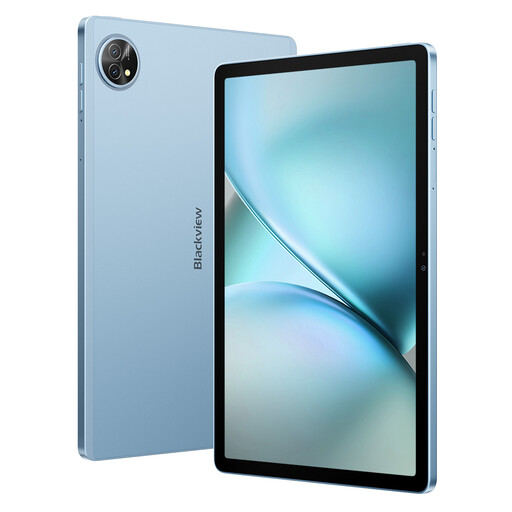
The product name lists an included keyboard and stylus, for anyone who wants to switch between sketching and typing session plans.
The product name lists dual-SIM 4G and Wi-Fi 5G; check which connection you need at your locations.
The product name lists 128 GB storage and 24 GB (8+16) RAM.
It can be practical if you carry your tablet around frequently. The Consumentenbond notes that tablets measuring 12 to 14 inches are less convenient to carry, although a larger screen gives you more room to view a session plan. If possible, try your own document on a screen of the size you’re considering.
Before buying, check that the exact app and workflow are available on the operating system of the model you’ve chosen. If possible, also test the features you need, such as editing, saving and sharing a plan.
No. Accessory support doesn’t in itself mean that the accessory is included. Check what’s in the box and the compatibility of the exact model; a pen or keyboard case may be sold separately.
Only if a connection is available or the files you need are stored offline. Check whether you’ll have Wi-Fi at your locations, and choose a model with mobile data only if your tablet needs to connect independently.
Match your security measures to the personal data you actually process. The Dutch Data Protection Authority says that organisations must protect personal data properly, and that appropriate measures depend on how it is processed. When setting up your tablet, consider access controls, app permissions and software updates.