
Script reader who makes lots of notes
You want to make notes about scenes during your journey and check that your PDF app, pen and page margins work well together.


For a full script and handwritten notes, a standard tablet of around 11 inches is a practical starting point. Test your own PDF to see whether the text and margins are comfortable to read. A more compact model may be easier to carry, while a paper-like tablet is better suited to reading and annotating than to using a wide range of general-purpose apps. Download your script in advance and check that it opens offline, as Wi-Fi and charging facilities aren’t always available.
You want to make notes about scenes during your journey and check that your PDF app, pen and page margins work well together.
You’re looking for a tablet that’s easy to carry and use on your lap, without sacrificing more reading space than necessary.
You mainly read existing PDFs and are considering a paper-like screen, provided the lighting and your file-handling process are suitable.
A good fit if: you want to read and annotate full PDF pages, as well as use regular tablet apps.
The trade-off: the pen isn’t included with every version, and how comfortably the page reads depends on your own PDF.
A good fit if: you mainly read scripts, write occasionally and want to assess the tablet, pen and any case as a complete package.
The trade-off: what’s included varies by version, so check exactly which accessories come with it.
A good fit if: you mainly read PDFs and annotate them with a pen, and general-purpose tablet apps are less important to you.
The trade-off: reMarkable states that Paper Pure has no reading light, so consider the lighting conditions during your journey.
| Consideration | What to check before buying | Who is this important to? |
|---|---|---|
| Reading full script pages | Open one of your own PDFs in portrait orientation and check whether dialogue, character names and margins are legible without constantly zooming in. | If I want to read a script page at a glance, readability comes first. Consumers with this priority make up around 29%. |
| Notes on scenes | Check which pen is compatible with the version you’re considering, then test with your own PDF to make sure annotations are saved and can be reopened. | If I want to note stage directions directly alongside the text, I check the pen and app together. Consumers who prioritise annotation make up around 23%. |
| Ease of use on the move | Compare the weight of the exact tablet with the case you plan to use, and try reading with the device on your lap. | When space is limited and I want to hold the tablet during the journey, portability matters more. Consumers with this priority make up around 18%. |
| Script available offline | Save the right PDF in advance and test that it opens and remains usable in your chosen app without a network connection. | I don’t want to rely on a connection to open my script. Consumers who prioritise offline access make up around 18%. |
| Complete setup | Compare the exact version, pen and case you need. Apple lists Pencil compatibility for the iPad (A16), but no Pencil in the stated box contents. | If I want to read and write, I compare the complete setup rather than just the tablet. Consumers who prioritise the total purchase cost make up around 12%. |
Apple lists Apple Pencil support for the iPad (A16), but doesn’t include a Pencil in the box contents. Samsung, on the other hand, lists an S Pen in the box for the Galaxy Tab S10 FE.
Check what’s included with the exact version before deciding which pen you need.
To write on an iPad, you’ll need to source a compatible Pencil separately.
Samsung lists the Galaxy Tab S10 FE+ Wi-Fi as weighing 664 grams, compared with 497 grams for the Galaxy Tab S10 FE Wi-Fi. More screen space can therefore mean more weight.
Try your own script page on the tablet and see whether the size is still comfortable on your lap.
NS says that Wi-Fi is available on almost all Intercity trains, and that charging on board isn’t always possible.
Download the correct version of your script in advance, test that it opens offline and charge your device before setting off.
reMarkable states that Paper Pure has no reading light. This matters if you regularly read on trains with less-than-bright lighting.
Consider the lighting in which you plan to use the tablet, and try a representative PDF before making your choice.
The Galaxy Tab S10 FE range is worth considering if you’re looking for a standard tablet with a pen for annotating scripts.
The iPad (A16) is an option if you want to read scripts on a standard iPad and choose your own pen and app.
The Tab M11 versions described are worth considering if you want to compare a tablet and pen, or a bundle with accessories.
Paper Pure is a paper-like option for anyone who mainly reads PDFs and annotates them with a pen.
These product suggestions focus on standard tablets with screens of around 11 inches, including models with a pen for making notes on the move.
 Image unavailable
The product name lists an 11.1-inch screen and a Tab Pen Pro, making it worth comparing if you want to read scripts and make notes.
The stated configuration includes 12 GB RAM, 256 GB storage, Wi-Fi 7 and Android 15.
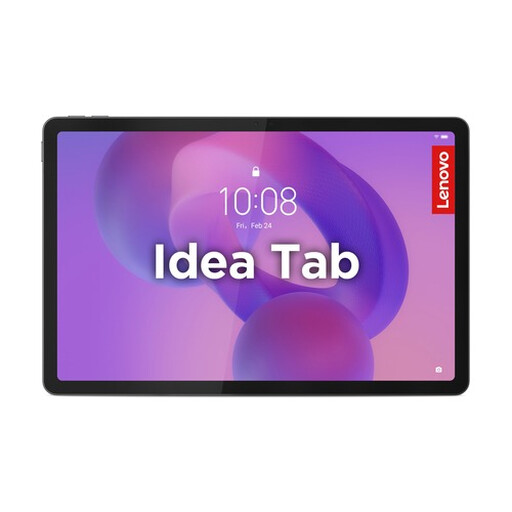 Image unavailable
This 11-inch Lenovo tablet is worth comparing if you want to read scripts on a standard tablet and write with a pen.
The stated version has 8 GB RAM, 256 GB storage and Android 15; the product description says that a Tab Pen is included.
 Image unavailable
An 11-inch tablet with an included Lenovo Tab Pen to consider if you want to make notes while reading.
The stated specifications include a 2560 × 1600-pixel IPS screen, 90 Hz, 500 nits, 8 GB RAM and 128 GB storage. The description says that a charger isn’t included as standard.
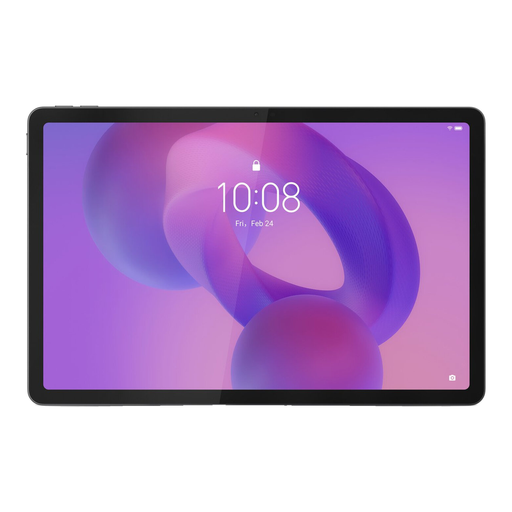 Image unavailable
This Lenovo Idea Tab is worth comparing if you’re looking for a tablet with a stylus for reading and annotating scripts.
The stated product name lists 256 GB storage and Android 15. The description says that a charger isn’t included as standard.
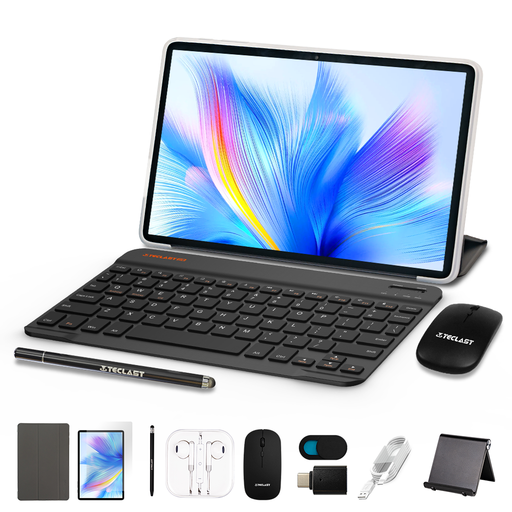 Image unavailable
This tablet kit is worth comparing if you’re looking for an 11-inch tablet with a stylus and case for travelling.
The product name lists a 90 Hz IPS screen, 128 GB storage, 8000 mAh battery, and a stylus and case in the kit.
Not if you make the files you need available offline in advance. NS says that Wi-Fi is available on almost all Intercity trains, but not every train, so test whether your particular script opens without a connection. Google Drive Help explains the ‘Make available offline’ option for Android.
Before setting off, check that you have the right version, save the file and test that it opens without a network connection. In Google Drive on Android, you can make an individual file available offline. On an iPad, downloaded files can be found in the Files app, according to Apple Support. Also check in your own app that annotations are saved.
No. NS says that charging on the train isn’t always possible. Charge your tablet in advance and, if you think you’ll need one, take a suitable power bank.
No. According to the Dutch government, the Netherlands has no fixed statutory warranty period for consumer purchases, although you are entitled to a product that works properly. If a product is faulty, contact the seller. A manufacturer’s or extended warranty doesn’t replace your statutory rights.
NS lists reading as a suitable activity in the quiet zone and the work and rest zone. In the quiet zone, be considerate of other passengers and avoid making distracting noises. This information applies to NS trains and doesn’t necessarily apply to every train operator.