Start with your exact tablet model: Apple Pencil, S Pen and EMR pens are not interchangeable. For hand lettering and illustrations, you need a pen and design app that support pressure-sensitive lines. For sketching and text corrections, tilt sensitivity and straightforward controls may be enough. Check the print file separately: using a compatible stylus won’t prevent mistakes with margins, bleed or legibility.
Who is designing the invitations?
Invitation illustrator
You might be drawing decorative details or hand lettering. As well as checking compatibility with your tablet, make sure both the pen and design app support pressure-sensitive lines. Apple, Adonit and STAEDTLER provide compatibility and feature details for each product or technology.
Collaborative designer
You sketch, edit text or adjust the layout at a shared workspace. In this case, easy setup, convenient storage and a clearly readable proof may matter more than extra drawing features. Logitech describes Crayon as a pen that works without complicated Bluetooth pairing.
Galaxy Tab or EMR tablet owner
You’re looking for a replacement or additional pen. First, identify your tablet model and the pen technology it supports; Samsung and STAEDTLER list compatibility for each version.
What should you look for?
Apple Pencil Pro
Best for: a compatible iPad and hand lettering or illustrations where pressure sensitivity and extra creative controls are useful.
Keep in mind: check that your iPad and design app support the features you want. This pen isn’t a general-purpose choice for older iPads or Android tablets.
Apple Pencil (USB-C) or Logitech Crayon (USB-C)
Best for: sketching, layout and corrections on a compatible iPad when pressure-sensitive lines aren’t essential. Apple describes the USB-C version as tilt-sensitive; Logitech says Crayon isn’t pressure-sensitive.
Keep in mind: tilt sensitivity isn’t the same as pressure sensitivity. Check the exact iPad model and pen version too.
Samsung S Pen
Best for: sketching and note-taking on a Galaxy Tab that’s explicitly compatible with the pen in question.
Keep in mind: the name S Pen alone doesn’t guarantee compatibility; Samsung lists specific models for the EJ-PX510BJEGEU.
STAEDTLER Noris digital
Best for: a tablet with a compatible EMR screen if you want a pencil-shaped pen that doesn’t need charging or pairing, according to STAEDTLER.
Keep in mind: the pen only works with compatible EMR screens. Line thickness that varies with pressure also depends on the app.
Adonit Note+ 2
Best for: an iPad on Adonit’s compatibility list and a drawing app that supports the pen features you want.
Keep in mind: according to Adonit, pressure sensitivity and shortcuts require pairing with specific apps. Check the exceptions for magnetic attachment too.
| What to consider |
What should you check? |
Who is this important for? |
| Compatibility |
Compare your exact tablet model with the pen’s compatibility list. For Noris digital, also check whether the screen uses EMR technology. |
If I’m looking for a pen for a tablet I already own, I want to make sure they’ll work together. Around 33% of consumers prioritise tablet compatibility. |
| Control over lines |
Check that both the pen and design app support pressure and tilt. |
If I’m creating hand lettering or illustrations, I want to know how I can vary my lines. Around 27% of consumers give drawing control top priority. |
| Working at a shared desk |
Find out how the pen starts up, charges and stores; check that any attachment method works with your tablet. |
If we take turns sketching and making corrections, I want to be able to pick up and put away the pen easily. Around 20% of consumers prioritise smooth collaboration. |
| Print-ready design |
Check the margins and bleed in your design software, follow the printer’s file requirements and review a proof. |
If I’m getting invitations printed, I want to check small text and borders beforehand. Around 20% of consumers consider the printed result the most important factor. |
Common mistakes when choosing
-
Assuming a tablet stylus works with every tablet
Compatibility lists and screen technologies vary between versions. A pen may therefore be unsuitable for your device or the features you want.
Look up your exact tablet model and compare it with the pen manufacturer’s compatibility list.
-
Confusing tilt sensitivity with pressure sensitivity
These features aren’t the same. A tilt-sensitive pen doesn’t automatically produce pressure-sensitive lines, and app support may be required.
Check that both the exact pen and design app support pressure sensitivity if you need it for hand lettering or illustrations.
-
Assuming a design that looks good on screen is print-ready
A design that looks good on screen hasn’t necessarily been checked for margins, bleed or legibility in print.
Follow your printer’s requirements and check the text, margins and bleed in your design software. If possible, review a proof before having the invitations printed.
Brands to compare
Apple
Apple Pencil versions are designed for specific iPads. The USB-C version is intended for tasks such as sketching and annotating, while the Pro offers extra creative controls.
- Apple lists compatibility for each pen version.
- Features and compatible iPads vary by version; a Pro pen won’t necessarily work with every iPad you already own.
Samsung
Samsung S Pen versions are designed for specific supported Galaxy tablets.
- Samsung describes sketching and magnetic storage for the EJ-PX510BJEGEU.
- Check your tablet model; features of one S Pen don’t automatically apply to other versions.
Logitech
Logitech Crayon is an iPad pen for drawing and annotating when pressure-sensitive lines aren’t essential.
- Logitech describes instant use and tilt control for adjusting line thickness.
- The Logitech guide says Crayon isn’t pressure-sensitive; check that the USB-C version is compatible with your iPad.
STAEDTLER
Noris digital is a pencil-shaped option for tablets with compatible EMR technology.
- STAEDTLER lists replaceable nibs and use without charging.
- The pen won’t work with just any touchscreen; pressure-sensitive lines also require app support.
Adonit
Note+ 2 is an alternative for iPads on Adonit’s compatibility list, with drawing features that depend on the app.
- Adonit describes pressure sensitivity and shortcuts for use with specific apps.
- Check the iPad model and app separately; Adonit also lists exceptions for magnetic attachment.
Joybuy products
These products are designed for sketching, drawing, and laying out or correcting invitations on a compatible device. Always check that the pen works with your tablet before buying.
 No image available
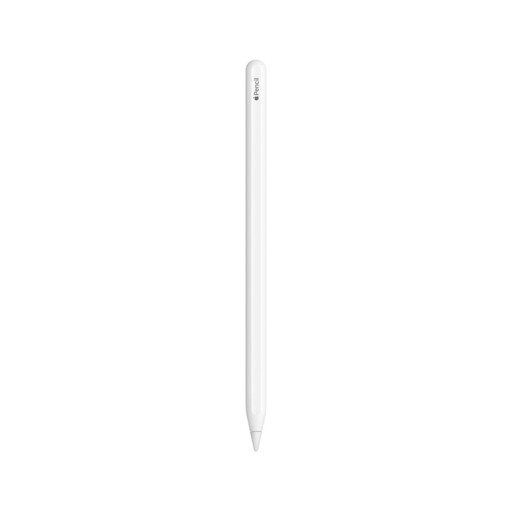
Apple Pencil 2nd Generation
An option for sketching and drawing on a compatible iPad; check the compatibility list for your model.
The product description warns that magnetic components may affect medical devices.
Joybuy
 No image available
Apple Pencil Pro 2024
For hand lettering or illustrations on a compatible iPad when you need pressure and tilt sensitivity; Apple lists compatibility for each iPad model.
The product description mentions iPad Pro M4, iPad Air M2 and iPad mini A17 Pro, among others. Check that your exact model is on the compatibility list.
Joybuy
 No image available
Apple Pencil (USB-C), white
For sketching and layout on a compatible iPad when tilt sensitivity is enough. Apple describes this version as tilt-sensitive, not pressure-sensitive.
Check the compatibility list for your exact iPad model.
Joybuy
 No image available
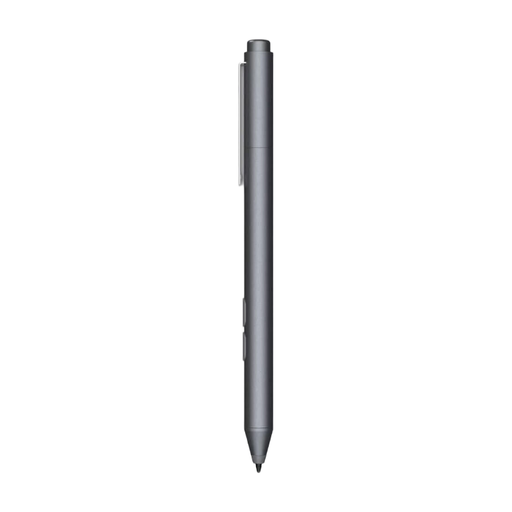
HP MPP 1.51 Stylus Pen
An option to consider for drawing on a device that supports MPP; check compatibility with your tablet or PC.
The product name mentions customisable buttons and one replaceable nib.
Joybuy
 No image available
Samsung EJ-PX510 Stylus Pen, beige
For sketching on a Galaxy Tab S9 FE or S9 FE+, according to the product description; check that your exact tablet model is supported.
The product description warns that magnets may affect credit cards or medical devices.
Joybuy
Frequently asked questions
Will a pen that works with one tablet also work with our other tablet?
Not necessarily. Compare the exact model of each tablet with the pen’s compatibility list; STAEDTLER Noris digital, for example, requires a compatible EMR screen.
How can I check whether pressure sensitivity works in my design app?
Check both the pen and the app. According to Adonit, Note+ 2’s pressure sensitivity only works after pairing with specific apps; the Logitech guide says Crayon isn’t pressure-sensitive.
What should I check before sending the invitations to the printer?
Follow your printer’s file requirements and check the text, margins and bleed in your design software. If you’re working in Canva, review the proof and choose an export file that meets the printer’s requirements; Canva describes PDF Print, including options for bleed and crop marks.
Do I have a cooling-off period if I buy a pen online in the Netherlands?
According to the Dutch government, many distance purchases come with a 14-day cooling-off period; exceptions and the circumstances of the purchase matter. Check which terms apply to your purchase.


