First, choose a stylus that the manufacturer confirms works with your exact tablet model and, where relevant, software version. Tilt sensitivity and pen controls can be useful for arrows, labels and annotations. If you want to vary line thickness with pressure, check that feature separately. Then consider how the pen pairs, charges and is stored, and whether you already have the cables or accessories you need.
Who is this choice relevant to?
Diagram creator with an existing tablet
You want to draw arrows, shapes and short labels, and above all avoid choosing a pen that won’t work with your tablet. Apple Support Netherlands, Samsung Netherlands and Microsoft Support provide compatibility details for each pen and device model.
Teacher who annotates frequently
You switch between explaining, drawing and working with documents at your sit-stand desk. In that case, pen controls and a dedicated place to store it may matter more than extra freehand drawing features.
Creator of detailed diagrams
You want to create sketch lines as well as diagrams, and vary the line style. Compare pressure sensitivity and tilt sensitivity separately, and check that your device supports those pen features.
What should you look for?
Start by checking your exact tablet model against the pen’s compatibility list. Then compare the drawing features and how you’ll charge and store the pen.
| What to consider |
What should you check? |
Who is this for? |
| Compatibility |
Check that the exact tablet model is compatible with the pen. Where relevant, also check the software version or digitiser standard. Apple Support Netherlands, Samsung Netherlands and Microsoft Support provide model-specific information. |
I already have a tablet and want to make sure pen input works before comparing features. Around 33% of consumers prioritise compatibility with their own device. |
| Line control |
Check whether the specific pen offers tilt sensitivity, pressure sensitivity or other pen controls. These features are different and vary between combinations. |
If I want to draw clear arrows and labels, I look for features that suit the way I sketch. Around 27% of consumers prioritise legible lines and control when sketching. |
| Charging and storage |
Compare how the pen pairs, charges and can be stored, along with the tablet. Apple Support Netherlands explains that the Apple Pencil (USB-C) charges via cable, while Apple Pencil Pro charges magnetically with compatible iPads. Microsoft lists charging options for Surface pens that depend on the model and accessories. |
When switching between explaining and drawing, I want to be able to pick up and put away my pen quickly. Around 20% of consumers prioritise being ready to use it, charging and being able to find the pen again. |
| Accessories and maintenance |
Check what’s included, which charging accessories you’ll need and whether replacement tips are available for your pen. |
I want to know in advance which accessories or replacement parts I might need. Around 20% of consumers focus mainly on costs and maintenance after purchase. |
What to watch out for when buying
-
Choosing a pen just because it’s the same brand as your tablet
Compatibility can vary by tablet model and pen version. So, seeing the same brand name doesn’t confirm that the pen will work.
Find the exact model of your tablet and compare it with the compatibility information for the specific pen.
A required cable or compatible charging accessory could affect how you charge the pen between uses.
-
Assuming tilt sensitivity and pressure sensitivity are the same feature
Tilt sensitivity alone doesn’t tell you whether pressure-sensitive line thickness is available. If you want to vary your lines, check that feature separately.
Decide whether you’ll mainly draw consistent diagram lines or also want to sketch with pressure-sensitive strokes, then check the pen and device specifications.
Brands to consider
Apple
Apple Pencil versions are designed for specific iPad models and can be suitable for annotating, diagramming and drawing.
- Apple lists features including squeeze, barrel roll and magnetic charging for Pencil Pro on compatible iPads. The Pencil (USB-C) pairs and charges via cable.
- Compatibility varies by version, so check your exact iPad model before choosing an Apple Pencil.
Samsung
S Pen versions are designed for compatible Galaxy devices. The Galaxy Tab S11 Series S Pen is specifically documented for Tab S11 and S11 Ultra.
- Samsung lists pressure sensitivity and a replaceable tip for the S11 pen.
- Compatibility and Bluetooth features vary between S Pen versions; features of the S11 pen don’t automatically apply to other models.
Microsoft
Surface Slim Pen versions are relevant for Surface devices that support pen input.
- Microsoft describes features such as pressure levels, attachment and haptic signals for each Surface model.
- Not all Surface models support pen input. Charging depends on the device or a compatible accessory; a separate charger is sold separately.
Logitech
Logitech Pen is a USI 1.0 stylus for devices with a compatible digitiser.
- Logitech specifies that the Pen is a USI 1.0 stylus.
- Check that your device has the required USI digitiser; the name Chromebook alone doesn’t confirm compatibility.
Wacom
Bamboo Ink Plus is an option for compatible Windows devices with Wacom AES or Microsoft Pen Protocol.
- Wacom lists support for the protocols above and charging via USB-C.
- Performance depends on the device and software. Wacom states that Bamboo Ink Plus doesn’t work with Apple products.
Styluses at Joybuy
This selection includes styluses for iPad, compatible Surface devices and other tablets. Before buying, check that the specific pen is suitable for your device and the features you need.
 No image available
MP-02 stylus for Microsoft Surface, black
For drawing and writing on a Surface model that supports pen input; check compatibility with your exact device.
The product description lists 4,096 pressure levels, palm rejection and magnetic attachment.
The specified lithium-ion battery is not included.
Joybuy
 No image available
Microsoft Surface Slim Pen 2, black, 8WV-00002
For drawing and annotating on a Surface model that supports pen input; check compatibility and charging options for your combination.
The product description lists 4,096 pressure levels and haptic signals.
Charging depends on the Surface model or a compatible accessory; a separate Slim Pen charger is available if you need one.
Joybuy
 No image available
Apple Pencil Pro
For drawing with pressure and tilt sensitivity on a compatible iPad; check that your exact model is supported.
The product description lists squeeze and barrel roll controls, as well as magnetic pairing and charging.
Joybuy
 No image available
Apple Pencil (USB-C), white
For drawing, writing and annotating on a compatible iPad; check the list of supported models for your tablet.
Apple lists tilt sensitivity. Pairing and charging are via USB-C; on this version, magnetic attachment to the iPad does not mean magnetic charging.
Joybuy
 No image available
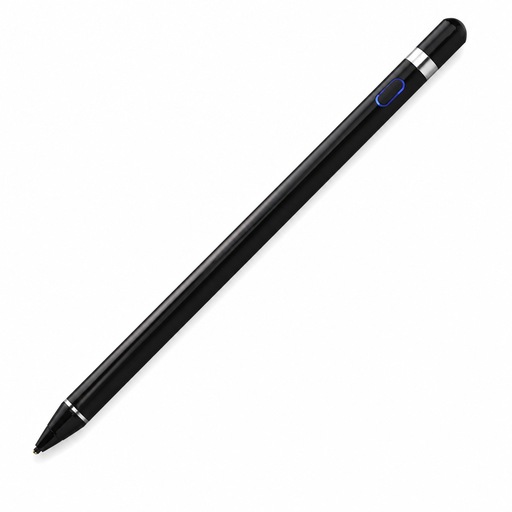
VoxorAI HL-U05 active stylus
For drawing and writing when the pen, its companion app and your device are all compatible; check the combination in advance.
The product description lists pressure sensitivity, a built-in battery and Bluetooth pairing via the companion app.
Joybuy
Frequently asked questions
How can you tell whether a stylus will work with your tablet?
First, find your exact tablet model, then check the compatibility information for the specific pen. Also look out for any software version or digitiser requirements; the term ‘touchscreen’ alone doesn’t confirm support for active pen input.
What can you do if an Apple Pencil won’t pair?
First, check that the Pencil is compatible with your iPad, that your iPad is up to date and that the Pencil has enough charge. Apple states that pairing and charging a first-generation Apple Pencil with an iPad (A16) or iPad (10th generation) requires a USB-C to Apple Pencil Adapter.
When should you replace a pen tip?
Follow the instructions for your pen model. Samsung describes a replaceable tip for the Galaxy Tab S11 Series S Pen. For other pens, check the model-specific instructions and replace a damaged or worn tip as directed by the manufacturer.
Do you always have 14 days to change your mind when buying online in the Netherlands?
According to the Dutch government, a 14-day cooling-off period applies in many cases when you buy from a business at a distance. This rule doesn’t necessarily apply to purchases from a private seller; also check which terms and exceptions apply to your purchase.
Is a manufacturer’s warranty the same as your statutory rights?
No. According to the Dutch government, statutory warranty in the Netherlands concerns your right to a product that works as it should, and there is no fixed statutory warranty period. A manufacturer’s or seller’s warranty is additional; if a product is faulty, the seller must provide a solution.


