First, choose a stylus that’s compatible with your exact tablet model. Then check that your approved marking app can open, annotate and return the submitted file. For marking, these requirements often matter more than extra drawing features. Also consider how the stylus charges and your school’s rules on pupil data.
Who is this guide for?
Teacher with an existing tablet
You want to mark pupils’ work with a stylus without buying an incompatible accessory. The exact tablet model determines which stylus will work; Apple Support, Samsung, Microsoft and Lenovo publish compatibility information for specific models or stylus versions.
Teacher who gives feedback on PDFs
You want to save and return handwritten comments. Samsung explains how to import, annotate, save and share PDFs in Samsung Notes; also check that the app fits your school’s way of working.
Teacher who works with pupil data at home
When working with identifiable pupil work, you need to follow your school’s rules on devices, accounts and apps. The Dutch Data Protection Authority explains schools’ responsibilities for protecting personal data.
What should you look for in a tablet stylus?
First check that the stylus works with your tablet. Then test the complete process, from opening the file to returning feedback, and finally consider charging and your school’s rules.
| What to consider |
What should you check? |
Who is this important for? |
| Compatibility |
Note down the full tablet model and check with the manufacturer which stylus and software versions are supported. |
I want to keep using my existing tablet and avoid buying a stylus that won’t work with it; around 28% of consumers put compatibility first. |
| Annotating and returning work |
Using a non-confidential sample file, test whether the approved app can open, annotate, save and return the document. |
I want to save corrections on submitted work and send it back; around 22% of consumers prioritise this complete marking process. |
| Pupil data |
When working with identifiable work, check which devices, accounts, apps and storage or sharing methods your school allows. The Dutch Data Protection Authority outlines schools’ accountability for protecting personal data in the Netherlands. |
I want to mark work at home without going against the rules on pupil data; around 22% of consumers choose this as their top consideration. |
| Charging and maintenance |
Check whether the stylus charges via a cable or a compatible device or accessory, and whether a suitable replacement tip is available. |
I don’t want to run out of usable stylus power during a marking session, so I check how it charges and whether the tip can be replaced; around 17% of consumers put this first. |
| Parts you need |
Check what’s already included with your tablet and which charging or replacement parts you actually need. |
I don’t want to buy a stylus or part I already have, so I check what’s in my current box; around 11% of consumers give extra purchase costs the highest priority. |
Common buying mistakes
-
Assuming styluses from the same brand are interchangeable
Manufacturers specify compatibility by tablet and stylus model. Features can also vary within a product range, so a stylus from the same brand won’t necessarily be suitable.
Compare the full model names and check the manufacturer’s compatibility information for your tablet and stylus.
-
Confusing magnetic attachment with charging
Apple says the Apple Pencil (USB-C) attaches magnetically, but charges via a USB-C cable. A compatible charging point or separate accessory may be needed for a Surface Slim Pen.
Check how the specific stylus charges and whether you already have the right device, keyboard or accessory for it.
The Apple Pencil (USB-C) needs a USB-C charging cable; a separate charger may be needed for a Surface Slim Pen.
-
Only checking whether the stylus writes on the screen
A stylus that works on screen doesn’t guarantee that the app you use can save and return the submitted file. If the work identifies a pupil, your school’s rules on data processing also apply.
Test the document process with a harmless sample. For pupil data, check which apps, accounts and storage locations your school allows.
Brands to compare
Apple
Apple Pencil versions are designed for supported iPads. Apple describes the USB-C version as suitable for tasks including writing and annotating documents.
- Apple Support publishes compatibility information for each Pencil version and iPad model.
- The Apple Pencil (USB-C) charges via a cable; Pencil Pro only works with iPad models specified by Apple.
Samsung
Samsung S Pen versions are designed for supported Galaxy devices. Samsung explains how to import, annotate, save and share PDFs in Samsung Notes.
- The PDF process described may be useful if your school uses Samsung Notes to handle files.
- Compatibility and features vary by version. Samsung says that styluses for the Tab S10 FE series, among others, don’t support Bluetooth.
Microsoft
The Surface Slim Pen is suitable for Surface devices that support handwriting and for an existing Surface workflow.
- Microsoft provides information on stylus compatibility and features for each Surface model.
- Charging may require a compatible device or accessory; some Surface Laptops don’t support handwriting.
Lenovo
The Lenovo Tab Pen Plus is an option for Lenovo tablets where compatibility has been confirmed separately.
- Lenovo lists Bluetooth pairing and an extra stylus tip as features of the Tab Pen Plus.
- Check Lenovo’s compatibility information to see whether your exact tablet is suitable; the features of this stylus don’t automatically apply to other Lenovo styluses.
Tablet stylus options on Joybuy
This selection includes styluses for compatible Surface, iPad and Galaxy Tab devices, plus an HP MPP stylus. Check that each stylus works with your exact tablet or PC and that your marking app supports the document process you need.
 No image available
Microsoft Surface Slim Pen 2 Black 8WV-00002
Designed for handwritten notes on a Surface that supports pen input; Microsoft lists Type Covers for Surface Pro 8 and Pro X as compatible use cases.
Model: 8WV-00002. Check with Microsoft whether your exact Surface model supports handwriting and what charging method it needs.
View on Joybuy
 No image available
Apple Pencil Pro 2024
An option for notes and corrections on a compatible iPad. Apple Support lists which Pencil Pro works with each iPad model.
Requires an iPad model supported by Apple and iPadOS 17.5 or later; check compatibility before ordering.
View on Joybuy
 No image available
Apple Pencil (USB-C) White
Apple describes this version as suitable for writing and annotating documents on a compatible iPad; first check whether your model is supported.
Charges via a USB-C cable. Magnetic attachment to the iPad doesn’t mean the stylus charges wirelessly.
View on Joybuy
 No image available
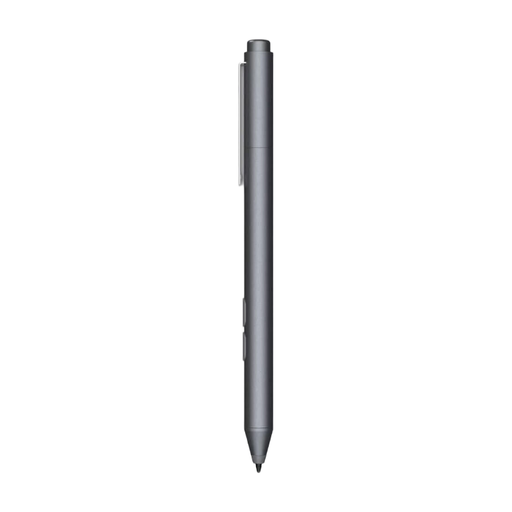
HP MPP 1.51 Stylus Pen for PC and tablet
An option for handwritten notes on a device that supports this stylus. Check compatibility with your exact PC or tablet model.
The product name lists 1 replaceable tip. Also check that the stylus and document app you use suit your workflow.
View on Joybuy
 No image available
Samsung EJ-PX510 S Pen 8.7 g Beige
According to the product information, it’s suitable for the Galaxy Tab S9 FE and S9 FE+. Samsung explains how to annotate, save and share PDFs using Samsung Notes; check that the app fits your school’s way of working.
Weight: 8.7 g. According to Samsung, this S Pen version doesn’t support Bluetooth. A separate tool is listed for removing the stylus tip.
View on Joybuy
Frequently asked questions
Will any Apple Pencil work with my iPad?
No. Apple Support lists the iPad models supported by each Pencil version and any software version required. Check your iPad’s exact model name before choosing a stylus.
How can I mark PDFs on a Galaxy Tab?
Samsung explains that you can import a PDF into Samsung Notes, annotate it with the S Pen, save it and share it. Test this process with a sample file to see whether it fits the way your school shares work.
Do I need a separate charger for a Surface Slim Pen?
That depends on your Surface and accessories. Microsoft lists compatible charging points in devices or keyboards; you may need to buy a standalone charger separately. Check what works with your Surface model.
Can I open identifiable pupil work in any annotation or cloud app?
Don’t assume it’s allowed just because the app works technically. The Dutch Data Protection Authority outlines schools’ responsibilities for protecting pupil data. Check which devices, accounts and storage or sharing methods your school allows.
What can I do if a stylus I’ve bought doesn’t work properly under normal use?
For a consumer purchase in the Netherlands, the product must be of satisfactory quality; contact the seller if there’s a problem. The Dutch Government says there’s no fixed statutory guarantee period: what you can expect also depends on the product.


