What should you look for when choosing?
Start by checking that the stylus and tablet are compatible. Then work out which line features your drawing app uses, before considering your workstation and maintenance.
| What to consider |
What should you check? |
Who is this important for? |
| Compatibility |
Check the full tablet model and, where necessary, the operating system version against the list for the exact stylus model. |
If I want to keep using my current tablet, I’ll check its full model and operating system version first; around 36% of consumers prioritise compatibility. |
| Contours and shading |
Check pressure and tilt support separately, for both the stylus and the drawing app. |
When working on contours and shading, I want to know whether both my stylus and drawing app support pressure or tilt. Around 29% of consumers put line control first. |
| Workstation and storage |
Consider where to position your tablet and arms; check how to store and charge the stylus for each model. |
At my standing desk, I want to position my tablet properly and break up long periods of static work; around 21% of consumers prioritise their workstation setup. |
| Replacement parts and aftercare |
Check which replacement tips fit your model and keep the seller’s details. |
If a stylus tip needs replacing or a product develops a fault, I want to know what can be replaced and who to contact; around 14% of consumers prioritise replacement parts and aftercare. |
Joybuy products
These Joybuy products are designed for different tablet platforms. Before choosing, check that the specific stylus model works with your tablet and drawing app.
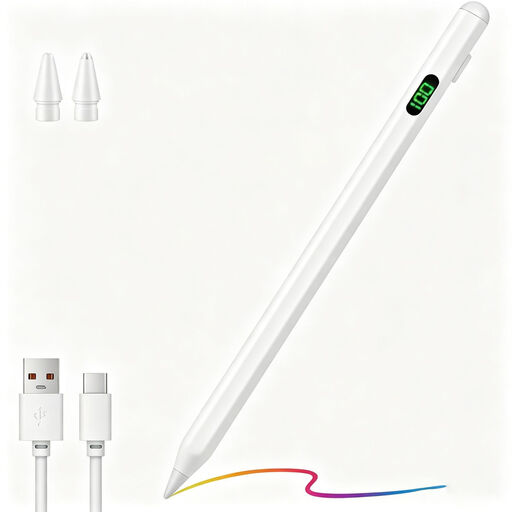 Image unavailable
Universal touchscreen stylus for Android and iOS devices
Could be worth considering if you’re looking for a stylus for a capacitive touchscreen; check compatibility with your exact tablet model.
The product name mentions fast charging, an LED indicator and magnetic attachment.
View at Joybuy
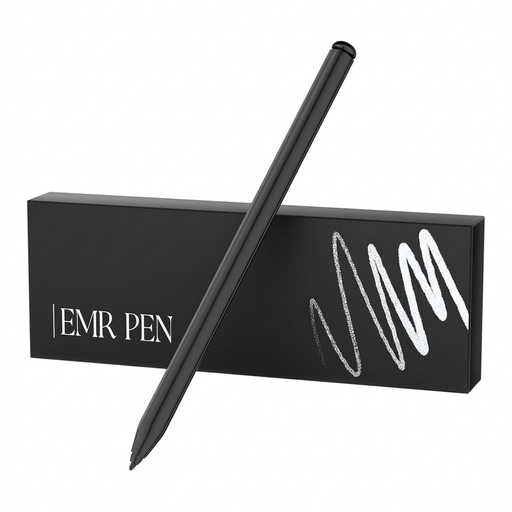 Image unavailable
Zspeed EMR stylus pen SP-18 1 with eraser, 4096 pressure levels
Worth checking out if you use a compatible reMarkable or Kindle Scribe tablet and want pressure input.
The product name lists reMarkable 1 and 2, Kindle Scribe, 4096 pressure levels and the colour black. Check compatibility with your exact device.
View at Joybuy
 Image unavailable
Stylus for selected iPad models with USB-C charging
Could be suitable if you use one of the supported iPads and want to vary your lines by tilting the stylus.
The product name lists tilt detection, palm rejection, magnetic attachment and an LED battery indicator. Check whether your iPad model is supported.
View at Joybuy
 Image unavailable
Logitech Crayon (USB-C), silver
An option if you use a compatible iPad and want to vary your lines by tilting the stylus; Logitech describes tilt-based line variation for this model.
The product name mentions USB-C and iPad compatibility. Check your exact tablet model and whether the features you want work in your drawing app.
View at Joybuy
 Image unavailable
Apple Pencil Pro (2024) for iPad Air and iPad Pro
Could be worth considering if you use a compatible iPad and want to make use of pressure input and supported gestures for drawing.
Apple describes pressure and tilt input, as well as squeeze and rotation gestures, for this model. Compatibility depends on the model; check Apple Support Netherlands’ list for your iPad and operating system version.
View at Joybuy
Frequently asked questions
Can I use any stylus with my tablet?
No, the stylus must be compatible with your specific tablet. Check the exact model, generation and, where necessary, operating system version in the information for the stylus you’re considering.
How can I tell whether pressure sensitivity works in my drawing app?
Check that both the stylus and the app support it. Adonit says that Note⁺ 2 pressure sensitivity and shortcut buttons require pairing with specific apps.
How should I set up for drawing at a standing desk?
Position the tablet so you can see the screen clearly, and break up long periods of static work with another task or a break. Arboportaal describes the risks of screen work; its information about obligations applies to employees and isn’t a general requirement for people buying a stylus for personal use.
Can I return a stylus bought online in the Netherlands?
For online consumer purchases, you generally have up to 14 days from delivery to change your mind, although legal exceptions may apply. ACM ConsuWijzer explains this cooling-off period; also check the seller’s returns information before buying.
Who should I contact about a faulty stylus?
Report the fault to the seller. According to ACM ConsuWijzer, your statutory guarantee applies alongside any manufacturer’s warranty; the manufacturer’s warranty doesn’t replace your statutory rights.


