
Artists with an existing tablet
If you’re looking for a pen for your tablet, start with the exact device and the manufacturer’s compatibility information. Apple, Adonit, Samsung and Huion list the models supported by their pen ranges.


First, choose a stylus that’s compatible with your exact tablet model. If you want to vary your lines using pen pressure, make sure pressure sensitivity is confirmed for that specific version. Tilt sensitivity may be enough for contours, while charging, storage and replacement nibs all affect how practical the pen is at a shared desk.
If you’re looking for a pen for your tablet, start with the exact device and the manufacturer’s compatibility information. Apple, Adonit, Samsung and Huion list the models supported by their pen ranges.
For contours and shading, it matters whether you want to control line variation with pen pressure or tilt. Apple and Adonit describe the features available on specific versions, so check which ones suit your workflow and drawing app.
If you use your pen for short drawing sessions, charging, storage and the condition of the nib all matter. Apple describes different charging methods for its Pencil models, while Logitech notes that the Crayon nib can wear down.
First, note your tablet’s full model name and find the compatibility information for the exact pen version you’re considering. Then compare the level of line control, and choose a charging and storage method that suits your workspace.
| What to consider | What to look for | Who is this most important for? |
|---|---|---|
| Compatibility | Compare your tablet’s full model name and generation with the compatibility list for the exact pen version. | I want to keep using my existing tablet, rather than relying on the brand name alone. Around 36% of consumers in this situation prioritise compatibility. |
| Line control | Check whether the pen is pressure-sensitive or tilt-sensitive, and which feature your drawing app uses. | If I want to use pen pressure for contours or shading, I look for explicit confirmation of pressure sensitivity. Around 29% of consumers put line control first. |
| Charging and storage | Check how the pen charges and whether magnetic attachment works with your tablet model. | At a shared desk, I want to be able to store and charge the pen easily between short sessions. This is the main concern for around 21% of consumers. |
| Nibs and support | Check whether suitable replacement nibs are available and who the seller is. | If I’m thinking about wear and after-sales support, I want to know which nibs fit the pen. Around 14% of consumers prioritise running costs and support. |
Compatibility lists can vary by model and generation. A pen that isn’t compatible with your device won’t offer the drawing features you’re looking for.
Before you buy, compare your tablet’s full model name with the compatibility information for the pen on offer.
If you want to control line thickness with pen pressure, don’t assume that a tilt-sensitive pen will also support it.
Check that pressure sensitivity is explicitly listed for the exact version and that your drawing app supports the feature.
Adonit says that magnetic attachment isn’t supported with certain 2024 iPads. So drawing compatibility doesn’t automatically mean that attachment or charging is supported.
Check these features separately for your tablet and the exact pen.
Logitech’s Crayon manual says that a damaged nib can damage the screen and that the nib wears down with use.
Check in advance whether suitable replacement nibs are available, and replace a damaged nib according to the manufacturer’s instructions.
These brands offer pen ranges for a variety of existing tablets. Always check compatibility for the specific model and version.
Apple Pencil Pro and Apple Pencil (USB-C) are options for the iPads Apple lists as compatible with each version.
An S Pen is a model-specific option for a compatible Galaxy Tab.
Note⁺ 2 is an option for the iPads specifically listed by Adonit, if you want pressure sensitivity and interchangeable nibs.
Crayon (USB-C) is designed for compatible iPads if you want to start drawing without any fuss.
PW550S is a replacement pen for users of a compatible Huion drawing tablet.
The Joybuy products below are pens for compatible iPads. Choose between them based on your preferred level of line control, compatibility, and charging or storage method.
 No image available
An option for contours and sketches on a compatible iPad if you want a direct connection. Logitech says the Crayon is ready to use without complicated pairing.
The product information lists compatibility with iPads from 2018 onwards running iOS 12.2 or later. If you want to vary your lines using pen pressure, check whether this exact version is pressure-sensitive.
 No image available
A good fit for design work where you want to vary lines using pen pressure and tilt, provided your iPad is compatible.
Apple describes pressure sensitivity, tilt sensitivity, and magnetic attachment and charging for compatible models. The product information lists certain iPad Pro models with M4, iPad Air models with M2 and iPad mini with A17 Pro; check the full compatibility list.
 No image available
An option for sketches and contours on a compatible iPad if tilt-based drawing suits your workflow.
Apple describes tilt-sensitive drawing, as well as pairing and charging via a USB-C cable. Check compatibility with your exact iPad model.
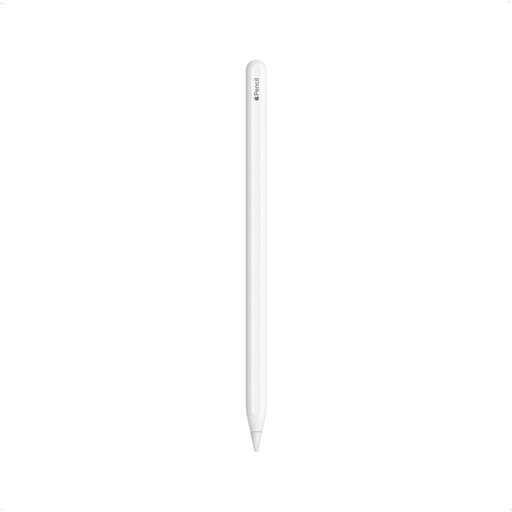 No image available
Worth considering if you already use one of the compatible iPad generations listed.
The product title lists iPad Pro 12.9-inch (3rd, 4th, 5th and 6th generation), iPad Pro 11-inch, iPad Air (4th and 5th generation) and iPad mini (6th generation). Compare this list with your tablet’s full model number.
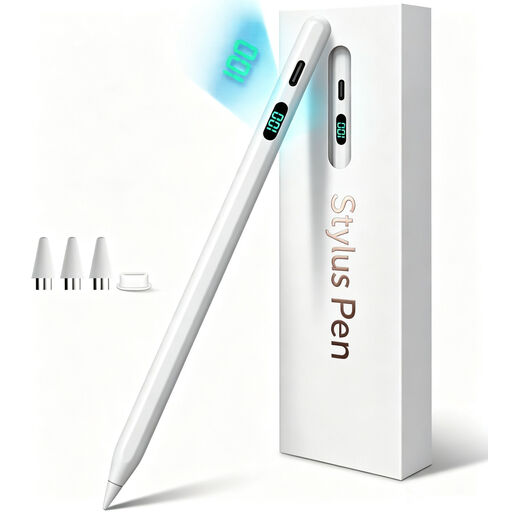 No image available
An option for drawing and sketching on the listed iPads if tilt is enough for you and you don’t need to vary your lines using pen pressure.
The product information says the pen isn’t pressure-sensitive. Magnetic attachment is for storage; wireless charging isn’t supported.
No. Check compatibility with your tablet’s full model name and the exact pen version. Apple, Adonit, Samsung and Huion list different supported devices.
No. Tilt sensitivity and pressure sensitivity are different features. Apple describes tilt-sensitive drawing for Apple Pencil (USB-C), while Adonit lists pressure sensitivity for Note⁺ 2. Check the specifications for the version you choose.
Follow the charging and pairing instructions for the exact version, and check the nib for wear or damage. Apple lists USB-C pairing and charging for Apple Pencil (USB-C); Logitech describes the Crayon as ready to use straight away, and warns in a manual for an older version that the nib can wear down.
For a consumer purchase in the Netherlands, the Dutch government says the seller, not the manufacturer, must provide a solution. There is no fixed statutory guarantee period; what you can expect from a product depends, among other things, on the product itself and the information provided.