
Marker with an existing tablet
Wants to check that a stylus works with their exact device before comparing writing comfort or extra features. Apple, Microsoft and Samsung publish support information for individual models.


Start by checking your exact tablet model. Then make sure your marking app lets you write on the original file with the stylus and save your feedback. Next, consider how people will share, charge and store the stylus. A stylus doesn’t manage access to pupil data, so you’ll also need to follow your school’s data-handling policies.
Wants to check that a stylus works with their exact device before comparing writing comfort or extra features. Apple, Microsoft and Samsung publish support information for individual models.
Wants to add comments directly to pupils’ work and keep a copy with feedback. Apple describes document annotation with the Pencil (USB-C), while Samsung explains how to import and annotate PDFs in Samsung Notes.
Wants to get started with a stylus quickly, but also needs to manage access to pupil data through the school’s accounts and working practices. The Dutch Data Protection Authority and Kennisnet cover these responsibilities and arrangements.
| What to consider | What should you check? | Who is this important for? |
|---|---|---|
| Compatibility | Make a note of the full tablet model and check the compatibility information for the exact stylus variant and any software requirements. | I want to make sure the stylus works with my tablet first. Compatibility is the top priority for around 28% of consumers. |
| Annotating and saving | Test with a sample file to check that you can write in the app you use, save and reopen the file, and return the work. | I want to keep feedback using the file and app workflow I rely on. This way of annotating is the top priority for around 22% of consumers. |
| Sharing and storage | Check whether the stylus needs to be paired first, how it charges and where you’ll store it. | At a shared desk, I want the next user to be able to get started without unnecessary steps. Switching quickly is the main concern for around 22% of consumers. |
| Pupil data | Follow your organisation’s policies on accounts, access, storage and sharing. Discuss any new annotation app with the responsible administrator. | I want to handle pupils’ work on a shared device only in line with the school’s policies. This is the top concern for around 17% of consumers. |
| What you need to use it | Check whether you’ll need a charging accessory, battery or replacement nib, and what’s included with the stylus. | I want to know in advance what I’ll need to keep using the stylus. This is the top priority for around 11% of consumers. |
Manufacturers specify compatibility and features for particular devices and stylus variants. Without support for pen input, extra features won’t help with marking.
Before ordering, compare the full tablet model with the manufacturer’s official compatibility information.
These features aren’t automatically the same. Apple specifies USB-C charging for the Pencil (USB-C), while Samsung says the S Pen for the Tab S9 FE and FE+ doesn’t support Bluetooth.
For the exact stylus variant, check separately how it attaches and charges, and which features it supports.
A stylus doesn’t manage access to files, accounts or syncing. The Dutch Data Protection Authority explains that schools must be able to account for the technical and organisational measures they take to protect pupils’ personal data.
Use the accounts and file-handling methods approved by your organisation. Before using a new annotation app with pupil data, discuss it with the responsible administrator.
Apple Pencil variants are designed for specific iPad models. Apple describes the Pencil (USB-C) as suitable for writing and annotating documents.
Logitech describes the Crayon (USB-C) as a stylus for compatible iPads, including for workspaces where users take turns.
S Pen variants are designed for supported Galaxy devices. Samsung describes PDF annotation in Samsung Notes.
Microsoft documents pen features for each Surface model, including handwriting support.
Lenovo offers the Digital Pen 3 and Precision Pen 3, among others, for compatible devices.
These options are designed for writing and annotation on a compatible tablet. Before buying, check that the stylus works with your device and suits the way you work.
 No image available
An option for anyone who wants to write on a supported iPad and make it quick for users to take turns at a shared workspace. The product information lists iPad models from 2018 onwards running iOS 12.2 or later; Logitech describes charging via USB-C.
 No image available
An option for writing and annotation on a compatible iPad. Apple specifies pairing and charging via a USB-C cable. On this version, magnetic attachment to the iPad doesn’t mean it charges magnetically.
 No image available
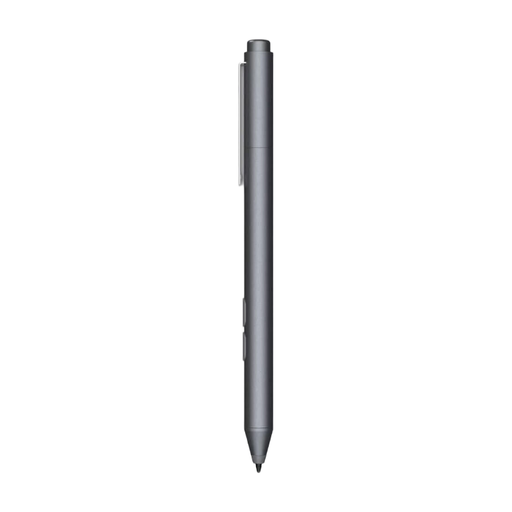
An option to look into for writing or taking notes on a compatible device. The product information lists MPP devices, including HP laptops and selected Microsoft devices; check whether your exact model is supported. The title specifies one replaceable nib.
 No image available
The product information lists the Galaxy Tab S9 FE and FE+ and use with Samsung Notes. Samsung says the S Pen for these tablets doesn’t support Bluetooth, so check the exact version and features you need before choosing a replacement stylus.
 No image available
An option to consider if the described workflow suits your device. The product information says you need the accompanying app to pair it. Beforehand, check whether app installation and use are allowed in your shared workspace.
No. Support and features vary by device and stylus variant. Look up your exact model in the manufacturer’s compatibility information, then try the stylus with the marking app you use.
Test the app you use with a non-confidential sample file: add a comment, save the file, reopen the saved version and check how to return it. Samsung describes importing, annotating, saving and sharing PDFs in Samsung Notes; this doesn’t automatically confirm that it connects to your school system.
Samsung says the S Pen for the Tab S9 FE and FE+ doesn’t support Bluetooth. Don’t confuse writing or Air Command with Bluetooth Air Actions, and check the exact version when choosing a replacement stylus.
Check whether a Surface Slim Pen needs a compatible charging device or a separate charger. Lenovo specifies an AAAA battery for the Digital Pen 3; also check what’s included with the version you choose.
That depends not on the stylus, but on your organisation’s policies for access, storage and sharing. The Dutch Data Protection Authority explains that, under the GDPR, schools must be able to account for the technical and organisational measures they take to protect pupil data. So discuss any new app with the responsible administrator before using it with pupil data.