First, check your exact tablet model, then choose a stylus whose features are supported by your drawing app. Pressure sensitivity matters for pressure-controlled brush strokes, while tilt control and other features may be enough for simple sketches. The product specifications listed here don’t provide a basis for comparing how much noise the pens make when they touch the screen.
Who is this guide for?
Painter with an existing tablet
You want to paint seasonal scenes without buying another tablet first. The exact device determines which pens are compatible; Apple Support Netherlands and Samsung Netherlands provide model-specific compatibility information.
Painter of detailed scenes
You want to vary lines and shading with precision, so you’re looking at pressure sensitivity, tilt and support in your drawing app. For example, Apple Support Netherlands describes pressure and tilt sensitivity for the Apple Pencil (1st generation).
Artist who draws for long sessions
You like to draw for extended periods and are considering charging, grip and replaceable tips. Information from Samsung, STAEDTLER and Logitech shows that these features vary between pen models.
What should you look for when buying?
First, compare the full tablet model with the pen’s compatibility information. Then check that the controls you want to use work in your drawing app.
| What to consider |
What should you check? |
Who is this important for? |
| Compatibility |
Make a note of your tablet’s full model name and compare it with the compatibility list for the exact pen model. Check that the features you want are also supported in your drawing app. |
If I want to keep using my current tablet, the pen needs to work with it. Around 36% of consumers prioritise compatibility with their own tablet. |
| Brush control |
Decide whether you want your brush to respond to pressure, tilt or both. Don’t assume a pen is pressure-sensitive just because it’s described as suitable for drawing. |
For seasonal details, I want to control lines and shading with my pen movements. Around 29% of consumers prioritise the brush control they want. |
| Long sessions |
Compare the charging method and the tips included or available as replacements for the exact model. According to STAEDTLER, the Noris digital classic requires an EMR digitiser, but doesn’t need to be charged or paired. |
If I spend a long time drawing at my desk, I want to know whether charging or a worn tip could interrupt my workflow. Around 21% of consumers prioritise uninterrupted use. |
| Accessories and aftercare |
Check which tips and charging accessories are included and what you already have. If the product is faulty, contact the seller. |
I want to know in advance what I’ll need for my pen and who to contact if something goes wrong. Around 14% of consumers prioritise accessories and aftercare. |
Common buying mistakes
-
Choosing a stylus based on the tablet brand alone
Even within the iPad or Galaxy family, supported pen models vary. The STAEDTLER Noris digital also only works with a screen that has an EMR digitiser.
Compare the full device name and generation with the compatibility information for the exact pen model.
-
Assuming tilt control means pressure sensitivity
Manufacturers describe pressure and tilt control as separate features. Your drawing app also needs to support the feature you want to use.
Decide how you want your brush to behave, then check that the feature is supported by the specific pen and app.
-
Confusing magnetic attachment with magnetic charging
On the Apple Pencil (USB-C), magnetic attachment is for storage; pairing and charging are done via USB-C. Adonit also notes a limitation on magnetic attachment for certain 2024 iPads.
Check attachment, pairing and charging as three separate features.
-
Confusing the manufacturer’s warranty with all your rights
A manufacturer’s warranty is in addition to your statutory rights. According to the Netherlands Government, the seller must provide a solution if a product is faulty.
Keep your proof of purchase and contact the seller if you have a problem.
Brands to consider
These brands offer different pen models. Compatibility and features apply to the models listed, not automatically to every pen from that brand.
Apple
Apple Pencil models are designed for specific supported iPads. The Pro, USB-C, 1st and 2nd generation models aren’t interchangeable.
- Apple lists features such as squeeze, barrel roll and magnetic charging for Apple Pencil Pro; the USB-C model pairs and charges via a cable.
- Check the compatibility list for your iPad and whether your drawing app supports the features you want. These are manufacturer specifications, not a performance comparison.
Samsung
Samsung S Pen models are designed for Galaxy devices with the right support. The Creator Edition is aimed at drawing; other Tab pens are model-specific.
- Samsung lists tilt control and included replacement tips for the Creator Edition. The pen for the Tab S11 series is designed for the Tab S11 and Tab S11 Ultra.
- According to Samsung, the Creator Edition has no Bluetooth, Air Actions or charging requirements. Don’t assume these features apply to every S Pen, and check your exact Tab model.
STAEDTLER
The Noris digital classic is an option for tablets with a compatible EMR digitiser.
- STAEDTLER lists a replaceable tip, 4,096 pressure levels and no need for charging or pairing.
- A standard touchscreen isn’t enough: the screen must support EMR.
Logitech
The Crayon is a pen for the iPad models supported by Logitech for the particular version. USB-C and Lightning are different versions.
- For the USB-C Crayon, Logitech lists tilt-controlled line thickness, palm rejection and use without a separate Bluetooth pairing process.
- The pen needs to be charged. These features alone don’t confirm pressure-sensitive brush input.
Adonit
The Adonit Note⁺ 2 is designed for the iPads listed by Adonit for this model.
- Adonit lists pressure sensitivity, palm rejection and three interchangeable tip types.
- The pen charges via USB-C. Adonit notes that magnetic attachment doesn’t work with certain 2024 iPads; also check that your drawing app supports it.
Styluses for compatible iPads
These product picks are for drawing and painting with a stylus on compatible iPads. Check that the exact pen is compatible with your tablet and drawing app.
 No image available
iPad stylus with USB-C charging and tilt detection
An option for sketching on selected iPad models if tilt control and palm rejection matter to you.
The product description lists USB-C charging and magnetic attachment for storage, not wireless charging. Check that your iPad model is supported.
View at Joybuy
 No image available
Logitech Crayon (USB-C)
A drawing and sketching pen for compatible iPads if you want to adjust line thickness by tilting.
The product description lists palm rejection, USB-C charging and use without a separate Bluetooth pairing process. Compatibility is listed for iPads from 2018 onwards with iOS 12.2 or later; check your model.
View at Joybuy
 No image available
Apple Pencil Pro
An option for painting on a compatible iPad if you want to use pressure and tilt sensitivity and brush controls.
The product description lists squeeze, barrel roll, magnetic pairing and charging. The compatible models listed are iPad Pro 13-inch (M4), iPad Pro 11-inch (M4), iPad Air 13-inch (M2), iPad Air 11-inch (M2) and iPad mini (A17 Pro).
View at Joybuy
 No image available
Apple Pencil (USB-C)
A drawing and sketching pen for compatible iPads if tilt control suits the way you paint.
Apple lists tilt sensitivity and pairing and charging via USB-C. Magnetic attachment is for storage, not magnetic charging; check compatibility with your iPad.
View at Joybuy
 No image available
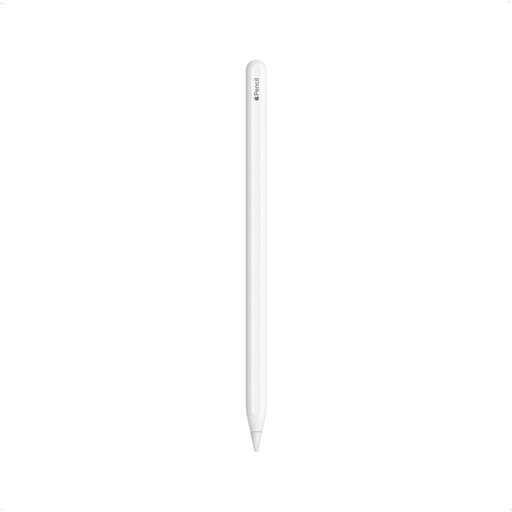
Apple Pencil (2nd generation)
An option for painting, drawing and sketching if you have a compatible iPad.
The product description lists double-tap to switch tools and magnetic pairing and charging. The compatible models listed include certain iPad Pro, iPad Air and iPad mini generations; check that your exact model is included.
View at Joybuy
Frequently asked questions
How can you tell if a drawing pen will work with your tablet?
First, find your tablet’s full model name and compare it with the compatibility information for the exact pen. For iPad, check the specific Apple Pencil generation; for Galaxy, check the compatible S Pen model; and for Noris digital, make sure the screen has an EMR digitiser. Also check that your drawing app supports the brush features you want.
Do you need to pair or charge a stylus before you start?
It depends on the model. Apple Pencil (USB-C) pairs and charges via a USB-C cable; Logitech says the Crayon (USB-C) works without a separate Bluetooth pairing process, but does need to be charged. According to STAEDTLER, the Noris digital classic doesn’t need charging or pairing when used with a compatible EMR screen.
What should you do if the pen tip wears down or the pen stops working?
Check the specifications for your model: Samsung includes two tips and a replacement tool with the Creator Edition; STAEDTLER includes spare tips with the Noris digital classic. If the product is faulty, the Netherlands Government says the seller must provide a solution. A manufacturer’s warranty is in addition to your statutory rights.
Do you have a cooling-off period when buying online in the Netherlands?
According to the Netherlands Government, when you buy remotely from a business, you’ll usually have a 14-day cooling-off period, although there are exceptions. Before buying, check the seller’s information about the cooling-off period and returns.
Does every stylus need a CE mark?
A stylus doesn’t need a CE mark just because it’s called a stylus. According to the European Commission, CE marking applies to products for which the relevant EU rules require it; if those rules don’t apply, the mark must not be used. Specific requirements may apply to radio equipment, so check the actual model.


