
Teacher with a tablet they already own
You want to find a stylus that works with your tablet model before considering buying a different tablet. Apple, Samsung, Logitech and Lenovo explain compatibility for individual devices or combinations.


Start by checking your exact tablet model. Then make sure you can save and return marked work using your usual workflow. A stylus for a compatible tablet you already own could be a good fit, but features and compatibility vary between combinations; product specifications don’t tell you how quietly a particular combination writes. When working with pupils’ assignments, also consider which apps and storage options your school allows.
You want to find a stylus that works with your tablet model before considering buying a different tablet. Apple, Samsung, Logitech and Lenovo explain compatibility for individual devices or combinations.
You want to add handwritten comments and be able to save or share marked documents. Apple explains how to annotate using Markup on iPad, while Samsung describes PDF annotation in Samsung Notes.
You want to know in advance which apps and storage options comply with your school’s rules for pupil data. The Dutch government and the Dutch Data Protection Authority highlight schools’ responsibility when processing personal data.
Start by checking that the stylus is compatible with your tablet, then make sure you can save and return work using your usual workflow. Assess writing noise separately with the combination you plan to use.
| What to consider | What to look for | Who is this important for? |
|---|---|---|
| Compatibility | Check the exact tablet model, generation and any software requirements for the stylus version. | I want to keep using my current tablet and avoid choosing a stylus that doesn’t work with it. Around 29% of consumers prioritise compatibility with their existing tablet. |
| PDF workflow | Try a sample file to check that you can open, annotate, save and return it in the environment you use. | If I need to return marked PDFs, the whole file-handling process has to work, not just writing on the screen. Around 23% of consumers prioritise their marking and return workflow. |
| Quiet writing | Check whether the combination offers palm rejection, and assess the writing noise with the tablet and stylus nib you intend to use. | I want to write in a quiet space without constantly adjusting my hand position, and I want to judge the sound of the nib on the screen for myself. Around 18% of consumers prioritise quiet, uninterrupted writing. |
| Pupil data | Ask which apps, accounts, storage options and sharing methods your school allows for this work. | When marked work contains personal data, I want to know where the files go and who can access them. Around 18% of consumers prioritise how pupil data is handled. |
| Total cost | Check what’s included in a bundle and which accessories or services you actually need. | I don’t want to buy a tablet, stylus or accessory twice, and I want to factor in service costs. Around 12% of consumers prioritise the total cost and service. |
Compatibility varies by tablet model and stylus version. A general description doesn’t tell you whether your particular combination will work.
Note down the exact model and check the compatibility information for both the tablet and stylus before choosing.
Samsung says that the S Pen supplied with models including the Galaxy Tab S9 FE and S10 FE series doesn’t support Bluetooth. So don’t assume it has features that rely on Bluetooth.
Check Samsung’s documentation for the exact stylus and tablet you plan to use together.
An app may let you annotate, save or share files, but that doesn’t automatically mean the process complies with your school’s rules for pupil data.
Test the whole file-handling process with practice materials, and follow your school’s rules when working with real pupil assignments.
These features don’t tell you how much noise the nib makes when it touches the screen.
Assess the writing noise with the tablet and nib you plan to use, in a similarly quiet environment.
Apple Pencil models are designed for compatible iPads. The USB-C model can be used for tasks including writing and annotating documents.
An S Pen for a compatible Galaxy Tab could suit a workflow where you import and annotate PDFs in Samsung Notes.
The Crayon (USB-C) is an option for compatible iPads, letting you write without a separate Bluetooth pairing step.
The Tab Pen Plus is available on its own or as part of a Lenovo tablet-and-stylus bundle.
This selection includes styluses for specific iPad, reMarkable and Kindle Scribe models. Before buying, check that your exact tablet and preferred workflow are compatible with the stylus.
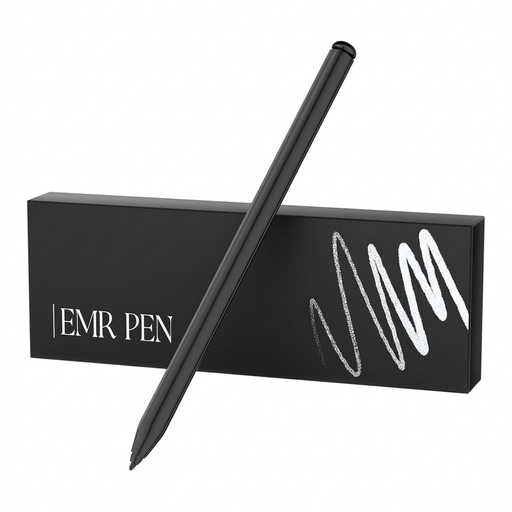 Image unavailable
Worth considering if you’re looking for a stylus for a compatible reMarkable 1, reMarkable 2 or Kindle Scribe.
The product name lists 4096 pressure levels and an eraser. Compatibility is limited to the models listed, so check that your tablet is one of them.
 Image unavailable
Worth considering for writing and annotating on an iPad model that’s compatible with this stylus.
The product name lists USB-C charging, tilt detection, palm rejection, magnetic attachment and an LED battery-level indicator. Check that your iPad model is supported.
 Image unavailable
Worth considering if you want to write on a compatible iPad without a separate pairing step.
The product information lists iPads from 2018 onwards with iOS 12.2 or later, as well as tilt sensitivity and palm rejection. Check compatibility with your iPad.
 Image unavailable
Worth considering if you use a compatible iPad and want to make handwritten notes.
The product information lists tilt sensitivity, palm rejection and magnetic attachment. Check that your exact iPad model is compatible.
 Image unavailable
Worth considering for writing and note-taking on an iPad that supports this model.
The product information lists tilt sensitivity, palm rejection and USB-C charging. Apple also describes magnetic attachment for this model; pairing and charging are done with a USB-C cable. Check your iPad model and the required iPadOS version.
Yes. On iPad, you can annotate PDFs using Apple’s Markup tools. Samsung explains how to import, annotate, save and share PDFs in Samsung Notes. Also check that you can return the finished work to the environment your school uses.
No, not with Apple Pencil (USB-C). Apple describes magnetic attachment, but pairing and charging are done using a USB-C cable. Check how the exact stylus model is charged.
Before a marking session, check how it charges and the condition of the nib. Lenovo lists one extra nib with the standalone Tab Pen Plus; don’t assume other styluses or bundles include the same.
No. Don’t assume that you have permission just because an app can sync files. The Dutch government says schools must comply with the GDPR, and the Dutch Data Protection Authority urges schools and suppliers to make clear agreements about processing personal data. Ask your school which process it has approved for this work.
No. According to the Dutch government, the Netherlands has no fixed statutory guarantee period. What you can expect from a product depends, among other things, on the product and the information provided at the point of sale. If a product is faulty, contact the retailer. Any extra guarantee is in addition to your statutory rights.