Vandaag of morgen in huis

Kwaliteit gegarandeerd

Welkomstaanbiedingen ontgrendelen: GRATIS bezorging | Tot 80% korting | Gratis 30 dagen JoyPlus-proefperiode
Download de app
A stylus pen for a tablet can make writing, drawing and navigating on a touchscreen much more precise. However, buying one is not always straightforward. A pen that works with an iPad is not automatically suitable for a Samsung tablet, Windows laptop or graphics display. Terms such as “universal”, “lag-free” and “pressure-sensitive” are only meaningful when you know which device and apps the pen works with.
In this buying guide, you’ll learn what to look out for, which common pitfalls to avoid and which popular choices suit different uses.
An inexpensive active stylus may work on several capacitive screens, but that does not automatically mean all features will be available. Pressure sensitivity, palm rejection, tilt recognition and shortcut buttons often require support from both the pen and the operating system.
Before buying, check:
For example, a digital pen for an iPad will not necessarily work with a Samsung Galaxy Tab. A Samsung S Pen, Surface Slim Pen or Wacom Pro Pen is also generally tied to specific device families.
A fine pen tip feels comfortable for taking notes, but accuracy is also determined by the digitiser in the screen, the software and the pen’s positioning. With a universal touchscreen pen, the experience can therefore vary between devices.
If you mainly write or annotate PDF files, a precise capacitive tip will usually be sufficient. For drawing and design, pressure levels, tilt sensitivity and palm rejection are more important. Also check whether replacement pen tips are available.
An active stylus usually has a built-in battery. Pay attention to the charging method, battery life and accessories. A pen with USB-C is practical if your tablet and laptop use the same cable. Other models charge magnetically or run on a battery, such as certain MPP pens.
Keep the pen dry and clean the tip with a soft cloth. Do not use liquids or abrasive products. With models that have a lithium battery, it is advisable not to expose the pen to heat or moisture.
Tablet compatibility should be at the top of your checklist. Don’t just look at the brand; check the full model name. For example, an Apple Pencil may be suitable for certain generations of the iPad Air, iPad Pro, iPad and iPad mini, but not every iPad.
For Windows devices, terms such as MPP and Microsoft Ink are relevant. The HP MPP 1.51, for example, is designed for compatible HP and Microsoft devices. A Surface Slim Pen 2 is compatible with selected Surface models. Graphics displays use their own systems; according to the product specification, the Wacom Pro Pen 3 is designed for devices including the Wacom MovinkPad 11 and Cintiq Pro models.
A passive touchscreen pen works in much the same way as a finger and usually does not require a battery or pairing. This is sufficient for simple navigation and brief notes.
An active stylus communicates with the device. This makes features such as pressure sensitivity, tilt, palm rejection and shortcut buttons possible. However, you’ll need to consider charging, Bluetooth and whether the device has a compatible digitiser.
Practical details also matter for everyday use:
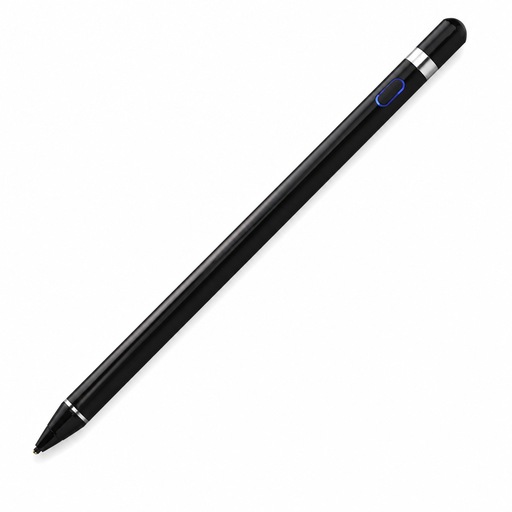
Why it suits this profile: This pen is aimed at users who want to write, draw and navigate on capacitive screens, including iOS, Android and Microsoft devices. According to the product description, an app is required for installation and pairing.
The product specification explicitly states that a capacitive screen and support for multiple systems are required. Still, check your model before placing an order.
140 mAh built-in battery, aluminium and plastic casing, plus support for writing, drawing and navigation.
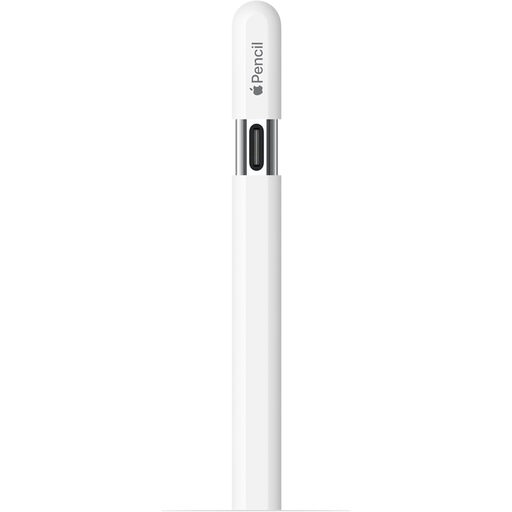
Why it suits this profile: A natural choice for students, designers and iPad users looking for a pen for drawing and note-taking within the Apple ecosystem.
The product information provides a specific list of compatible iPad models. This means you don’t have to rely solely on the generic term “pen for iPad”.
USB-C connection, magnetic attachment, tilt sensitivity and support for palm rejection according to the product specifications.
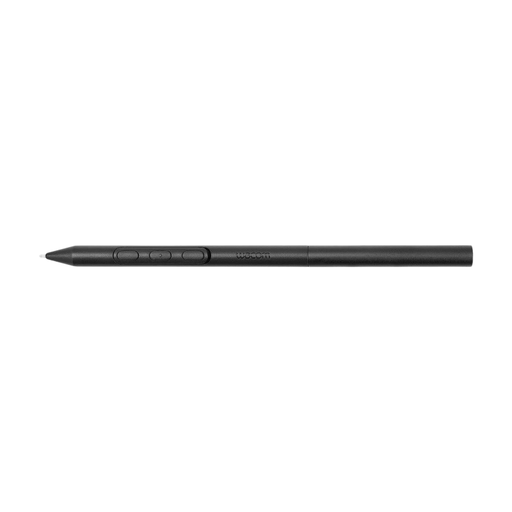
Why it suits this profile: This digital pen is designed for creative users with a compatible Wacom device, such as a MovinkPad or Cintiq Pro. Its adjustable shape may be useful during long drawing sessions.
The compatibility list is specific. This reduces the risk of buying a pen that cannot communicate with your graphics display.
Adjustable weight, grip thickness, buttons and balance point; according to the product information, no additional pairing is required with compatible Wacom devices.
We’ve put together a complete, up-to-date list of products that fully meet these strict selection criteria and the applicable European safety regulations.
No. A passive touchscreen pen will often work on capacitive screens, but active features depend on the hardware and software. Always check the exact tablet model and operating system. For Apple devices, pay attention to the specific iPad generation; compatibility lists are equally important for Samsung, Microsoft and Wacom devices.
An active stylus generally offers more features, such as palm rejection, pressure sensitivity, tilt recognition and shortcut buttons. A passive pen may be sufficient for simple navigation. For drawing, handwritten notes and PDF annotations, an active tablet pen is usually more practical, provided your device supports these features.
Its lifespan depends on the screen coating, how often you use it and the amount of pressure you apply. A worn tip may feel inaccurate or cause scratches. Check whether replacement pen tips are available and replace the tip as soon as it is visibly damaged or significantly flattened. Keep the pen clean and store it in a dry place to minimise unnecessary wear.