If you have a compatible iPad and Mac, first check whether a compatible Apple Pencil and Sidecar will work with your setup. For certain Galaxy Tabs, you could also look into Samsung’s Second screen feature. If you want to draw directly on a second screen using computer software, consider a pen display and check the video connection, power supply and cables included. The right option depends on the exact device models, software and drawing app.
Who are these options for?
Sketching with an iPad and Mac
You want to use an existing iPad as a second Mac screen and sketch on it with a compatible Pencil. Check both device models before buying a stylus on its own. Apple Support Netherlands describes Sidecar as a way to extend or mirror your Mac desktop.
Galaxy Tab and Windows user
You want to use a supported Tab alongside your PC and check whether both Second screen and your S Pen combination will work. In its 2022 instructions, Samsung Netherlands lists the Tab S7 and S8 series with One UI 3.1 or later. Check support for other models separately.
Sketching in computer software
You want to draw directly on a separate screen as part of your computer workflow. A pen display is a different option from a standalone stylus for a tablet, so check that your computer has the right connection and can supply power if needed.
What should you consider when choosing?
Existing iPad with Mac
Choose this option: if your devices support Sidecar and you want to extend or mirror your Mac desktop on your iPad.
Keep in mind: Apple Pencil compatibility depends on the exact iPad model and software version. A compatible stylus won’t make Sidecar available by itself.
Galaxy Tab with Windows PC
Choose this option: if your Tab has the Second screen feature and your PC meets the relevant requirements.
Keep in mind: Samsung’s instructions dated 22 December 2022 list the Tab S7 and S8 series with One UI 3.1 or later and a compatible Windows PC. This doesn’t automatically confirm support for later models.
Separate pen display
Choose this option: if you want to draw directly on a second computer screen using compatible software.
Keep in mind: check the video output, connections and power supply. Depending on the model, you may need a suitable cable.
| What to consider |
What to check |
Who should pay particular attention? |
| Stylus compatibility |
Make a note of the full tablet model and check which stylus and software version are compatible. |
If I want to keep using my existing tablet, I want to be sure the stylus works with that exact model. Around 29% of consumers make compatibility their top priority. |
| Second-screen feature |
Check the Sidecar requirements or confirm that Second screen works with your specific Tab model and PC. |
If two screens are essential, I want to know first whether my devices support the feature. Around 29% of consumers prioritise a working second-screen feature. |
| Drawing on a computer screen |
Check video output, the connections required, power supply and support from your drawing app. |
If I want to draw directly in computer software, a separate pen display may suit my workflow better than a stylus for an existing tablet. Around 28% of consumers start by considering a pen display. |
| Components required |
Check which cables and power supplies you already have and what comes with the model you choose. |
I want to know in advance whether my complete setup will work, not just whether the stylus or screen works on its own. Around 14% of consumers focus mainly on the components they need. |
Common buying mistakes
-
Assuming a stylus works with every tablet
Stylus compatibility varies by device model and stylus version. A general reference to tablet use doesn’t mean it will work with your tablet.
Before buying, compare the full model names and relevant software requirements on the manufacturer’s website.
If the stylus isn’t compatible, you may need to buy another one.
-
Assuming a drawing stylus automatically gives you a second screen
A stylus and a screen extension feature are two different things. Sidecar and Samsung’s Second screen have their own device and system requirements.
First, check that the screen feature you want works with your exact tablet and computer.
If your existing devices aren’t compatible, you may need a different setup, such as a separate pen display.
-
Assuming USB-C guarantees video output
Not every USB-C connection on a pen display supports video. The connection method and power requirements can also vary by model.
Check your computer port’s video specifications and the connection options listed by the manufacturer for the exact display.
-
Expecting a fixed two-year statutory guarantee
The Government of the Netherlands states that there is no fixed statutory guarantee period in the Netherlands. What you can reasonably expect from a product depends on the product and the circumstances.
If a product is faulty, contact the retailer. Don’t rely solely on a stated manufacturer’s guarantee period.
Brands to compare
Apple
Apple Pencil is designed for drawing on compatible iPads. Sidecar is a separate feature that lets you use an iPad as a second screen with a Mac.
- Apple Support Netherlands explains how Sidecar can extend or mirror your Mac desktop and lists the device requirements for Apple Pencil.
- Features and compatibility vary by Pencil and iPad model. Check the required software version too.
Samsung
S Pen is designed for specific Galaxy Tabs. Second screen is a separate feature for certain Tab and Windows combinations, so check compatibility for your model.
- Samsung Netherlands lists the S Pen with model code EJ-PX510BJEGEU as compatible with, among others, the Tab S9 FE series.
- Samsung’s 2022 instructions explicitly list the Tab S7 and S8 series. Don’t assume that every later model is supported without confirmation.
Wacom
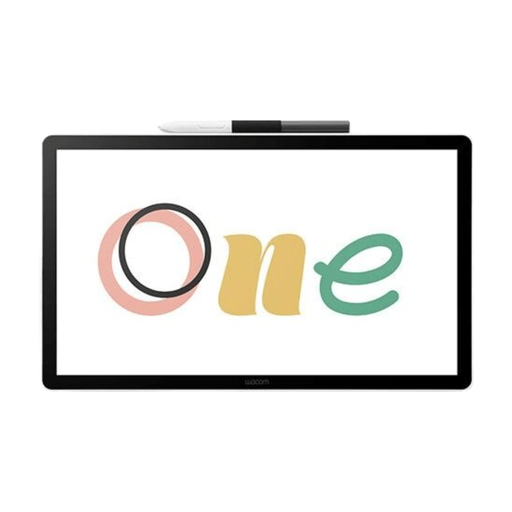
Wacom One 13 touch is a pen display for a computer setup with a second screen, not a replacement stylus for an existing iPad.
- Wacom describes connection via USB-C with graphics output, or via USB-A and HDMI.
- Depending on your computer, you may need an additional power supply.
Huion
Kamvas 13 (Gen 3) is a connected pen display for anyone who wants to draw directly on a second screen.
- Huion’s manual lists an included stylus and 3-in-1 cable.
- The USB-C connection requires video output. For this connection, Huion specifies a full-featured USB-C cable, which must be purchased separately.
XPPen
Artist 12 (2nd Generation) is a pen display for use with a computer and a main monitor.
- XPPen lists an 11.9-inch screen, pen input and screen extension options.
- Check which connection options your computer supports.
Products on Joybuy
These products are designed for sketching on a compatible iPad or for use as a separate pen display alongside a computer monitor. A stylus doesn’t add a second-screen feature by itself.
 No image available
Wacom One pen display 14.0"
A pen display for drawing directly on a computer screen; not a standalone stylus for an existing tablet.
The product name lists a screen size of 14.0".
View product
 No image available
Logitech Crayon, USB-C, silver
A stylus for sketching on a compatible iPad. The iPad must also support the second-screen feature you want to use.
The product name lists USB-C and the colour silver.
View product
 No image available
Apple Pencil Pro 2024
Suitable for the iPad option if your exact iPad model is compatible. Sidecar separately provides screen extension with a Mac.
Check which iPad models and software versions are compatible with this Pencil.
View product
 No image available
Apple Pencil USB-C
For sketching on a compatible iPad; the Pencil doesn’t add a second-screen feature by itself.
The product name lists USB-C and the colour white. Check compatibility with your exact iPad model.
View product
 No image available
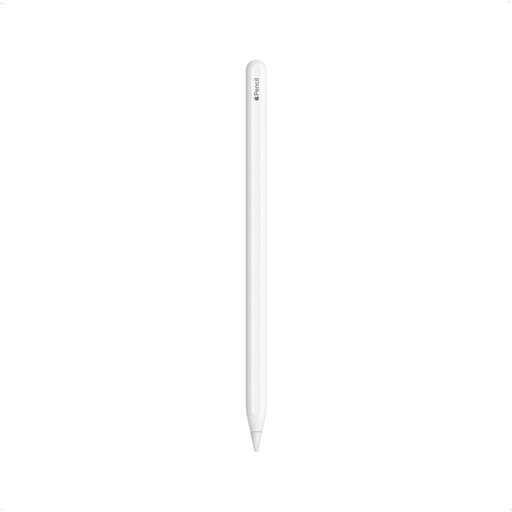
Apple Pencil 2nd Generation
For sketching on iPad models that work with this Pencil. Also check that your iPad and Mac meet the Sidecar requirements.
The stylus itself doesn’t create a second-screen feature.
View product
Frequently asked questions
Does every Apple Pencil work with your iPad?
No. Apple lists the compatible iPad models for each Pencil version. Pencil Pro and USB-C also have software requirements, so check your exact iPad model and the required iPadOS version.
Is Sidecar the same as controlling your iPad apps on a Mac?
No. According to Apple Support Netherlands, Sidecar extends or mirrors your Mac desktop. This differs from Universal Control, which lets you keep using your iPad’s own apps on its screen.
Why does a connected pen display sometimes show no picture?
Check whether the USB-C port supports video output, or use the HDMI connection specified for the model. Wacom also notes that additional power may be needed in some situations. Huion has specific port and cable requirements for using USB-C.
If a product is faulty in the Netherlands, do you always need to contact the manufacturer?
No. According to the Government of the Netherlands, the retailer is your point of contact if a product is faulty. There is no fixed two-year statutory guarantee period in the Netherlands; what you can expect from a product depends on the product and the circumstances.
Can you return a stylus or graphics tablet bought online in the Netherlands?
For eligible distance sales from a business, the Government of the Netherlands says you generally have a 14-day cooling-off period. Check the terms for your order. An online purchase from a private seller isn’t covered by the same distance-selling rules.


