
Teacher with an existing tablet
Wants to mark pupils’ work by hand and first check that the pen is compatible with their exact tablet model.


Start by checking your exact tablet model: an Apple Pencil, S Pen, Surface pen or USI pen won’t necessarily work with every tablet. Then check whether your marking app can annotate, save and return the submitted file. Only then compare how the pen writes, charges and stays within reach at your standing desk. If you’re working with pupils’ personal data, the way files are stored and shared must also meet your school’s privacy requirements.
Wants to mark pupils’ work by hand and first check that the pen is compatible with their exact tablet model.
Wants to add comments to submitted work, then save and share the file.
Wants to be able to pick up, put down or store the pen easily while switching between documents.
| What to consider | What should you check? | Who is this important for? |
|---|---|---|
| Compatibility | Check the full tablet model, generation and compatibility list for the exact pen. | If I already have a tablet, I want to be sure the pen works with my exact model; around 36% of consumers put compatibility first. |
| File workflow | Test whether your marking app can open, annotate, save and share the file you use. | When I return work, my comments need to be saved in the right file; around 29% of consumers prioritise this workflow. |
| Handling and storage | Compare the pen’s shape and controls, and how it attaches to or is stored with your tablet. | At a standing desk, I want to be able to pick up and put down the pen quickly; around 21% of consumers place the most value on ease of use. |
| Power and maintenance | Check how the pen charges or what type of battery it uses, and which accessories you need. | If I don’t want interruptions while marking, I want to know in advance how the pen is powered and what I’ll need; around 14% of consumers put power and maintenance at the top of their list. |
Compatibility can vary between tablet models and pen versions, even within the same brand. A pen that doesn’t work with your tablet’s input system won’t help you mark work.
Make a note of your full tablet model and compare it with the compatibility information for the exact pen.
Apple says the Apple Pencil (USB-C) attaches magnetically, but pairing and charging are done using a USB-C cable. A separate charging accessory may be needed for a Surface Slim Pen.
Check how the pen charges and what you need for the version you’ve chosen, so a missing cable or charging accessory doesn’t interrupt your work.
Check the charging method and the accessories included with the exact version.
Writing on the screen with a pen isn’t enough if your comments aren’t saved in the submitted file or you can’t return it.
Test the whole process with a sample file, and use the system approved by your school for real pupils’ work.
Worth considering if you already have an iPad that works with your chosen Apple Pencil version.
An option if you have a Galaxy Tab that supports your chosen S Pen version.
The Crayon is an option for iPad if you want to write without pairing via Bluetooth.
A Surface pen is worth considering if you have a Surface model that supports pen input.
A USI pen may work with a Chromebook or ChromeOS device that supports the relevant pen protocol.
This selection includes pens for compatible iPads and a stylus that, according to its product listing, is designed for several types of tablet. Check compatibility and how it works with your marking app for each model.
 No image available
Worth a look if you use a compatible iPad model and want to store the pen between uses.
The product name lists tilt detection, palm rejection, magnetic attachment and an LED battery indicator. Magnetic attachment is for storage; wireless charging isn’t supported.
 No image available
Worth considering if you use a compatible iPad and want to write without pairing via Bluetooth.
The product information lists palm rejection, tilt sensitivity and USB-C charging. Check that your iPad model is supported.
 No image available
One to look into if you use a compatible iPad and want the pen to attach magnetically.
The product information lists pressure and tilt sensitivity, plus magnetic pairing and charging for compatible iPad models. Check that your specific model is supported.
 No image available
An option if you use a compatible iPad to annotate documents or PDFs by hand.
Pairing and charging are done using a USB-C cable. Magnetic attachment is for storage, not magnetic charging; check compatibility with your iPad.
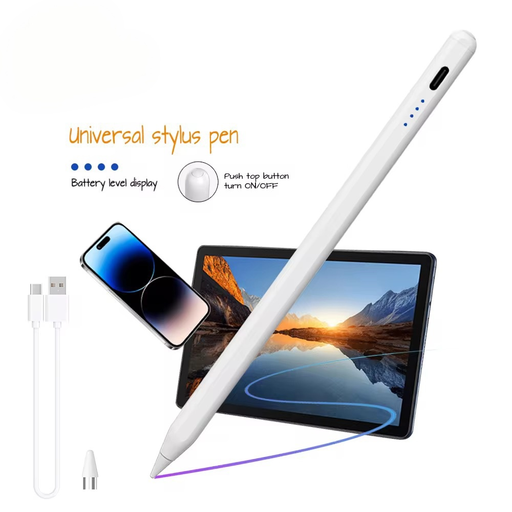 No image available
The product name lists iOS, iPad, Android and Microsoft devices; before buying, check that the pen works with your exact tablet and marking app.
The product information lists a capacitive screen, a built-in lithium battery and Bluetooth pairing. It also says that a compatible app is required.
No. Not every tablet pen works with every tablet model. Check your exact model against the pen’s compatibility information, and separately make sure your marking app supports pen input and the file you’re using.
Test the whole process with a sample PDF: open the file in an approved app, add a comment, save it and reopen the saved version. Apple explains how to mark up PDFs on iPad; Samsung explains how to import, annotate, save and share PDFs in Samsung Notes. Also check how to return the file through your school’s system.
It depends on the version. Apple says the Apple Pencil (USB-C) pairs and charges using a USB-C cable; Logitech says the Crayon (USB-C) lets you write without pairing via Bluetooth, but it still charges via USB-C. Microsoft recommends a compatible charging accessory for the Surface Slim Pen, while the Lenovo USI Pen reviewed uses an AAAA battery.
The Dutch Data Protection Authority explains that schools have obligations under the GDPR to protect pupils’ personal data. If another organisation processes data on a school’s behalf, the Dutch Data Protection Authority says a data processing agreement is required. Let your school decide which app, storage and sharing methods are approved for the work in question; buying a pen won’t take care of this.
No. According to ACM ConsuWijzer, statutory warranty in the Netherlands has no fixed duration; it depends on what you could reasonably expect from the product. For distance purchases from a business, the Dutch Government says there is often a 14-day cooling-off period, with some exceptions.