Start with a stylus that’s compatible with your exact tablet model, then decide whether you need pressure-sensitive lines or simply straightforward sketching controls. A different stylus won’t solve screen glare: assess the display separately, and check that the stylus features you want also work in your drawing app.
Who is this stylus guide for?
Logo sketcher with an existing tablet
You want to find out whether a stylus works with your screen before comparing features for controlling your lines. Apple, Samsung and Wacom describe compatibility in terms of specific devices or stylus protocols.
Designer who wants varied linework
You want to control how your lines look as you sketch, so you’re considering pressure sensitivity, app support and stylus controls. Samsung, STAEDTLER and Microsoft describe features for specific stylus and device combinations.
Sketcher working beside a bright window
You want to see your lines clearly in bright ambient light. So, check the screen and any glare too: Apple and Samsung describe anti-reflection solutions for specific models.
What should you look for in a tablet stylus for a logo concept?
Apple Pencil Pro with a compatible iPad
A good fit if: you have an iPad supported by Apple and want to use squeeze, rotation or tool-switching controls.
Keep in mind: check whether your drawing app supports these features; the stylus won’t reduce screen glare.
Apple Pencil (USB-C) or Logitech Crayon
A good fit if: you have a compatible iPad and tilt or straightforward sketching controls are enough for you.
Keep in mind: don’t expect the same pressure or gesture features as the Pencil Pro. The Pencil (USB-C) charges via a cable.
S Pen for Galaxy Tab S11 or S11 Ultra
A good fit if: you have one of these two tablets and want the corresponding S Pen for sketching and pressure-sensitive strokes.
Keep in mind: the separate S Pen we looked at is specified for the S11 series; also check whether your tablet already comes with a stylus.
STAEDTLER Noris digital with an EMR screen
A good fit if: your device supports EMR and you want a stylus that doesn’t need charging or pairing.
Keep in mind: having a touchscreen or Android tablet doesn’t confirm EMR support. Pressure-sensitive lines also depend on the app.
Surface Slim Pen or Wacom Bamboo Ink Plus
A good fit if: you’ve confirmed stylus support for your Surface, or AES or MPP support for the Wacom stylus on your Windows device.
Keep in mind: features and charging vary by device and accessory; don’t assume these styluses are interchangeable.
The percentages give a general indication of the main purchasing priorities for this drawing setup.
| Consideration |
What to check before buying |
Who is this important to? |
| Compatibility |
Check the full tablet model and the required stylus protocol, then see whether your drawing app supports the stylus features. |
If I want to keep using my existing tablet, I first want to know whether the stylus will actually work with my screen. Compatibility is the top purchasing priority for around 36% of consumers. |
| Line control |
Check pressure sensitivity, tilt and any gesture controls for both the stylus and drawing app. |
If you want to draw lines of different widths in a logo concept, you’ll focus on how much control the stylus gives you over each stroke. Line control is the top priority for around 29% of consumers. |
| Visibility in light from a window |
Assess your existing screen in your workspace; if you’re considering an anti-reflection solution, check that it’s designed for your model. |
If I’m sketching beside a bright window, I want to see my lines clearly on the screen. Visibility is the main priority for around 21% of consumers. |
| Ease of use and what’s included |
Check how it charges, what’s included with the stylus and whether you’ll need compatible replacement nibs or charging accessories. |
If you want to avoid the hassle of charging or buying extra accessories, check what already comes with the tablet or stylus. Ease of use and what’s included matter most to around 14% of consumers. |
Common buying mistakes
-
Assuming a tablet stylus works with every device
A compatible-looking nib or a familiar brand name doesn’t confirm that the active stylus features will work with your tablet. Apple lists specific iPads; STAEDTLER requires a compatible EMR screen, while Wacom specifies AES or MPP support for Bamboo Ink Plus.
Make a note of your full tablet model and check which stylus protocol it supports before comparing other features.
-
Buying a new stylus to solve screen glare
Anti-reflection properties come from a screen or a screen protector designed for a specific model, not from the stylus. Changing your stylus won’t change the screen finish.
Assess the screen in the place where you plan to work, and check separately that any screen solution is compatible with your model.
-
Confusing magnetic attachment with magnetic charging
Apple says the Pencil (USB-C) charges via a cable; a compatible device or accessory may be needed for the Surface Slim Pen.
Check the charging method and what’s included with the exact version you’ve chosen. You may need a cable or compatible charging accessory.
Brands to consider
Apple
Apple describes Pencil Pro for certain recent iPads and Pencil (USB-C) for a different range of iPads.
- Apple says Pencil Pro features include squeeze, rotation and magnetic charging.
- Apple says Pencil (USB-C) connects and charges via a USB-C cable; compatibility varies by iPad model.
Samsung
Samsung specifies the separate S Pen we looked at for Galaxy Tab S11 and S11 Ultra.
- Samsung lists pressure detection and a replaceable nib for this stylus.
- The anti-reflective screen protector described by Samsung is a separate accessory for Galaxy Tab S12+, not a feature of every S Pen.
Logitech
Logitech describes Crayon (USB-C) as a stylus for sketching on iPad.
- According to Logitech, the stylus works without complicated Bluetooth pairing and charges via USB-C.
- Check that your exact iPad model and drawing app are compatible with the features you want.
STAEDTLER
STAEDTLER describes Noris digital classic for devices with compatible EMR support.
- According to STAEDTLER, the stylus doesn’t need charging or pairing; the stated package includes replacement nibs.
- A compatible EMR screen is required, and pressure-sensitive lines also depend on the app.
Microsoft
Microsoft describes Surface Slim Pen features for certain Surface models.
- Microsoft lists pressure and tilt features on specific Surface devices.
- Charging options depend on a compatible device or accessory; a separate charger may be needed.
Wacom
Wacom describes Bamboo Ink Plus for Windows devices with compatible AES or MPP support.
- Wacom lists up to 4,096 pressure levels for the stylus.
- According to Wacom, performance varies depending on the hardware and software, and the stylus doesn’t work with Apple products.
Tablet stylus options on Joybuy
This selection focuses on sketching with compatible iPads and Surface setups. Before buying, check that your exact tablet model and the stylus features you need are supported.
 Image unavailable
iPad stylus with USB-C, tilt detection and palm rejection
For sketching on selected iPad models; check that your exact model is supported.
USB-C charging port, tilt detection and palm rejection.
Magnetic attachment is for storage, not wireless charging. The stylus has an LED battery indicator.
Joybuy
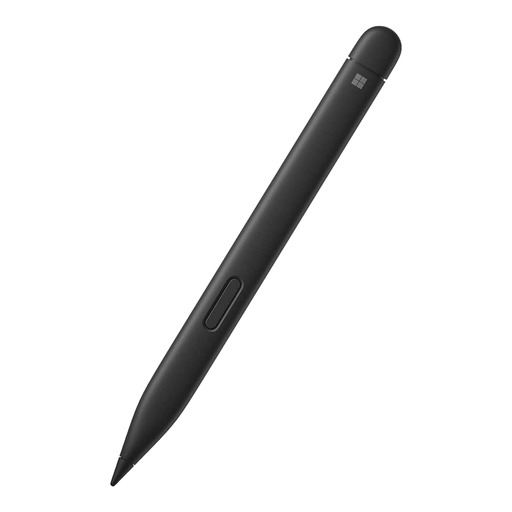 Image unavailable
Microsoft Surface Slim Pen 2, black (8WV-00002)
An option for drawing with a compatible Surface setup; check that your device and accessories are compatible.
The product listing states compatibility with Type Covers for Surface Pro 8 or Surface Pro X.
Joybuy
 Image unavailable
Logitech Crayon (USB-C), silver
For easy sketching on a compatible iPad; check the required iPad and iOS version.
The product listing specifies iPads from 2018 onwards with iOS 12.2 or later, USB-C charging and use without Bluetooth pairing.
Tilt can vary the line width; the product description also mentions palm rejection.
Joybuy
 Image unavailable
Apple Pencil Pro 2024 for iPad Air/iPad Pro
For sketching with stylus controls on a compatible iPad; check that your exact model is supported.
The product listing mentions pressure and tilt sensitivity, as well as squeeze and rotation controls. Apple describes these controls for supported iPads.
Joybuy
 Image unavailable
Apple Pencil (USB-C), white
For drawing and sketching on a compatible iPad model; check model compatibility first.
The product listing mentions tilt sensitivity. Apple says it pairs and charges via a USB-C cable.
Magnetic attachment is for storage; don’t assume it supports wireless charging.
Joybuy
Frequently asked questions
Can an anti-reflective stylus make my screen easier to see beside a window?
No, glare is an issue with the screen, not the stylus. Apple describes an anti-reflective coating and a nano-texture option for certain iPad Pro versions; Samsung describes an anti-reflective screen protector specifically for Galaxy Tab S12+. These solutions don’t automatically apply to other tablets.
Do I need to pair or charge a STAEDTLER Noris digital?
According to STAEDTLER, no, as long as your device has a compatible EMR screen. The drawing app also affects how pressure-sensitive lines work.
How do I replace the nib on the S Pen for the Galaxy Tab S11 series?
Samsung advises gently pulling out the old nib, then inserting and pressing in the new one. Use a replacement nib that’s compatible with this stylus.
Do I need a separate charger for the Surface Slim Pen?
It depends on your Surface and the accessories available. Microsoft lists charging via compatible devices or accessories and says a separate charger is available.
What are my rights in the Netherlands if I’m unhappy with an online purchase or a stylus is faulty?
For many online purchases from a business, you have a 14-day cooling-off period, although there are exceptions. Faulty products are also covered by statutory guarantee rights; according to the Dutch government, the Netherlands has no fixed statutory two-year period, and the seller is your point of contact for a solution. This is separate from any manufacturer’s guarantee.


