
Student with an existing tablet
You want to sketch a logo concept without buying a pen that won’t work with your tablet. Your exact tablet model determines which stylus options are suitable.


Start with your exact tablet model: a pen for iPad won’t necessarily work with a Galaxy Tab or Lenovo tablet. Choose pressure sensitivity if you want to control line thickness with the pressure of your hand; for simple outlines, a compatible pen with tilt detection or simpler controls may be enough. If you want to edit the concept later as a scalable logo, also check whether your drawing app supports vector artwork.
You want to sketch a logo concept without buying a pen that won’t work with your tablet. Your exact tablet model determines which stylus options are suitable.
You want to vary your sketch lines and line thickness, so you’re looking at the difference between pressure sensitivity and tilt detection.
You want to refine shapes and paths after your initial sketch. The features available in your drawing or vector app also matter.
Choose this option: if you have a compatible iPad and want a pen for sketching and outlines.
Bear in mind: features vary by model; Logitech states that Crayon isn’t pressure-sensitive.
Choose this option: if you have a Galaxy Tab S11 or S11 Ultra and need a compatible pen, for example as a replacement.
Bear in mind: the model we looked at is designed for these two tablet models; also check whether your tablet already comes with an S Pen.
Choose this option: if Lenovo lists the pen as compatible with your tablet and you want pressure and tilt detection.
Bear in mind: check your tablet’s compatibility separately; the listed features don’t prove that the pen works with every Lenovo model.
| What to consider | What should you check? | Who should pay particular attention? |
|---|---|---|
| Compatibility | Compare the exact tablet and pen models. For Apple, also check the required iPadOS version; Apple Support provides separate compatibility lists for Pencil Pro and Pencil (USB-C). | If I want to keep using my current tablet, I need to be sure the pen will work with it. Around 33% of consumers say compatibility is their main concern. |
| Line control | Check for each model whether it’s pressure-sensitive or responds to tilt. Logitech states that Crayon isn’t pressure-sensitive; Lenovo lists 4096 pressure levels and tilt detection for Tab Pen Plus. | If I want to vary line weight as I sketch, I look at which controls suit the way I draw. Around 25% of consumers prioritise line control. |
| Cost and maintenance | Check whether the tablet already comes with a pen, how the pen is charged and whether a spare tip is included. Samsung explains how to replace the tip; Lenovo lists an extra tip with Tab Pen Plus. | As a student, I don’t want to buy a separate pen if one is already included with my tablet, and I want to know what’s involved in using it. Around 25% of consumers say cost and maintenance are their main concerns. |
| Digital finishing | Check whether your chosen app can draw and edit vector paths on your tablet. Adobe describes Illustrator on iPad as suitable for vector work using Apple Pencil and touch controls. | If I want to turn a sketch into an editable shape later, I first check whether my app is up to the job. Around 17% of consumers prioritise digital logo finishing. |
Apple lists different supported models and software requirements for Pencil Pro and Pencil (USB-C). So a general compatibility statement won’t necessarily tell you whether it will work with your device.
Check your iPad’s full model name and the required iPadOS version before choosing a pen.
Logitech states that Crayon adjusts line thickness when tilted, but isn’t pressure-sensitive. These are different ways to control your lines.
Decide whether you want to control line weight by tilting or applying pressure, and check that feature for the exact pen model.
Samsung states that an S Pen is included with the Galaxy Tab S11 model we looked at. A separate pen may therefore be unnecessary for that tablet.
Check what’s included with your tablet variant before ordering a replacement pen.
According to the Dutch Government, the Netherlands has no fixed statutory warranty period; what you can expect from a product also depends on the product itself.
Keep your proof of purchase and contact the retailer if a product is faulty.
Apple Pencil models are designed for specific supported iPads; Pencil Pro and Pencil (USB-C) aren’t compatible with the same devices.
The S Pen we looked at is designed for Galaxy Tab S11 and Galaxy Tab S11 Ultra, for example as a replacement pen.
Tab Pen Plus is an option for Lenovo tablets that Lenovo lists as compatible.
Crayon (USB-C) is designed for compatible iPads and may suit sketching and note-taking if you want simple controls.
This selection includes standalone stylus pens for sketching on tablets, with different models for iPad and other tablets. Check compatibility and the controls required for your device.
 No image available
The listed features may be useful for sketching on a compatible iPad; check which iPad models are supported.
The product name lists a USB-C charging port, tilt detection, palm rejection, magnetic attachment and an LED battery indicator.
 No image available
An option for drawing with pressure and tilt sensitivity on a compatible iPad model.
Apple lists magnetic pairing and charging, plus squeeze and double-tap controls. Check your iPad’s compatibility and the required iPadOS version; Apple specifies iPadOS 17.5 or later for Pencil Pro.
 No image available
This model may suit sketching on a compatible iPad; check support for your exact model.
Apple lists tilt detection, with pairing and charging via a USB-C cable. Don’t assume it’s pressure-sensitive without checking for the exact model.
 No image available
An option for drawing or sketching if your iPad is among the models listed as compatible.
The product name lists compatibility with the 12.9-inch iPad Pro (3rd, 4th, 5th and 6th generations), 11-inch iPad Pro, iPad Air (4th and 5th generations) and iPad mini (6th generation). Check your exact model.
 No image available
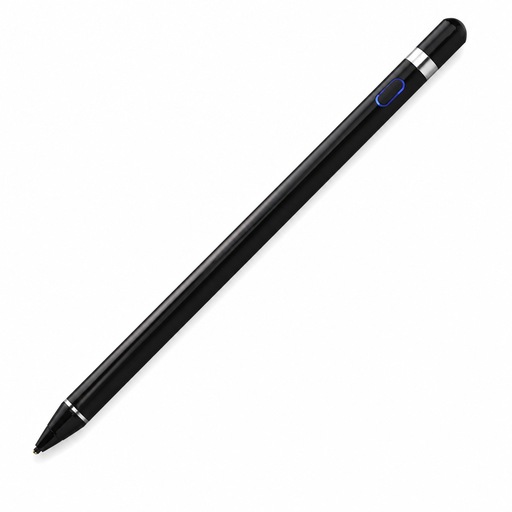
The product information mentions drawing on compatible capacitive screens; check whether your tablet and operating system are supported.
The product description mentions a pressure-sensitive tip and Bluetooth pairing via a companion app. Check which app you need for your device.
Find your exact iPad model and compare it with Apple’s separate compatibility lists for Pencil Pro and Pencil (USB-C). Also check the iPadOS version Apple specifies for your pen.
Pressure sensitivity responds to how hard you press as you draw; tilt detection responds to the angle of the pen. Logitech states that Crayon isn’t pressure-sensitive, but can adjust line thickness by tilting. Check which controls are supported by the specific pen model and your drawing app.
That depends on the final file you want. Adobe describes Illustrator on iPad as suitable for drawing and editing vector paths. Check that the app works on your tablet and that you have access to the features you need.
Not always: Samsung states that an S Pen is included in the box with the Galaxy Tab S11 model we looked at. Check what’s included with your tablet variant and only buy a separate pen if you need a replacement.
According to the Dutch Government, there’s no fixed statutory warranty period in the Netherlands; you can expect a product to be of satisfactory quality, and what that means also depends on the product. Contact the retailer if there’s a problem. A manufacturer’s warranty is in addition to your statutory rights.