
Sketcher with an existing iPad
You want to sketch a logo concept on your own iPad. Check which iPad model you have and which pen is compatible with it; Apple Support (NL) and Logitech list compatibility by device.


Start by checking your exact tablet model: an Apple Pencil, Samsung S Pen, Logitech Crayon and Wacom pen are not interchangeable. Then choose based on the drawing features you use and how you want to store and charge the pen at a shared workspace. Also check that replacement tips are compatible with your version of the pen.
You want to sketch a logo concept on your own iPad. Check which iPad model you have and which pen is compatible with it; Apple Support (NL) and Logitech list compatibility by device.
You’re looking for an S Pen for a specific Galaxy Tab model. Samsung lists compatible models for the relevant version, so don’t assume that every S Pen works with every Galaxy Tab.
You already use a Wacom One drawing tablet or pen display and want a compatible pen. Wacom lists the specific device models that the One Standard Pen is designed for.
First, note down the exact model of your tablet or drawing tablet and check compatibility. Then compare the drawing controls and practical features for moving between workspaces, such as pairing, charging and storage.
| What to consider | What should you check? | Who is this most important for? |
|---|---|---|
| Compatibility | Compare the full device model with the manufacturer’s compatibility information. Also check the software version listed, if applicable. | If I want to be sure the pen works with my existing tablet, I’ll check the exact model first. Around 36% of consumers prioritise compatibility. |
| Line control | Compare features such as tilt sensitivity and additional pen controls for each pen model; if possible, try the drawing app you plan to use as well. | When sketching a logo, I want to develop lines and variations easily, without choosing features I won’t use. Around 29% of consumers put line control first. |
| Using it at a shared desk | Check how the pen is switched on, paired, charged and stored. Magnetic storage doesn’t mean that every pen charges magnetically. | If I share my workspace, I want to be able to take my pen with me and use it again quickly. Around 21% of consumers prioritise convenience when moving between workspaces. |
| Replacement and maintenance | Check that replacement tips or parts are compatible with the exact pen version, and distinguish between wear and a fault. | I want to know how to keep my pen in good working order if a tip wears down or a part gets damaged. Around 14% of consumers prioritise replacement and maintenance. |
Apple, Samsung and Wacom list compatibility for specific devices. So a pen from the same brand won’t necessarily work with every model.
Note down your tablet’s full model number and compare it with the manufacturer’s compatibility information before choosing a pen.
Apple says Apple Pencil USB-C attaches magnetically for storage, while pairing and charging are done using a USB-C cable.
For the exact pen you’re considering, check separately how storage, pairing and charging work.
On 13 October 2026, the Joybuy listing for Logitech Crayon USB-C showed that the product was out of stock.
Check current availability when you’re ready to order; a product listing alone doesn’t confirm that you can buy the pen straight away.
Apple Pencil models are designed for specific iPads. Check compatibility with your own model.
S Pen models are designed for specific Galaxy Tab devices.
Logitech Crayon USB-C is described as a pen for iPad, suitable for sketching and taking notes, among other things.
Wacom One Standard Pen is designed for specific Wacom One drawing tablets and pen displays.
These products are aimed at sketching with a compatible iPad or other supported device. For each pen, check that your tablet meets the stated compatibility requirements.
 No image available
An option if you have a compatible iPad and want extra pen controls while sketching.
According to Apple, Pencil Pro offers features including pinch and barrel roll controls, as well as haptic feedback. Check the compatibility list and the iPadOS version required for your device.
 No image available
An option for sketching and annotating on a compatible iPad.
Magnetic attachment is for storage; according to Apple, pairing and charging are done using a USB-C cable. Check which iPad models and iPadOS version are supported.
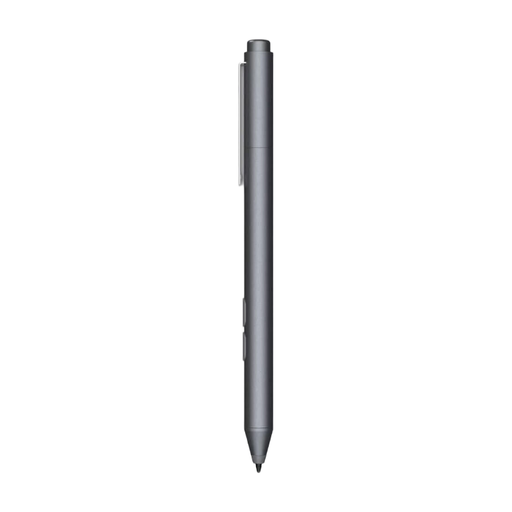 No image available
An option to consider if your device supports MPP.
The product name mentions customisable buttons and one replaceable tip. Check that your device supports MPP before choosing this pen.
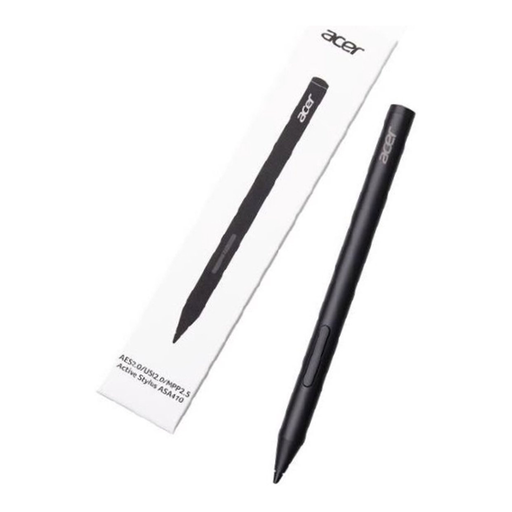 No image available
An option if your device supports AES 2.0, USI 2.0 or MPP 2.5.
The product name lists a weight of 16,5 g. Check the device support required; the AAAA batteries specified are not included.
 No image available
First check that your device and screen are compatible with this pen.
It is described for use with capacitive screens and pairs via an app. Check compatibility with your specific tablet before ordering.
Look up your exact iPad model in the Apple Support (NL) compatibility list. For Pencil Pro and Pencil USB-C, also check the minimum iPadOS version listed; knowing that you have an iPad isn’t enough.
With Apple Pencil USB-C, magnetic attachment is for storage; according to Apple, pairing and charging are done using a USB-C charging cable.
Check which replacement part is compatible with your version of the pen. Apple lists replacement tips for specific Pencil models, and Logitech offers a replacement tip cover for Crayon USB-C. Normal wear and tear isn’t automatically a fault covered by the statutory guarantee.
No, both time periods don’t automatically apply: according to the Dutch government, when you buy online from a business, you often have 14 days to change your mind, while the Netherlands has no fixed statutory guarantee period. If a product is faulty, you’re entitled to a product that meets the required standards and should contact the seller; check separately whether these rules apply if you’re buying on behalf of a business.