
Tablet owners looking for a pen
You want to annotate lecture slides without choosing a pen that won’t work with your exact iPad, Galaxy Tab or Surface model. Apple Support, Samsung and Microsoft publish compatibility information for specific models.


Start by checking your tablet’s exact model, then make sure the app you use can open, annotate and save or share your lecture slides. Apple Pencil (USB-C) and Logitech Crayon (USB-C) are options for compatible iPads; Samsung S Pen and Surface Slim Pen 2 are designed for different, model-specific tablet ranges. Before choosing, also check palm rejection, charging and whether the nibs can be replaced.
You want to annotate lecture slides without choosing a pen that won’t work with your exact iPad, Galaxy Tab or Surface model. Apple Support, Samsung and Microsoft publish compatibility information for specific models.
You receive slides as PDFs and want to write on them, save the edited version or share it. Samsung explains how to annotate PDFs in Samsung Notes; also check that your file and app suit the way you work.
If you often take notes, look for palm rejection, convenient charging and a replaceable nib. The features available vary depending on the pen and tablet combination.
Choose this option: if you have an iPad listed by Apple as compatible with this Pencil and mainly want to write or annotate documents.
Consider: this version charges via USB-C; it doesn’t automatically include Apple Pencil Pro features.
Choose this option: if you want to write on a compatible iPad and palm rejection is important to you.
Consider: Logitech describes the Crayon as not pressure-sensitive. Check this separately if you also want to draw with pressure sensitivity.
Choose this option: if you have a supported Galaxy Tab and want to annotate PDF slides in Samsung Notes.
Consider: Samsung lists different tablet models for different S Pen versions, so check the model number.
Choose this option: if you already have a Surface that Microsoft says supports pen input.
Consider: not every Surface supports handwriting, and you may need a compatible accessory to charge the pen.
First, check your tablet’s full model name and the app you use for your slides. Then compare how the pen writes and charges, as these features can vary between combinations.
| What to consider | What to look for | Who is this important for? |
|---|---|---|
| Compatibility | Compare the tablet’s full model name and, where applicable, its software version with the compatibility information for the exact pen version. | If I already have a tablet, I want to avoid choosing a pen that isn’t compatible with my model. Around 36% of consumers give compatibility with their existing tablet top priority. |
| Annotating slides | Try opening, annotating, saving and sharing your usual PDF or presentation file in the app you plan to use. | If I want to save or share notes on my own slides, the app needs to work with the file I receive. Around 29% of consumers prioritise this way of working. |
| Writing comfort | Check palm rejection for your pen and tablet combination. If you also draw, distinguish between tilt sensitivity and pressure sensitivity. | For longer writing sessions, I want to be able to rest my hand and write comfortably. Around 21% of consumers prioritise how the pen writes. |
| Charging and wear | Check how the pen charges, whether your tablet or keyboard can charge it, and whether suitable replacement nibs are available. | If I write often, I want to know how to charge the pen and what to do if the nib wears down. Around 14% of consumers prioritise maintenance and charging. |
Compatibility varies by pen version and tablet model. Apple Support and Samsung provide information for specific models.
Before ordering, compare your tablet’s full model name with the information for the exact pen version.
Logitech says that tilting lets you vary the line thickness, but also states that the Crayon isn’t pressure-sensitive.
If you also draw as well as annotate slides, check whether you need pressure sensitivity and whether your chosen pen supports it.
Choosing a pen doesn’t in itself tell you whether your file will be easy to annotate and save in your chosen app. Samsung explains how to annotate PDFs in Samsung Notes; Microsoft describes inking features in Office environments.
Before settling on a way of working, test a real lecture file to make sure you can open, write on, save and share it.
A different file format or app may involve extra steps, such as converting slides.
Microsoft says that charging the Surface Slim Pen 2 requires a compatible Surface device or accessory.
Check whether your Surface or keyboard can charge the pen. If not, you may need a suitable charging accessory.
You may need to buy a separate charging accessory.
Apple Pencil (USB-C) is designed for the iPads that Apple lists as compatible with this version. Apple Pencil Pro is a separate option for a more limited range of models.
Logitech Crayon (USB-C) is an iPad pen for writing and annotating on compatible models.
Samsung lists S Pen versions for specific supported Galaxy Tabs and explains how to annotate PDFs in Samsung Notes.
Surface Slim Pen 2 is designed for Surface models that support pen input.
This selection includes stylus pens for compatible iPads, Galaxy Tabs and Surface models. Always check that the exact tablet and the annotation app you want to use are compatible with the pen.
 No image available
An option for writing and taking notes on a compatible iPad; Logitech says it supports iPad models from 2018 onwards.
USB-C version. Logitech describes the Crayon as not pressure-sensitive.
 No image available
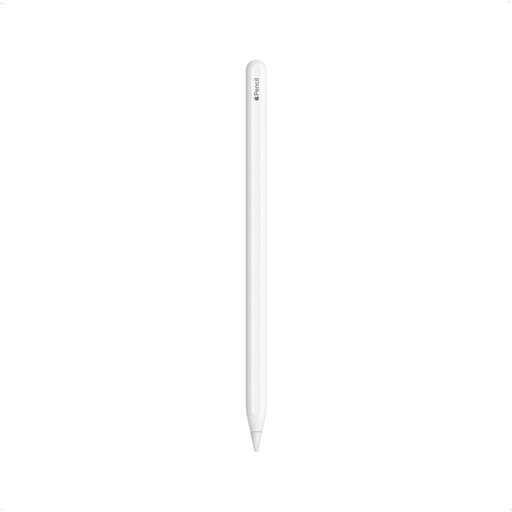
For annotating documents and writing on an iPad that Apple lists as compatible with this version.
USB-C version; check compatibility with your exact iPad model.
 No image available
An option for annotating the iPad model groups listed in the product name.
Compatibility is limited to the iPad generations listed; check that your exact model is included before buying.
 No image available
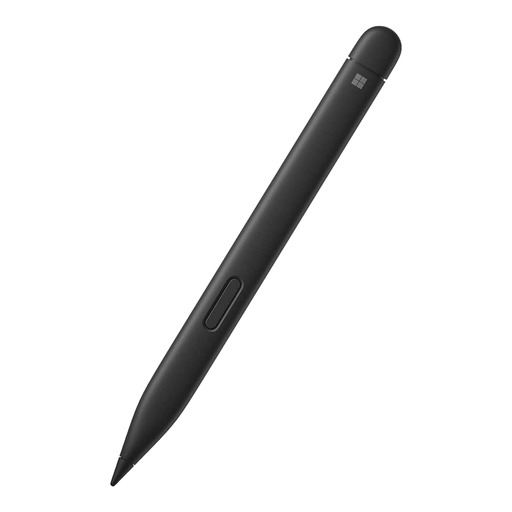
An option for a Surface model that Microsoft says supports pen input.
Microsoft describes the pen nib as replaceable. Charging requires a compatible Surface device or accessory; you may need to buy a separate charging accessory.
 No image available
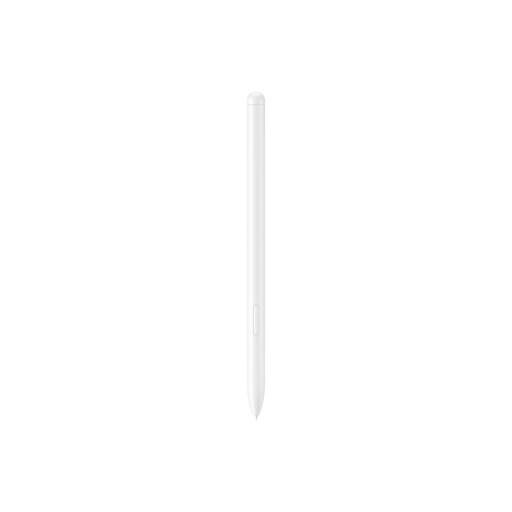
An option for annotating PDF slides on a compatible Galaxy Tab; Samsung explains how to import PDFs and write on them in Samsung Notes.
The listed compatible models are Galaxy Tab S9 FE and S9 FE+. According to the product information, a separately sold tool is needed to remove the nib.
No. Apple lists the iPad models and, where necessary, iPadOS versions supported by each Pencil version. Find your iPad’s full model name and compare it with the compatibility information.
That also depends on the file format and app. Samsung explains how to import and annotate PDFs in Samsung Notes; Microsoft describes inking on slides in supported Office environments. Try a file in the format provided by your course.
Microsoft recommends charging it before use and pairing it via Bluetooth for the shortcut button feature. Charging requires a compatible Surface device or accessory; check whether you need a separate charger.
Microsoft describes the Surface Slim Pen 2 nib as replaceable. For a faulty product, the seller must provide a solution under Dutch law; normal wear and tear is not automatically covered by free repairs.
For distance purchases from a business, you generally have 14 days to change your mind, although there are exceptions. You’re also entitled to a product that works as it should: in the Netherlands, there is no fixed statutory warranty period. The Dutch government advises contacting the seller if there’s a problem.