
Card lettering enthusiast with an existing tablet
You want to find out which pen works with your iPad, Galaxy Tab, Xiaomi Pad or compatible ChromeOS tablet. Apple Support, Samsung, Xiaomi and Lenovo list compatibility by model or supported protocol.


Start by checking your exact tablet model: a stylus won’t necessarily work with tablets from other brands or product ranges. Then choose based on the strokes you want to make and the features that matter to you. Pressure sensitivity is useful if you want to control line thickness with the pressure you apply, while tilt control or easy storage may be enough for other needs. If you want to print your card, check the page size and print settings too.
You want to find out which pen works with your iPad, Galaxy Tab, Xiaomi Pad or compatible ChromeOS tablet. Apple Support, Samsung, Xiaomi and Lenovo list compatibility by model or supported protocol.
You want to know whether you can control your strokes with pressure, tilt or app-dependent features. Logitech describes tilt control for Crayon and notes that the version reviewed here isn’t pressure-sensitive; Xiaomi lists app and settings requirements for certain pen features.
You want to be able to find, charge or put away your pen easily after a short drawing session. Apple, Samsung and Adonit describe different charging, storage and replacement nib options for specific versions.
| What to consider | What should you check? | Who is this important for? |
|---|---|---|
| Compatibility | Check the full tablet model name and the pen’s compatibility list. Also look for any software or protocol requirements, such as the specified iPadOS version or USI 2.0 on ChromeOS. | I want to make sure the pen works with my existing tablet before I buy, otherwise I can’t use it to create a card. Around 36% of consumers prioritise compatibility with their own tablet. |
| Stroke control | Check whether the pen is pressure-sensitive, responds only to tilt or has brush features that depend on the app. Xiaomi lists 16,384 pressure levels for the Focus Pen Pro with compatible Pad models. | If I want to create letters with a mix of thin and thick strokes, I look at how the pen controls that variation. Around 29% of consumers prioritise control over their lettering strokes. |
| Charging and storage | Check separately how the pen charges and where it can be stored: Apple Pencil (USB-C) charges via a cable, while magnetic attachment on this version is for storage. | At a shared desk, I want to be able to pick up my pen quickly and leave it tidy after use. Around 21% of consumers prioritise ease of use and storage. |
| Printing your card | Check the page size, safe margins and whether your app and printer support bleed or crop marks. Canva warns that not all home printers support these print features. | I want my lettering to stay on the printed card and not get cut off when it’s trimmed. Around 14% of consumers prioritise a design that prints well. |
Active pens are sometimes tied to specific devices or protocols. If a pen isn’t supported, you won’t get the drawing features you want.
Before buying, compare the exact pen version with your tablet model and check for any software or protocol requirements.
Logitech says that tilting the Crayon version reviewed here can change line thickness; its manual states that this version isn’t pressure-sensitive.
Decide how you want to create thin and thick strokes, then check both the pen’s features and what your drawing app can do.
Apple describes magnetic charging for Apple Pencil Pro. Apple Pencil (USB-C) charges via a USB-C cable, even though it can attach magnetically to the iPad.
Check the charging method and storage options separately, especially if you leave your pen at a shared workspace after use.
Letters placed too close to the trim edge may get cut off. Not all home printers support bleed or crop marks either.
Check the size and margins, and print a test copy before printing your finished card.
A failed print may mean printing again and using extra card stock.
Apple Pencil Pro and Apple Pencil (USB-C) are two different options for compatible iPads.
The S Pen reviewed here is designed for specific Galaxy Tab models.
Logitech Crayon is an option for supported iPads; the manual and product information consulted relate to the Lightning version.
Xiaomi lists the Focus Pen Pro for the Pad 6S Pro 12.4, Pad 7 series and Pad 8 series.
Lenovo USI Pen 2 Magnetic is designed for devices with USI 2.0 on ChromeOS.
Adonit describes the Dash 4 as suitable for use with a range of Apple and Android touchscreens.
These pens are options for writing and drawing on an existing tablet. Before buying, check whether your exact tablet model supports the pen or the required pen standard.
 No image available
An option for hand lettering with pressure variation if you use a compatible Surface model.
Supports 4,096 pressure levels and haptic feedback; the product information lists writing and drawing.
 No image available
An option for lettering with pressure and tilt sensitivity on a compatible iPad.
The product information lists drawing, sketching and gesture controls. Apple describes magnetic pairing and charging for compatible iPads; check compatibility with your model.
 No image available
An option for writing and sketching on a compatible iPad if you want to store the pen magnetically.
The product information lists tilt sensitivity and a hover feature on supported iPads. It charges via USB-C; magnetic attachment is for storage.
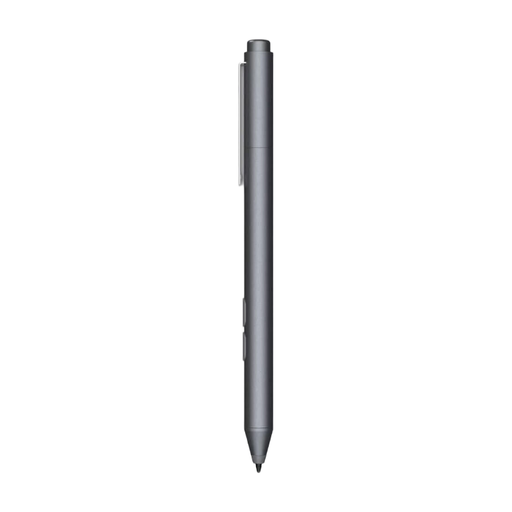 No image available
An option for pressure-sensitive writing and drawing if your tablet supports MPP.
Features customisable buttons and a replaceable nib; uses an AAAA battery.
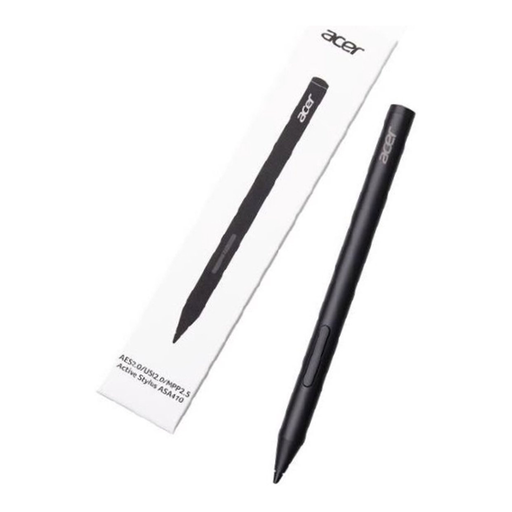 No image available
An option for writing and drawing if your device supports AES 2.0, USI 2.0 or MPP2.5.
Supports 4,096 pressure levels and weighs 16.5g. AAAA batteries are not included.
No. Compatibility depends on the Pencil version and your iPad model. Apple lists which iPads are supported for each version; Apple Pencil Pro also has iPadOS requirements. Check your exact model before ordering.
Pressure sensitivity responds to how hard you press with the pen; tilt sensitivity responds to the angle at which you hold it. Logitech says the Crayon reviewed here isn’t pressure-sensitive and describes using tilt to vary line thickness.
Check that palm rejection works with your pen, tablet and app. Adonit lists this feature for the Dash 4 specifically in blue mode on certain newer iPads; don’t assume it will work on every touchscreen.
Set the page size to match your card, keep important lettering within the safe margin and check a test print. Canva describes printing as print PDF, but not all home printers support bleed or crop marks.
For online purchases from a business, a 14-day cooling-off period applies in many cases, according to the Dutch government. If a product is faulty, you can exercise your statutory rights with the seller. The Netherlands doesn’t have a fixed statutory warranty period for all products; the circumstances of the purchase and the product still matter.