What should you look for?
First, check that your tablet, computer and preferred screen setup work together. Then compare the pen features and how it charges.
| What to consider |
What should you check? |
Who is this important for? |
| Compatibility |
Note down the full tablet model and check it against the compatibility information for the exact pen version. |
If I want to avoid buying a pen that won’t work with my tablet, I’ll check the model combination first. Around 31% of consumers prioritise compatibility. |
| Dual-screen connection |
Decide where the collage app will run and check the requirements for your specific Mac and iPad or Windows PC and Galaxy Tab combination. |
If I use the collage app on a computer, I want to know whether my tablet supports the screen setup I’m after. Around 31% of consumers give this connection top priority. |
| Drawing and selection |
Compare features of the exact pen version only, such as tilt control or extra controls, and check that they suit your collage app. |
If I’m drawing lots of outlines, adjusting details or selecting elements, I’ll look for the controls I need for those tasks. Around 23% of consumers prioritise drawing and selection control. |
| Charging and maintenance |
Check the charging method, what’s included in the box and whether replacement tips are available for the version you’ve chosen. |
If I use the pen often, I want to know how to charge it and which parts I might be able to replace. Around 15% of consumers make ease of use and additional costs their main consideration. |
Styluses for compatible iPads
This product selection focuses on styluses for compatible iPads. Check the connection to a second screen, such as Sidecar between a compatible Mac and iPad, separately.
 No image available
iPad stylus with USB-C charging
For drawing and annotating on one of the selected compatible iPads.
The description lists tilt detection and palm rejection. The stylus charges via USB-C; magnetic attachment is for storage and doesn’t support wireless charging.
Joybuy
 No image available
Logitech Crayon (USB-C), silver
For drawing and writing on an iPad that’s compatible with this version of Crayon.
Logitech lists support for iPads from 2018 onwards, tilt sensitivity and palm rejection. It charges via USB-C; check whether suitable replacement tips are available for your iPad and this version.
Joybuy
 No image available
Apple Pencil Pro
For drawing and adjusting details on a compatible iPad.
The product description lists tilt and pressure sensitivity, extra controls, and magnetic pairing and charging. Check compatibility with your exact iPad model.
Joybuy
 No image available
Apple Pencil (USB-C), white
For sketching and drawing on an iPad that’s compatible with this Pencil.
Apple lists tilt sensitivity; pairing and charging are done using a USB-C charging cable. Check compatibility with your exact iPad model.
Joybuy
 No image available
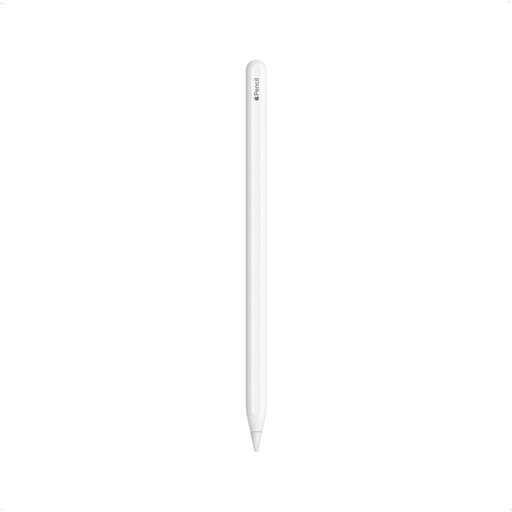
Apple Pencil (2nd generation)
For drawing, sketching and annotating on a compatible iPad model.
The product description lists double-tap to switch tools, as well as magnetic pairing and charging. Compatible models listed include iPad Pro 12.9-inch (3rd, 4th, 5th and 6th generation), iPad Pro 11-inch, iPad Air (4th and 5th generation) and iPad mini (6th generation).
Joybuy
Frequently asked questions
Can I use any iPad with any Apple Pencil as a second drawing screen?
No. Both Sidecar and Pencil compatibility depend on the devices you have. Apple publishes separate requirements for the Mac and iPad connection, as well as compatibility lists for Pencil models. Find your exact iPad model first, then check the Sidecar requirements.
How do I set up a supported Galaxy Tab as an extra Windows display?
Turn on Second Screen on your tablet, then connect from a compatible Windows PC using the Windows key + K. Choose your preferred display option in the display settings. Samsung Support lists specific Galaxy Tab S7, S8, S9 and S10 series with One UI 3.1 or later, as well as selected PCs with Wireless Display and at least Windows 10 version 2004. Check that your devices meet the requirements first.
What should I check if my pen controls the wrong screen?
For a Wacom setup with multiple monitors, Wacom recommends checking the Display Toggle settings. This advice applies to that Wacom setup and not automatically to Sidecar or Samsung Second Screen.
Should I consider maintenance or extra costs for a stylus?
Check how the exact version charges and whether suitable replacement tips are available. Apple lists magnetic charging for Pencil Pro and a USB-C charging cable for Pencil (USB-C). A Logitech document for an older Crayon version mentions replacement tips, but doesn’t confirm that they’re compatible with every current USB-C version.
What rights do I have as a private online shopper in the Netherlands?
According to the Dutch government, distance purchases generally come with a 14-day cooling-off period, although exceptions may apply. If a product is faulty, you can contact the seller. The Dutch government also states that there is no fixed statutory guarantee period for all products in the Netherlands.


