
Designer refining line work
You’re developing a logo shape on your tablet and want to choose stylus features that suit your drawing app and workflow. Apple and Lenovo describe features for specific stylus and tablet combinations.


Start by checking your exact tablet model: a stylus that works with one iPad or Galaxy Tab won’t necessarily work with another tablet. Then choose between features that give you more control over your strokes and a stylus that’s easy to pick up, charge and put away. Also check that your drawing app supports the features you want and can export the right file formats.
You’re developing a logo shape on your tablet and want to choose stylus features that suit your drawing app and workflow. Apple and Lenovo describe features for specific stylus and tablet combinations.
You want to capture an initial idea during a meeting and use your stylus without any fuss, then put it away afterwards. Samsung describes magnetic storage for certain Galaxy Tab and S Pen models.
You already have a tablet and are looking for a compatible standalone stylus, without unnecessary features or accessories. Check that the exact stylus model is compatible with your tablet.
For creating a logo concept at a shared desk, compatibility is the first thing to check. Then consider the level of stroke control you want, how quickly you can get started and what maintenance your workflow involves.
| What to consider | What should you check? | Who should pay extra attention? |
|---|---|---|
| Compatibility | Compare your exact tablet model and, where required, its software version with the information for that stylus model. Samsung also distinguishes between S Pen models. | If you already own a tablet, you’ll want to know that the stylus will work with it before choosing based on features. Around 33% of consumers say compatibility is their top priority. |
| Stroke control | Check whether tilt, pressure sensitivity or palm rejection is supported by the stylus and app. Also see which file formats the app can export. | When refining a logo’s shape, you’ll want to know which stylus features your app actually uses. Around 27% of consumers put control over drawing strokes first. |
| Quick to use | Check how the stylus connects and charges; magnetic storage doesn’t always mean magnetic charging. Also check whether palm rejection is available for your combination. | For quick sketches during meetings, you’ll want to be able to pick up the stylus easily and put it away afterwards. Around 20% of consumers value quick access and convenient storage most. |
| Use and maintenance | Check whether replacement tips are available and whether your chosen drawing app has a cost or subscription fee. | If you’re choosing a stylus and app together, you’ll want to know in advance what ongoing needs come with your workflow. Around 20% of consumers put use and maintenance ahead of the other considerations. |
Charging methods vary by model. Apple says Apple Pencil Pro pairs and charges magnetically. Apple Pencil (USB-C) can be stored magnetically, but it pairs and charges using a USB-C cable.
Before ordering, check how the exact model charges and what’s included.
If the stylus charges by cable, check whether you already have a suitable one.
Tilt and pressure sensitivity are different features. Logitech lists tilt for Crayon (USB-C), while Lenovo specifies pressure levels for Tab Pen Plus. Check which input features your drawing app and workflow need.
Look up the feature you want for the exact stylus model, then check that your drawing app supports it too.
The consumer rules that apply can depend on who is making the purchase. Business.gov.nl distinguishes between sales to consumers and sales to businesses; the same consumer rules don’t automatically apply to business purchases.
Before ordering, check whether the purchase is being made by a consumer or a business, and read the terms that apply to your order.
Apple Pencil models are designed for specific iPads, so check the combination if you’re sketching directly on an iPad.
S Pen models are relevant for compatible Galaxy devices, including certain Galaxy Tab models.
Crayon (USB-C) is an iPad stylus for tasks such as sketching and taking notes.
Tab Pen Plus is designed for Lenovo tablets for which compatibility with this model has been confirmed.
Dash 4 is an option for basic input on a range of touchscreen devices.
These standalone tablet styluses are designed for drawing on compatible e-ink tablets, Surface devices and iPads. Before buying, check that the stylus works with your exact tablet model.
 No image available
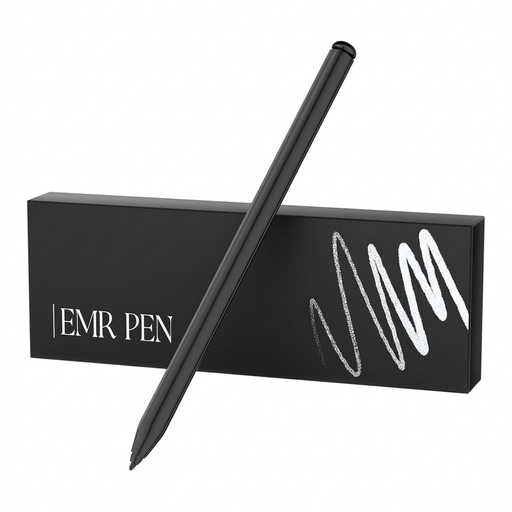
An option for drawing on the compatible devices listed in the product name.
The product name lists reMarkable 1, reMarkable 2 and Kindle Scribe, as well as 4096 pressure levels.
 No image available
An option for sketching on a Surface device if your exact model is included in the listed compatibility range.
The product name lists Surface Pro, Go, Laptop, Studio and Book models, along with the specification label 4096 Sensitivity. Check the model range for your device.
 No image available
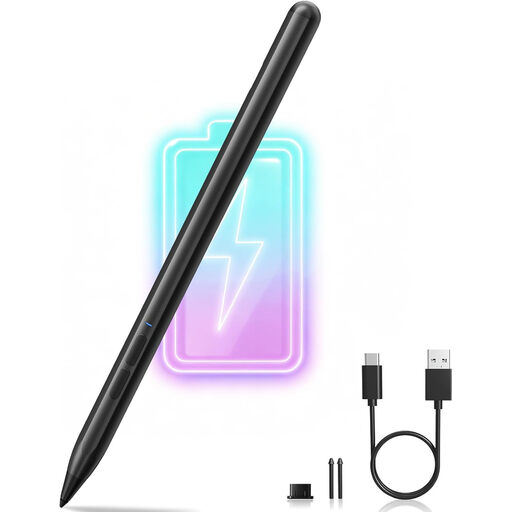
An option for sketching on an iPad model supported by this version.
The product name lists tilt detection, palm rejection, magnetic attachment and an LED battery indicator. Compatibility is claimed for selected iPad models.
 No image available
An option for sketching on an iPad that’s compatible with this Crayon model.
The product name lists USB-C and iPad compatibility. Check which iPad models this version supports.
 No image available
An option for a compatible iPad Air or iPad Pro. Check your exact model before choosing.
The product name lists iPad Air and iPad Pro. It isn’t automatically compatible with every tablet in those ranges.
No, compatibility varies by stylus and tablet. Check your exact tablet model and, for Apple Pencil, the required iPadOS version. Samsung also distinguishes between S Pen models.
That depends on the model. Apple says Apple Pencil Pro pairs and charges magnetically. Apple Pencil (USB-C) can be stored magnetically, but it pairs and charges using a USB-C cable.
Check which replacement tip fits your exact stylus. Logitech says a replacement tip for Crayon is available separately and recommends replacing a damaged or worn tip to help prevent damage to your iPad screen.
Choose an app that supports the file formats required for your next steps. Adobe describes vector work and, among other formats, SVG export for Illustrator on iPad. Adobe says access to Illustrator requires a Creative Cloud subscription that includes Illustrator. This applies to the app, not the stylus.
For many online purchases made as a consumer from a business, you have a 14-day cooling-off period, according to the Dutch government. It also states that there is no fixed statutory warranty period in the Netherlands; if a product is faulty, contact the seller. If you’re buying on behalf of a business, consumer rights don’t automatically apply and different rules may be relevant.