
Illustrator with an existing tablet
You want to check whether a stylus works with your device first, then decide how much control you need over line work and shading. Apple Support, Samsung and Wacom set out compatibility by model or pen protocol.


Choose a stylus based on your exact tablet model: a pen for an iPad, Galaxy Tab or Windows device won’t necessarily work with the others. If you want line weight and shading to respond to pen pressure, check for pressure sensitivity. At a shared desk, storage, charging and replacement nibs matter too.
You want to check whether a stylus works with your device first, then decide how much control you need over line work and shading. Apple Support, Samsung and Wacom set out compatibility by model or pen protocol.
You want to be able to find and put away your pen easily after drawing, and to factor in how it charges. Apple and Samsung describe ways to store the pen on the tablet with certain models.
You want to know which drawing features you need and whether charging, a replaceable nib or an accessory is part of using the pen. Microsoft, for example, notes that certain Surface charging set-ups may require a compatible charger.
| What to consider | What to look for when buying | Who is this most important for? |
|---|---|---|
| Compatibility | Check the exact tablet model, required software version or supported Windows pen protocol. Apple Support, Samsung and Wacom provide compatibility details by device or protocol. | I want to avoid choosing a pen that won’t work with my existing tablet. Around 33% of consumers put compatibility first. |
| Control over lines and shading | Check whether the pen and tablet support pressure and tilt input, and whether these features work with your chosen drawing app. Tilt sensitivity is not the same as pressure sensitivity; Logitech makes this distinction for Crayon. | I want to control lines and shading in a way that suits my illustrations. Around 27% of consumers prioritise drawing control. |
| Storage and charging | Check where the pen is stored, whether your case allows magnetic attachment, and whether charging is via a cable or an accessory. Apple, Samsung and Logitech describe different options for different models. | I want a dedicated place for my pen at a shared desk and a charging method that suits my workspace. Around 20% of consumers prioritise storage and charging. |
| Maintenance and accessories | Check whether the nib is replaceable, which charging accessories you’ll need and whether the pen uses a battery. Samsung, Microsoft and Apple outline model-specific differences in maintenance and charging. | I want to know in advance which parts or accessories I’ll need to use my chosen pen. Around 20% of consumers prioritise maintenance and required accessories. |
A pen from the same brand as your tablet won’t automatically work with every model. Apple, for example, distinguishes between Apple Pencil versions and iPad models.
Compare the full model names of the pen and tablet with the manufacturer’s latest compatibility information.
For certain iPads, Apple specifies a USB-C to Apple Pencil Adapter for the first-generation Apple Pencil. So check whether your particular combination needs an adapter too.
A pen that detects its angle doesn’t necessarily vary its output when you press harder. This can matter if you want to control brush strokes using pressure.
Check which input features the pen, tablet and drawing app support together for the brushes you use.
Charging options for Surface pens vary by Surface model and accessory.
Microsoft recommends checking compatibility and the charging set-up for your Surface model.
Some set-ups may require a compatible charger, sold separately.
Apple Pencil versions are designed for specific iPad models. Check that your combination is compatible.
The S Pen covered here is specific to Galaxy Tab S11 and Galaxy Tab S11 Ultra.
Bamboo Ink Plus is designed for certain Windows devices using AES or MPP.
Surface Slim Pen is designed for Surface devices that support pen input.
Crayon USB-C is designed for iPads supported by Logitech and is aimed at sketching and writing.
This selection includes Apple Pencil models and pens for compatible Surface or MPP devices. Check compatibility with your exact tablet model before buying.
 No image available
Worth considering if you draw on a Surface; check that your exact Surface model supports pen input.
Microsoft lists model-specific features and charging set-ups; some set-ups require a compatible charger.
 No image available
An option for illustrations using pressure-sensitive input, and for a pen that can be stored and charged magnetically on a compatible iPad.
Apple lists squeeze and rotation controls, and requires a compatible iPad model running iPadOS 17.5 or later for Pencil Pro. Also check that your case allows magnetic attachment.
 No image available
An option for sketching and tilt-sensitive strokes on a compatible iPad; check that these features suit your illustration style.
Apple says it pairs and charges via a USB-C cable. Check compatibility with your exact iPad model.
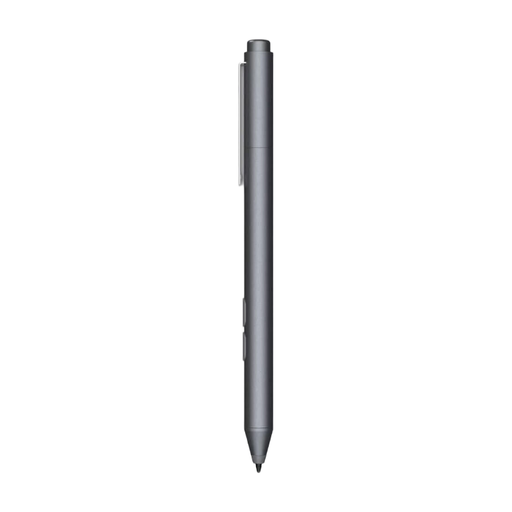 No image available
Worth considering for drawing on a device that supports Microsoft Pen Protocol; check compatibility with your model.
The product title mentions customisable buttons and a replaceable nib. The usage information specifies an AAAA battery, so bear battery replacement in mind.
 No image available
Worth considering if you have one of the iPad models listed as compatible with this version.
The product title lists the 12.9-inch iPad Pro (3rd to 6th generation), 11-inch iPad Pro, iPad Air (4th or 5th generation) and iPad mini (6th generation). Check that your exact model is included.
No. Compatibility depends on the exact tablet model and sometimes on the software version or pen protocol. For Apple Pencil and Galaxy Tab, check the manufacturer’s model information. Wacom lists Windows devices using AES or MPP for Bamboo Ink Plus and notes that compatibility varies by device and software.
Choose a dedicated storage spot in advance and check how your pen charges. Apple describes magnetic storage and charging for Pencil Pro; Apple Pencil (USB-C) pairs and charges via a cable.
Follow the instructions for your model; Samsung explains how to replace the nib on the S11 S Pen. If a product breaks sooner than you could reasonably expect under normal use, ACM ConsuWijzer says the retailer is responsible for providing an appropriate solution under the legal guarantee.
For an online product purchase, you generally have a statutory cooling-off period of up to 14 days after delivery, according to ACM ConsuWijzer. Check whether an exception applies to your purchase.