
Character sheet artist with an existing tablet
You want to avoid buying a new pen that doesn’t work with your tablet. So check your exact tablet model and make sure the features you’re looking for work with your drawing app.


Start by checking your exact tablet model: a stylus won’t necessarily work with every device. Then choose between pressure sensitivity and tilt recognition based on the way you draw, and check how the pen connects, charges and stores. Position your tablet securely and change your posture during longer drawing sessions.
You want to avoid buying a new pen that doesn’t work with your tablet. So check your exact tablet model and make sure the features you’re looking for work with your drawing app.
You’re considering pressure sensitivity or tilt recognition to control your strokes. Don’t assume every stylus has both features.
You want somewhere practical to put your pen between strokes and a stable place for your tablet, even when you change position while drawing.
First check that your tablet, pen and drawing app work together. Then decide which drawing features and practical details matter for your sessions.
| What to consider | What should you check? | Who is this important for? |
|---|---|---|
| Compatibility | Note down your tablet’s full model name and software version. Check that the pen and the features you want are compatible with your device and drawing app. | If I’m drawing on a tablet I already own, I want to make sure the pen is compatible before comparing features. Around 33% of consumers prioritise compatibility with their own tablet. |
| Control over lines and shading | Check separately whether the pen offers pressure sensitivity and tilt recognition, and whether your app supports these features. | If I want to control line weight or shading with my pen strokes, these features matter to me. Around 27% of consumers give control over lines and shading top priority. |
| Work setup | Check how the pen is stored and charged. Make sure your tablet is stable, and avoid staying still for long periods. | If I’m drawing while standing, I want to be able to put my pen down easily and keep my tablet secure. Around 20% of consumers prioritise a practical work setup. |
| Care and accessories | Check how the pen charges and whether its tip can be replaced. | If I use my pen often, I want to know in advance which charger and replacement tips I’ll need. Around 20% of consumers give care and accessories top priority. |
Manufacturers sometimes specify support by device, pen version or operating mode. So a pen that works with one tablet won’t necessarily work with yours.
First, find the exact model of your tablet and the version of the pen. Then check that the features you need are available in your drawing app.
These are different features. Apple says the Pencil (USB-C) supports tilt, but not pressure sensitivity.
Check each feature separately for the specific pen, tablet and app before you choose.
The magnetic attachment on the Apple Pencil (USB-C) is for storage; Apple says it charges via USB-C.
Check how the exact version charges and, if necessary, allow for the cable when setting up your desk.
A stylus won’t automatically make a long or awkward working posture more comfortable. Arboportaal notes that screen-based work can put strain on your neck, shoulders and arms, among other areas.
Position your tablet securely, avoid working for long periods without arm support, and change your posture regularly.
Apple Pencil models are designed for specific supported iPads. Check compatibility with your tablet.
S Pen versions are designed for supported Galaxy devices; the Tab S11 series pen is specifically listed for the Tab S11 and Tab S11 Ultra.
The Precision Pen 3 is an option for Lenovo devices whose compatibility has been confirmed separately.
Adonit presents the Dash 4 as a stylus for basic input on a range of touch devices, subject to the specified mode requirements.
These Joybuy products are designed for drawing or sketching on tablets. The selection includes several styluses for iPad and one model whose product description also mentions Android and PC devices. Check compatibility with your exact model before choosing.
 No image available
An option for sketching on an iPad model covered by the stated compatibility.
The product information lists tilt detection and palm rejection. It charges via USB-C; the magnetic attachment is for storage, not wireless charging. Pressure sensitivity isn’t supported.
 No image available
According to the product information, this stylus is designed for drawing on selected iPad models.
The description lists tilt detection, palm rejection and a magnetic attachment for storage. It charges via USB-C; the magnetic attachment doesn’t mean it charges wirelessly.
 No image available
A drawing option for an iPad model that supports Apple Pencil Pro.
The product information lists pressure and tilt sensitivity, as well as magnetic pairing and charging. Apple Support specifies compatibility by exact iPad model and the required iPadOS version.
 No image available
An option for sketching and tilt-controlled strokes on a compatible iPad.
Apple lists tilt sensitivity but not pressure sensitivity for this version. The pen can be stored magnetically; it charges via USB-C. Check compatibility with your iPad model.
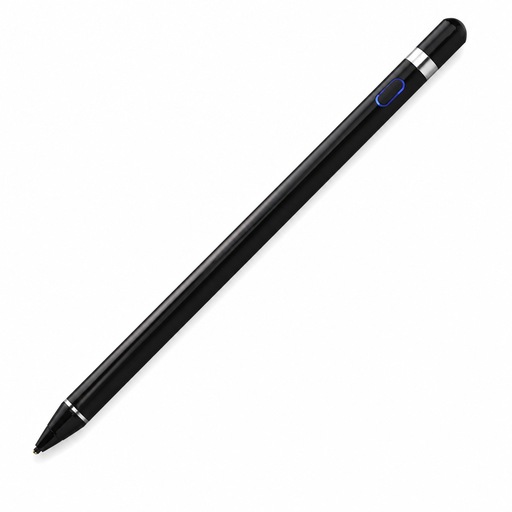 No image available
The product description mentions drawing on capacitive screens and compatibility with specified iOS, Android and PC devices.
Pressure sensitivity, a built-in battery and pairing via a companion app are listed. Check that your device and the required app are compatible with this pen.
No. Check compatibility with your exact iPad model and the required iPadOS version. Apple Support lists different compatibility requirements for Pencil Pro and Pencil (USB-C), among others.
No. Apple describes the magnetic attachment as being for storage; pairing and charging are done via a USB-C cable.
First check the exact pen model and only use a tip that’s suitable for it. Samsung describes a replaceable tip for the Tab S11 series pen, while Adonit lists replaceable tips for the Dash 4.
For many distance purchases from a business, consumers have 14 days to change their mind, although there are exceptions. You’re also entitled to a product that works as it should; if there’s a fault, the seller must provide a solution. The Dutch government makes clear that a manufacturer’s warranty doesn’t replace your statutory rights.
There’s no such requirement for this personal purchase. For employees doing screen-based work, Arboportaal outlines requirements to alternate screen work with other tasks or a break; the specific working situation is relevant.