
Teacher with an existing tablet
Wants to annotate geometry digitally and first needs to check which stylus works with their exact tablet model. Apple, Samsung, Logitech and Lenovo list compatibility by model.


Start by checking your exact tablet model, then choose a stylus to suit the way you teach. A compatible basic stylus may be enough for annotations, while extra controls are only worthwhile if you’ll actually use them. For circles, angles and other constructions, the tools in a geometry app may matter more than extra stylus features. Also check that your tablet, stylus and teaching materials will all fit on your desk.
Wants to annotate geometry digitally and first needs to check which stylus works with their exact tablet model. Apple, Samsung, Logitech and Lenovo list compatibility by model.
Wants to build circles, angles or transformations as well as explain concepts in handwriting. GeoGebra describes tools for this in Geometry, as well as note-taking options in Notes.
Wants to keep the tablet, stylus and teaching materials within the available workspace. The flat shape of the Logitech Crayon or magnetic attachment may be useful, depending on the tablet.
First, check that the stylus works with your tablet. Then decide whether you mainly want to annotate, demonstrate constructions or avoid interruptions during lessons.
| What to consider | What should you check? | Who is this most important for? |
|---|---|---|
| Compatibility | Note down the full tablet model and check the manufacturer’s stylus and software requirements. | If I want to keep using my existing tablet for lessons, I need to avoid buying a stylus that doesn’t fit. Around 31% of consumers prioritise compatibility with their own tablet. |
| Constructions | Try both handwritten annotations and the shape tools in your teaching app. | If I want to build circles or angles clearly, I also look at the tools in the app. Around 25% of consumers prioritise these constructions. |
| Workspace | Measure the available space and work out where the tablet, stylus, cable and any stand will go. | If my desk has limited space, I want to know whether the whole setup will fit comfortably. Around 25% of consumers prioritise the workspace they have available. |
| Lesson interruptions | Check how the stylus charges and whether a stylus or cable is included. | If I don’t want to search for a cable while explaining something or buy a second stylus unnecessarily, I check how it charges and what’s already included with the tablet. Around 19% of consumers prioritise these practical details. |
Manufacturers list the devices that work with each stylus model. The port or product name alone won’t tell you whether a stylus works with your tablet.
Before buying, compare the full tablet and stylus model names with the manufacturer’s compatibility information.
Lenovo says the Precision Pen 3 is included with the Tab P12 Pro. If you have this tablet, you may already have a suitable stylus.
Check what’s in the box and what your school already provides before choosing a separate stylus.
GeoGebra Geometry includes tools for circles, angles and more. Extra stylus controls don’t replace these app features.
Try the constructions and annotations you want to teach in the app you plan to use, on your own tablet.
Apple describes different Pencil models for specific iPads.
Samsung describes S Pens for specific Galaxy Tab models; the name doesn’t refer to one universally interchangeable stylus.
The Logitech Crayon is an alternative for supported iPads, with a different shape and controls from Apple Pencil.
The Lenovo Precision Pen 3 is designed for compatible Lenovo devices; Lenovo says it’s included with the Tab P12 Pro.
These products are styluses for writing, drawing and explaining concepts on compatible tablets. Check compatibility, charging method and whether each option suits your teaching app and available desk space.
 No image available
An option for writing and drawing on a compatible iPad; its flat shape may be handy on a small desk.
The product description lists iPad models from 2018 onwards with iOS 12.2 or later, tilt control and palm rejection. It charges via USB-C.
 No image available
Suited to a teaching style where you use the stylus controls to switch tools as you explain.
The product description lists squeeze and double-tap controls, as well as magnetic pairing and charging. Check that your exact iPad model is compatible.
 No image available
An option for taking notes and adding annotations if you use a compatible iPad.
Apple lists specific iPad models and iPadOS 17.1.1 or later. A USB-C cable is needed to pair and charge it; magnetic attachment doesn’t mean the stylus charges wirelessly.
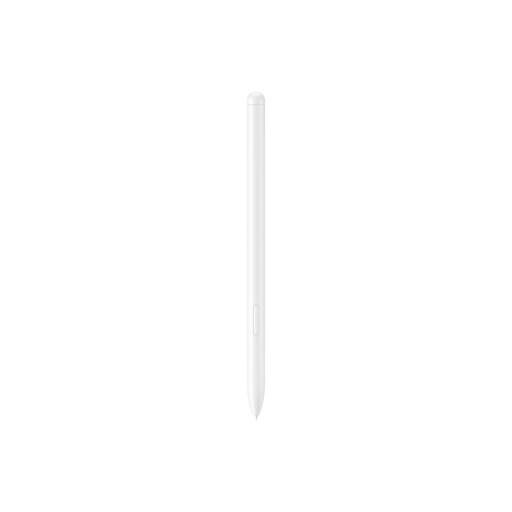 No image available
An option for writing and taking notes on the Galaxy Tab models listed as compatible with this stylus.
The product description lists the Galaxy Tab S9 FE and S9 FE+ and magnetic attachment. Check that your exact tablet model is compatible.
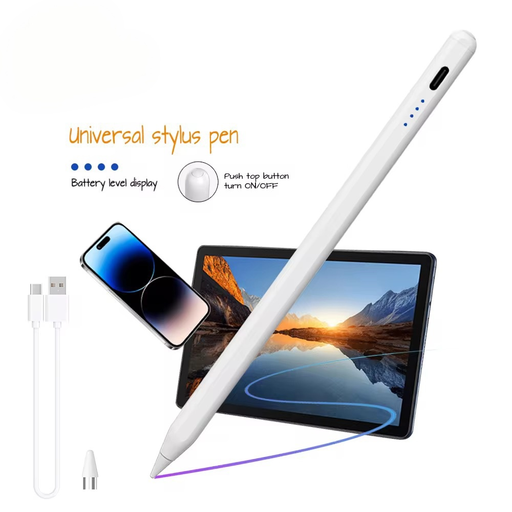 No image available
A stylus option for writing, drawing and navigating on a capacitive screen.
The product description lists a built-in lithium battery and pairing through an app after scanning the QR code in the manual. Check in advance that the stylus will work with your tablet and teaching style.
Not necessarily for constructing shapes: GeoGebra Geometry includes tools for circles, angles and transformations, among other things. First decide whether your lessons mainly involve handwritten annotations or these kinds of constructions, then test the combination on your own device.
No. Apple lists specific iPads and requires iPadOS 17.1.1 or later. The USB-C port is used for things such as pairing and charging; it doesn’t prove that the stylus will work with tablets from other brands.
Check how the stylus charges in advance and have the cable ready if needed. Logitech says you can write with the Crayon without separate Bluetooth pairing; Samsung lists a replaceable nib for the S Pen mentioned above.
If you buy online from a business as a consumer, the Dutch government says you’ll often have 14 days to change your mind. You’re also entitled to a product that works as it should, and you can contact the seller if there’s a problem. This information doesn’t necessarily cover the rules that apply when a school buys the stylus for business use.