
Teacher who draws diagrams
Draws lines, angles and shapes while explaining a topic, and wants to use a stylus with the drawing tools in their chosen app.


Start by checking your exact tablet model and drawing app: an iPad stylus, Galaxy S Pen and EMR stylus are not automatically interchangeable. Then choose one with the drawing and annotation features you need, and consider charging and controls if you want to keep working throughout the lesson. In a quiet space, you can’t judge writing and tapping sounds from the stylus’s other features, so assess the stylus, tablet and app together.
Draws lines, angles and shapes while explaining a topic, and wants to use a stylus with the drawing tools in their chosen app.
Wants to check which stylus model works with the iPad or Galaxy Tab they already use before buying.
Switches between drawing and annotating during lessons, so looks for convenient activation, charging and a comfortable grip.
First, check that the stylus works with your exact tablet model and app. Then see whether the app has the drawing and annotation features you need for your lessons, and consider how charging and controls fit into your teaching routine.
| What to consider | What should you check? | Who is this important for? |
|---|---|---|
| Geometric shapes | Try drawing lines and shapes, erasing and annotating in your lesson app. Apple Support Netherlands explains that, under certain conditions, Apple Notes can align a drawn shape; Samsung Netherlands lists drawing and PDF annotation in Samsung Notes. | If I want to draw and correct shapes clearly while teaching, I focus on the features in my app. Around 36% of consumers say accurate geometric drawing is their top priority. |
| Compatibility | Compare your full tablet model with the information for the exact stylus model. If necessary, also check the required software version or whether the screen supports EMR. | If I already have an iPad or Galaxy Tab, I want to know before buying whether that specific model will work with it. Around 29% of consumers prioritise compatibility with their existing tablet. |
| Writing and annotating without interruption | Check how the stylus is switched on and charged, and whether palm rejection and your lesson app suit the way you use it. In a quiet study space, also assess the writing and tapping sounds made by your own stylus and tablet together. | If I want to switch between drawing and annotating during a quiet lesson, I look for controls that avoid unnecessary interruptions. Around 21% of consumers prioritise uninterrupted use during lessons. |
| Tips and charging | Check how the stylus charges and whether the tips for that exact model can be replaced; also check what’s included with it. | If I want to keep using my stylus without surprises around replacement tips or charging, I check these details for each model. Around 14% of consumers say maintenance and easy charging are their main considerations. |
Compatibility can depend on the specific tablet model or, for an EMR stylus, the screen technology. So a general description such as ‘for tablets’ doesn’t tell you enough to make a purchase.
Find your tablet’s full model number and compare it with the compatibility information for the exact stylus.
For the Neo Pro, Adonit lists wireless charging only for specific iPads and notes separate limitations for magnetic attachment.
Check charging and attachment separately for your iPad. If wireless charging doesn’t work with your model, make sure you know which charging method the stylus uses.
Samsung says that the S Pens for models including the Tab S9 FE and Tab S10 FE don’t support Bluetooth.
Choose a stylus based on the writing features you need, and check any additional controls for your exact tablet and stylus models.
Apple Pencil models are designed for the iPads listed for each specific model.
According to Logitech, the Crayon (USB-C) is designed for iPads from 2018 onwards and for writing, drawing and annotation.
Samsung S Pen models are designed for supported Galaxy Tabs and can be used with Samsung Notes features.
The Noris digital classic is an option for screens confirmed to be EMR-compatible.
According to Adonit, the Neo Pro is designed for the specific iPad models listed by the brand.
These product options are suited to digital drawing and annotation; compatibility and features vary by tablet model and stylus version.
 No image available
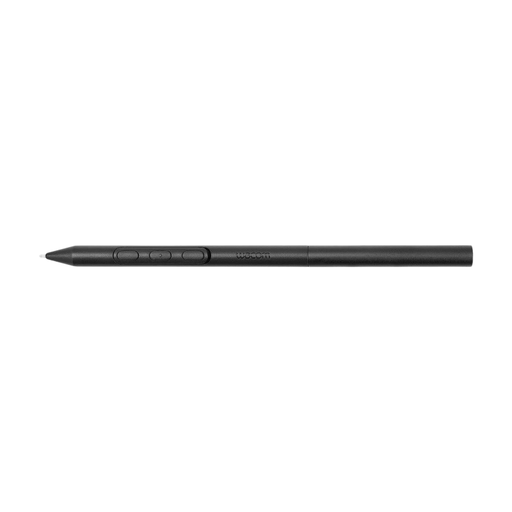
For drawing and sketching on compatible Wacom devices; check whether your device is one of the supported models.
According to the product description, you can adjust the weight, grip thickness, buttons and balance point. The stylus is battery-free and, according to the product information, requires no additional pairing.
Listed compatible models include Wacom MovinkPad 11 and Cintiq Pro 17, Pro 22 and Pro 27.
 No image available
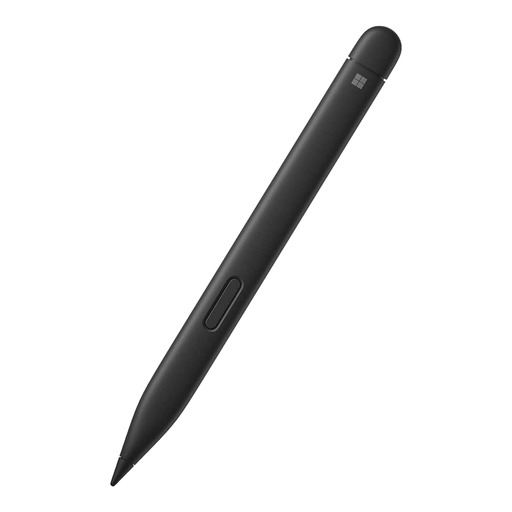
For writing and drawing on compatible Surface devices; check whether your Surface model is supported.
The product description lists a fine tip, 4,096 pressure levels and the ability to write as soon as the stylus touches the screen.
The tactile feedback described applies to actions such as selecting and erasing.
 No image available
For writing and drawing on compatible iPads. Logitech lists iPads from 2018 onwards; the product description specifies iOS 12.2 or later.
According to the product description, tilting changes the line thickness and palm rejection is available. It switches on using a button and, according to the description, doesn’t require pairing.
 No image available
For drawing, sketching and taking notes on compatible iPad models; check whether your iPad Pro, iPad Air or iPad mini model is supported.
The product description lists pressure and tilt sensitivity, gesture controls, and magnetic pairing and charging with compatible iPads.
 No image available
For writing, drawing and taking notes on compatible iPads; check your exact iPad model and the required software version.
Apple lists iPadOS 17.1.1 or later as a system requirement. The product description lists tilt sensitivity, USB-C charging and magnetic attachment with compatible iPads.
Under certain conditions, Apple Notes can align drawn shapes with recognised shapes.
No, check the app too. Apple describes adjustable line thickness and, under certain conditions, alignment of recognised shapes in Notes; Samsung describes drawing and PDF annotation in Notes. The features available also depend on your device and software.
According to STAEDTLER, you don’t. However, the stylus requires a compatible EMR screen, so check your tablet’s screen technology before buying.
It varies by model. STAEDTLER lists a replaceable tip for the Noris digital classic, and Adonit lists replacement tips for the Neo Pro. Check what’s included with the model you’re ordering and which tips are compatible with it.
According to the Dutch government, when you buy at a distance, you generally have a 14-day cooling-off period in many cases. You’re also entitled to a product that meets legal requirements; there is no fixed statutory warranty period in the Netherlands. Check the terms that apply to your purchase and contact the seller if the product is faulty.