
Teacher with limited access to power sockets
You don’t want to stop drawing to charge your stylus, so first check whether your tablet has an EMR screen that works with it. STAEDTLER explains the compatibility requirements for the Noris digital.


A battery-free EMR stylus is a good fit for geometry lessons without charging breaks, provided your existing tablet definitely has a compatible EMR screen. For an iPad or Windows tablet, check compatibility with your exact device and stylus protocol. A passive capacitive stylus doesn’t need charging, but won’t automatically offer active stylus features. A rechargeable stylus may be suitable if you can charge it before the lesson or via your tablet.
You don’t want to stop drawing to charge your stylus, so first check whether your tablet has an EMR screen that works with it. STAEDTLER explains the compatibility requirements for the Noris digital.
You want to annotate geometry sketches and explanations with a stylus that works with your exact iPad model. Apple and Logitech each explain their own compatibility requirements for iPad styluses.
You switch between touchscreens or use a Windows tablet, and need to weigh up simple capacitive input against active stylus features. Adonit describes a passive stylus, while Wacom lists the stylus protocols supported by Bamboo Ink.
| Consideration | What to look for when buying | Who might find this more important? |
|---|---|---|
| No charging breaks | Check the screen technology and how the stylus works. Also bear in mind your tablet’s battery life. | If I can’t stop during a lesson to charge a stylus, I want to know whether a battery-free option will work with my tablet. Around 36% of consumers put avoiding charging breaks first. |
| Compatibility | Make a note of the full tablet model and check the stylus manufacturer’s compatibility information. | I want to make sure a stylus works with the tablet already in my classroom before comparing features. Around 29% of consumers give compatibility with their existing tablet top priority. |
| Clear lines and comfortable hand placement | Check the stylus tip and whether palm rejection is listed for that stylus and tablet. Try drawing the shapes you plan to use in your lesson app. | For clear diagrams and comfortable writing, I want to know how the tip feels and whether I can rest my hand on the screen. Around 21% of consumers prioritise line quality and hand placement. |
| Stylus and spare-part management | Check which replacement tips are included and what type of battery or charging method the stylus uses. | If several styluses are used in the classroom, I want to keep track of their parts and have the right spares ready. Around 14% of consumers make easy stylus and consumable management their top priority. |
A passive capacitive stylus and an active EMR stylus are different solutions. Basic touchscreen input doesn’t confirm that features such as palm rejection are available.
Check separately whether the stylus works with your screen and whether it has the features you need for your lessons.
Apple says the Apple Pencil (USB-C) charges via a USB-C connector. Magnetic attachment is not, by itself, the stated charging method.
Check how your stylus charges and, if needed, plan to charge it before the lesson, for example via a compatible iPad.
Samsung says the S Pen for models including the Tab S9 FE doesn’t support Bluetooth. So being able to write with the stylus doesn’t automatically mean you can use it as a Bluetooth remote.
For presentation controls, check the specifications for the exact stylus model.
The Noris digital classic is a battery-free EMR stylus for compatible screens.
Apple Pencil (USB-C) is designed for the iPad models that Apple lists as compatible.
Crayon (USB-C) is a rechargeable stylus for supported iPads.
Model-specific S Pen replacements are worth considering for the Galaxy Tab models listed by Samsung.
Mini 4 is a passive precision disc stylus for capacitive touchscreens.
Bamboo Ink is designed for Windows devices using a supported AES or MPP stylus protocol.
Compare styluses that don’t need charging with USB-C or battery-powered options for your existing tablet. Check the stated device compatibility and charging or battery method for each stylus.
 No image available
May suit geometry drawing on the devices listed. Check whether your exact model is compatible.
According to the product description, it works without batteries and offers 4096 pressure levels and palm rejection.
 No image available
For writing, drawing and annotating on the selected iPad models listed for this stylus. Check your exact model.
The product description lists palm rejection, tilt detection and up to 8 hours of use after charging. It charges via USB-C; the magnetic attachment is for storage.
 No image available
An option for sketching and writing if your iPad model is compatible. Check the model requirements.
The product description lists pressure and tilt sensitivity, and charging via magnetic attachment to a compatible iPad.
 No image available
For writing and drawing on a compatible iPad model. Check that your exact iPad is supported.
The product description lists tilt sensitivity and charging via the USB-C port. Magnetic attachment is also mentioned.
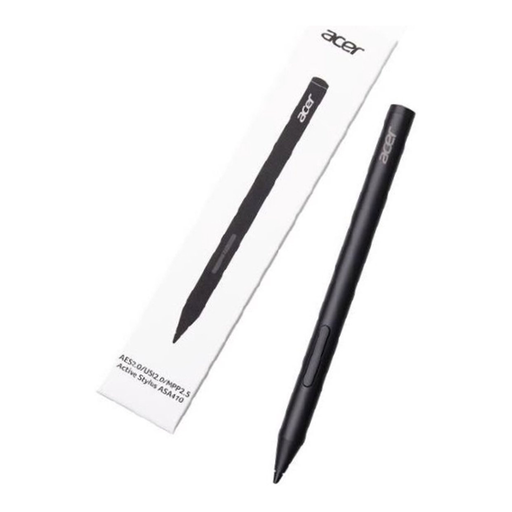 No image available
May suit a tablet that supports one of the active stylus protocols listed. Check your device’s protocol.
The product description lists AES 2.0, USI 2.0 and MPP 2.5, 4096 pressure levels and an AAAA battery. The battery is not included; the stated weight is 16,5 g.
Only if the stylus is compatible with your screen. The Noris digital classic requires an EMR screen. You’ll also need suitable software for angles, circles and other constructions. GeoGebra offers dedicated geometry tools.
No. Apple describes charging it with a USB-C cable connected to a compatible iPad. Check in advance that your iPad supports this Pencil. You can also charge it using a suitable mains adapter.
First, check that your tablet model and the required screen technology or software version are compatible with the stylus. For the Noris digital classic, also check the replaceable tip; for a rechargeable stylus, check its charge level; and for Bamboo Ink, check the AAAA battery and stylus protocol.
When you buy remotely from a business, you usually have a 14-day cooling-off period, although exceptions may apply. The Dutch government also states that there is no fixed statutory warranty period in the Netherlands: if a product is faulty, the seller is your point of contact. These consumer rules don’t determine the terms that apply to a school purchase made by a business.