
Sketcher with an existing tablet
You want to sketch furniture without choosing a pen that won’t work with your tablet model. Apple Support, Samsung Netherlands and STAEDTLER provide compatibility information for specific models or screens.


Start with your exact tablet model: an Apple Pencil, Galaxy Tab S Pen and EMR pen aren’t interchangeable. Then choose the pen features that suit your sketching, and assess screen reflections separately – a different pen won’t solve glare.
You want to sketch furniture without choosing a pen that won’t work with your tablet model. Apple Support, Samsung Netherlands and STAEDTLER provide compatibility information for specific models or screens.
You can draw, but glare makes details harder to see. Assess the screen separately from the pen: Samsung Netherlands and Apple Netherlands describe specific anti-reflective screen options.
You develop your furniture ideas with varied strokes and, as well as checking compatibility, consider the drawing features available. Apple, Logitech and STAEDTLER describe different pen controls and features.
First, check that the pen works with your tablet, and consider screen reflections separately. Then compare drawing features and ease of use based on what you need while sketching.
| What to consider | What to look for when buying | Who is this important for? |
|---|---|---|
| Compatibility | Check the full tablet model and, where applicable, the software version or screen technology. | You want the pen to work with your current tablet before comparing extra features. Around 36% of consumers rank compatibility as their top buying priority. |
| Visibility by the window | Look at screen options or a screen protector specifically designed for your tablet model. | In a bright workspace, you want to see outlines and details clearly, regardless of your pen choice. Around 29% of consumers put visibility at the top of their list. |
| Control over lines | Check the pen’s pressure and tilt features, as well as support in your drawing app. | When developing a sketch, you want to know how you can vary your strokes. Around 21% of consumers give drawing control top priority. |
| Getting started quickly | Compare how the pen charges and connects, and check whether its nib can be replaced. | For short sketching sessions, you want to get started quickly and avoid unexpected interruptions to your workflow. Around 14% of consumers choose ease of use as their main consideration. |
Compatibility can vary by tablet generation, model and screen technology. So a pen made for a particular brand won’t necessarily work with every tablet from that brand.
Before ordering, compare the full model name with the pen manufacturer’s compatibility information.
Anti-reflective features come from the screen or a suitable screen protector, not the stylus.
Assess visibility separately, and only choose a screen protector if it’s suitable for your tablet model.
Logitech states that the Crayon isn’t pressure-sensitive. STAEDTLER specifies pressure levels for the Noris digital classic on compatible EMR screens; this doesn’t automatically make the pen suitable for every tablet or app.
Decide whether you want to control the line using pressure or the pen’s angle, and check that your pen, tablet and drawing app support that input.
Apple Pencil models are designed for specific supported iPads. One could be a good choice if you’ve already settled on your tablet or are choosing both together.
Samsung says the Galaxy Tab S11 Series S Pen is designed for the Galaxy Tab S11 and S11 Ultra.
The Crayon is an iPad stylus for anyone who wants to sketch simply, without making the Apple Pencil Pro’s control gestures a priority.
The Noris digital classic is designed for drawing on a tablet with a built-in EMR screen.
Wacom positions the Bamboo Ink Plus for annotating, drawing and sketching with a compatible Windows Ink setup.
This selection includes pens for specific compatible tablets and a tablet supplied with a stylus. Before buying, check that the pen works with your tablet.
 No image available
An option for drawing on the compatible Wacom devices listed.
Weight, grip thickness, buttons and balance point are adjustable. The pen is battery-free.
Compatibility information lists the MovinkPad 11 and Cintiq Pro 17, 22 and 27 (DTH271).
 No image available
An option for sketching with pressure and tilt sensitivity on a compatible iPad.
The description mentions squeeze and rotation gestures, plus magnetic pairing and charging.
Listed compatibility includes the iPad Pro 11- and 13-inch (M4), iPad Air 11- and 13-inch (M2) and iPad mini (A17 Pro).
 No image available
An option for outlines and shading on a compatible iPad.
The pen charges via the USB-C port beneath the cap and has tilt sensitivity.
The hover feature mentioned is only available on compatible iPads.
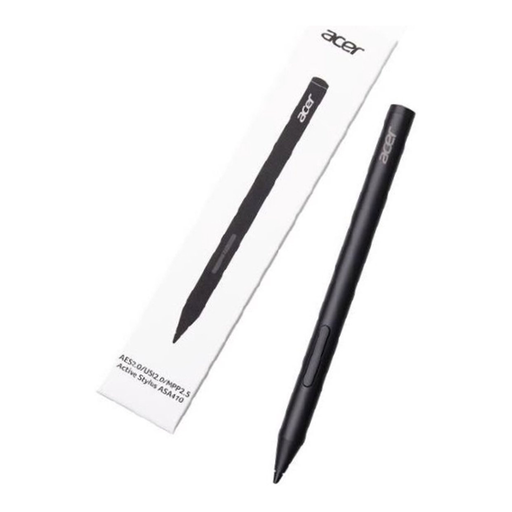 No image available
An option for drawing if your device supports one of the listed pen standards.
The description lists AES 2.0, USI 2.0 and MPP 2.5, and specifies 4,096 pressure levels.
It requires a compatible device to work. According to the product information, the required AAAA batteries aren’t included.
 No image available
An option if you want to choose a tablet and stylus together.
The product title lists an included stylus, 20GB (8GB + 12GB Virtual) RAM and 256GB storage.
No. Apple Support lists specific iPad models for each Pencil version and specifies a minimum iPadOS version for some models. Check the exact model name and generation before ordering.
Check how the pen charges and whether its nib can be replaced. Apple Pencil (USB-C) uses a USB-C cable; the Noris digital classic doesn’t need charging or pairing with a compatible EMR screen. Logitech recommends replacing the Crayon nib if it’s damaged or worn.
For a consumer purchase in the Netherlands, the retailer is your point of contact if a product is faulty, according to the Dutch government. For many distance purchases, you have a 14-day cooling-off period. The Dutch government lists exceptions, so check which terms apply to your purchase.