
Quick concept sketcher
You want to sketch furniture shapes and add notes at a shared desk straight away, without lots of setup. Logitech describes the Crayon (USB-C) as a pen that connects to an iPad without a complicated Bluetooth pairing process.


Start by checking the exact tablet model: an Apple Pencil, S Pen and Windows Ink pen aren’t automatically interchangeable. For quick furniture shapes and notes, a compatible pen with tilt detection may be enough. If you want pressure-sensitive line variation, check that the pen, tablet and drawing app combination supports it. At a shared desk, it’s also worth considering how the pen charges and where it can be stored.
You want to sketch furniture shapes and add notes at a shared desk straight away, without lots of setup. Logitech describes the Crayon (USB-C) as a pen that connects to an iPad without a complicated Bluetooth pairing process.
You develop shapes and lines further and want to know in advance which drawing features your pen, tablet and app support together. Lenovo specifies 4096 pressure levels for the Tab Pen Plus; Wacom warns that Bamboo Ink Plus features also depend on the hardware.
You want a pen that’s confirmed to work with the tablet model available, and that’s easy to charge or put away after use. Apple describes different charging and storage methods for Apple Pencil Pro and Apple Pencil (USB-C).
First, check the tablet model and pen compatibility. Then compare drawing features and everyday usability. Apple, Samsung and Wacom make pens for specific devices or pen protocols.
| What to consider | What should you check? | Who is this important for? |
|---|---|---|
| Compatibility | Look up the exact tablet model in the pen’s compatibility information. Also check whether it requires a particular pen protocol or software version. | If I want to sketch on the tablet available, I’ll first check that the pen is compatible. Compatibility is the main buying concern for around 36% of consumers. |
| Control over sketch lines | Distinguish between tilt and pressure sensitivity; check which input features are supported by the pen, tablet and drawing app. | If I want to add more line variation to my furniture sketches, I need to know which features my setup can really support. Line control is the main priority for around 29% of consumers. |
| Quick to use and easy to put away | Check whether pairing is required and how the exact model charges. Magnetic attachment may help you store a pen, but doesn’t necessarily charge it. | At a shared desk, I want to pick up the pen quickly and put it back in a set place when I’m finished. Getting started straight away and having somewhere to store the pen are the main priorities for around 21% of consumers. |
| Replacement nibs and running costs | Check which nibs are included, whether replacements are available separately and what charging method the model uses. | If several people use the pen, I want to know what to do when its nib needs replacing. Running costs are the main concern for around 14% of consumers. |
Pen support may depend on the exact tablet model, software version or pen protocol. The wrong combination could mean you can’t use the pen to sketch.
Look up the tablet’s full model number and compare it with the compatibility information for the pen’s full name. Apple and Samsung list compatibility for specific models; Wacom specifies AES or MPP support for Bamboo Ink Plus.
Tilt detection and pressure sensitivity are different features. A pen registering its angle doesn’t mean you can vary line thickness by pressing harder.
Check both features separately for the pen and tablet, and see whether your drawing app supports them. Lenovo specifies pressure levels for Tab Pen Plus; Apple and Logitech describe tilt detection for certain pens.
Apple describes magnetic attachment and charging for Apple Pencil Pro. Apple Pencil (USB-C) charges via a USB-C cable, while magnetic attachment is for storing the pen.
Check how the exact model charges, and agree on a designated storage spot at a shared desk.
A pen that charges via cable needs a suitable cable and a separate charging routine.
Apple Pencil models are designed for compatible iPads; the two models below differ in features and charging method.
According to Samsung, the S Pen reviewed here is designed for Galaxy Tab S11 and Galaxy Tab S11 Ultra.
Tab Pen Plus is an option for Lenovo users looking for pressure and tilt input, once they’ve checked compatibility.
Crayon (USB-C) is an iPad pen for anyone who wants to start writing or sketching without a complicated Bluetooth pairing process.
Bamboo Ink Plus is designed for Windows devices that support a pen and use a compatible pen protocol.
These options are for sketching furniture ideas on a compatible iPad or a device that supports the specified pen protocol.
 No image available
Ideal for quick sketching on a compatible iPad when you want to get started without a complicated Bluetooth pairing process.
According to the product description, the pen is designed for iPad models from 2018 onwards running iOS 12.2 or later.
You can tilt the pen to vary line thickness, and it charges via USB-C.
The replacement nib is available separately; check that tilt detection gives you the line control you need.
 No image available
An option for sketching on a compatible iPad if magnetic attachment and charging in one set place would be useful.
The product description mentions pressure and tilt sensitivity, as well as magnetic attachment and charging.
Check that your exact iPad model is compatible; the product description limits the pen to the iPad models listed.
 No image available
Suitable for quick sketches on a compatible iPad when tilt is all you need for line variation.
The product description mentions tilt sensitivity and charging via a USB-C cable.
Magnetic attachment is for storing the pen; check that your iPad model is supported.
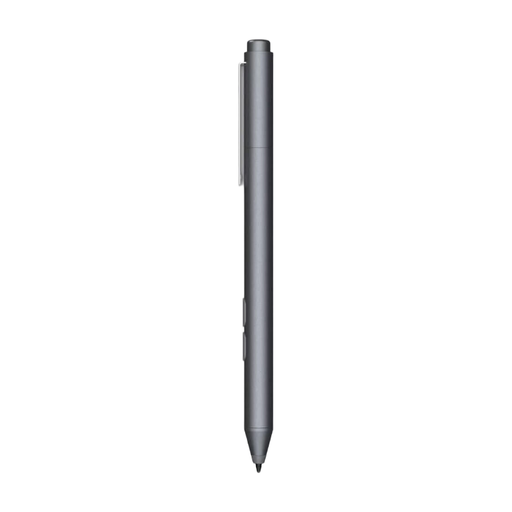 No image available
May suit drawing on a device that supports MPP; check that your tablet or PC uses this protocol.
The product name mentions customisable buttons and one replaceable nib.
The product description lists an AAAA battery; check this before using the pen.
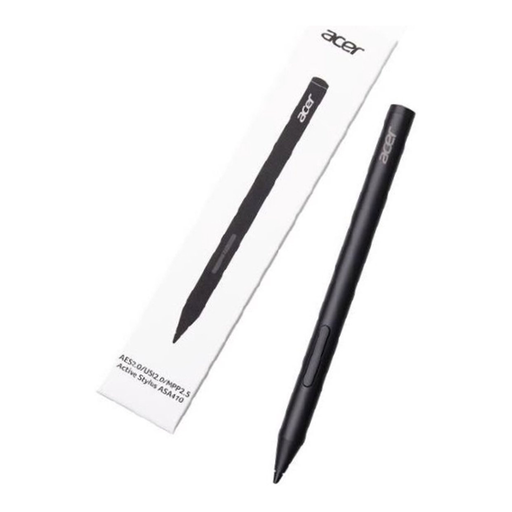 No image available
An option for detailed sketching on a device that supports one of the specified pen protocols.
The product description lists 4096 pressure levels and support for AES 2.0, USI 2.0 or MPP 2.5.
An AAAA battery isn’t included, according to the product description; also check which protocol your device uses.
No. First, check the exact tablet model. Apple lists compatibility for each iPad and Pencil model; for the S Pen reviewed here, from the S11 series, Samsung specifically names the Galaxy Tab S11 and S11 Ultra.
It depends on the model. Logitech describes the Crayon (USB-C) as connecting without a complicated Bluetooth pairing process. Apple describes magnetic attachment and charging for Pencil Pro, but cable charging and magnetic storage for Pencil (USB-C).
Logitech says a replacement nib for Crayon (USB-C) is available separately, while Lenovo includes an extra nib with Tab Pen Plus. For a faulty product, the Dutch government says the retailer is responsible for providing a solution; this is separate from any manufacturer’s warranty.
For qualifying distance purchases by consumers, the Dutch government says there’s often a 14-day cooling-off period. Check the terms of the specific purchase; this rule doesn’t necessarily apply to every transaction, such as buying online from a private seller.
Only if the specific product is covered by EU rules that require CE marking. The European Commission explains that CE marking isn’t compulsory for every type of product, so don’t assume there’s one blanket CE rule for all stylus pens.