
Sketcher with an existing tablet
You want a pen that works with your specific iPad, Galaxy Tab or other tablet. Check the full model name before choosing: Apple, Samsung and other manufacturers limit compatibility to certain versions.


Start by checking your exact tablet model: a stylus that doesn’t work with your screen isn’t a practical choice. Next, choose pressure sensitivity if you want to control line thickness with the pressure of your hand, or prioritise easy pairing and storage for quick concept sketches. Also check that your drawing app supports the input you want to use.
You want a pen that works with your specific iPad, Galaxy Tab or other tablet. Check the full model name before choosing: Apple, Samsung and other manufacturers limit compatibility to certain versions.
You draw furniture outlines and shadows, and want to know whether the pen, tablet and drawing app all support pressure or tilt input. For example, STAEDTLER notes that support for pressure levels also depends on the app.
You want to capture ideas as they come to you, and care about pairing, charging and storage. A replaceable tip may also be important if you use a Logitech Crayon: Logitech says the tip can be replaced if it becomes worn or damaged.
First, check that the stylus works with your tablet. Then compare its drawing input, ease of use at your desk and maintenance requirements.
| What to consider | What should you check? | Who is this most important for? |
|---|---|---|
| Compatibility | Look up your full tablet model in the pen manufacturer’s compatibility information. For some pens, also check the screen type or pen protocol. | I want to make sure the stylus works with my existing tablet first. Around 36% of consumers put compatibility first. |
| Line control | Check pressure and tilt sensitivity separately, and see whether your drawing app supports these features. | If I want to vary outlines and shadows deliberately, the input supported by the pen and app is crucial. Around 29% of consumers give drawing control top priority. |
| Use and storage | Check how the pen pairs and charges, and how you can store it between sketching sessions. | At a shared desk, I want to be able to pick up and put away the pen quickly. Around 21% of consumers prioritise quick access and storage. |
| Maintenance and terms | Check whether suitable replacement tips are available and which purchase and warranty terms apply to your order. | I want to know in advance whether the tip can be replaced and which terms apply to my purchase. Around 14% of consumers prioritise maintenance and purchase terms. |
A stylus may only work with certain tablet models, screen technologies or pen protocols. So a general description doesn’t necessarily mean it will work with your device.
Make a note of your full tablet model and compare it with the manufacturer’s compatibility information. For a Windows device, also check the supported pen protocol. For Noris digital, check that the screen has an EMR digitiser.
If a pen isn’t compatible with your tablet, you may still need to buy another one.
Tilt and pressing harder are two different ways to control a line. Logitech confirms that the Crayon isn’t pressure-sensitive, so tilt support doesn’t mean the pressure of your hand will change the line thickness.
Decide whether you want to vary your lines by changing the angle of the pen or by pressing harder. Also check that your tablet and drawing app support your chosen input.
Samsung says that the S Pen for the Galaxy Tab S9 FE and Tab S10 FE series, among others, doesn’t support Bluetooth. So the name S Pen alone doesn’t mean you’ll get remote-control features.
Check the exact pen version and the feature you want to use against Samsung’s information for your tablet.
Logitech says the Crayon tip may need replacing if it becomes worn or damaged. Apple says the Apple Pencil (USB-C) pairs and charges using a cable.
Before choosing, check which charging method suits your workspace and whether a suitable replacement tip is available for the pen you’re considering.
Apple offers several Pencil versions for specific iPads listed by Apple.
S Pen versions are designed for certain Samsung Galaxy devices.
Crayon is an option for supported iPads if you want to write and draw straight away.
Noris digital is designed for tablets with a compatible EMR digitiser.
Bamboo Ink Plus is designed for certain pen-enabled Windows devices.
This selection includes pens for various compatible devices, including Wacom devices and iPads. For each pen, check your exact tablet model, the screen technology required and the features supported by your drawing app.
 No image available
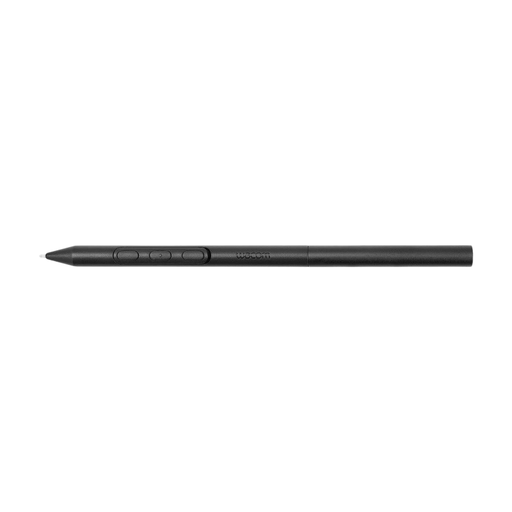
A battery-free EMR pen for sketching on compatible Wacom devices. The product description lists Wacom MovinkPad 11 and Cintiq Pro 17, 22 and 27 among the compatible models.
You can adjust the weight, grip thickness and balance point. The pen has pen buttons.
 No image available
For sketching on a compatible iPad when you want to get started straight away, without complicated Bluetooth pairing.
Tilt-sensitive and charged via USB-C; Logitech confirms that this pen isn’t pressure-sensitive. The product description lists iPad models from 2018 onwards and iOS 12.2 or later.
 No image available
For sketching with pressure and tilt input on an iPad supported by Apple.
Apple lists squeeze and barrel roll among its control features. Magnetic attachment is used for pairing and charging; Apple lists the compatible iPads and requires iPadOS 17.5 or later.
 No image available
For outlines and sketches on a compatible iPad when tilt input suits your drawing style.
Supports tilt and attaches magnetically to the iPad. Apple says pairing and charging are done using a USB-C cable; check that your iPad model is compatible.
 No image available
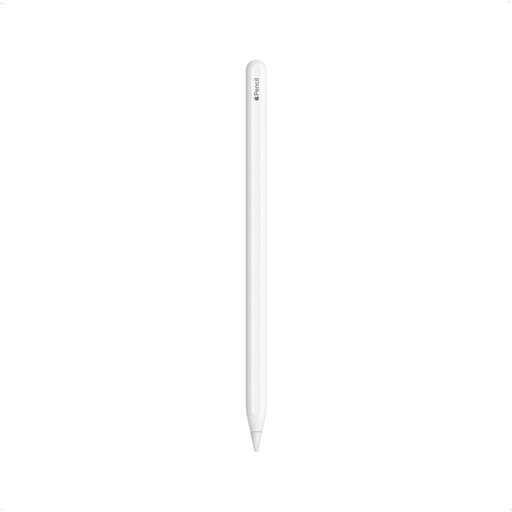
An option for drawing and sketching if you have one of the compatible iPad models listed.
The product description lists iPad Pro 12.9-inch (3rd to 6th generation), iPad Pro 11-inch, iPad Air (4th or 5th generation) and iPad mini (6th generation). Magnetic attachment is used for pairing and charging; double-tapping switches tools.
First, compare your exact iPad model with the Apple Support compatibility list for the specific Pencil. For Pencil Pro, Apple specifies iPadOS 17.5 or later; for Apple Pencil (USB-C), Apple specifies iPadOS 17.1.1 or later.
Not every S Pen has Bluetooth functionality. Samsung says that the S Pen for the Tab S9 FE and Tab S10 FE series, among others, doesn’t support this functionality. Check the exact version and the feature you want to use.
For the Logitech Crayon, Logitech recommends replacing the tip if it has been damaged in a fall or worn down through use, to prevent damage to the iPad screen. For other pens, check the manufacturer’s instructions and which replacement tip fits your version.
For an eligible consumer purchase, the Dutch government says you’re entitled to a product that works properly. For distance sales, a 14-day cooling-off period applies in many cases, with some exceptions. A business purchase for the office isn’t automatically treated in the same way; check who the buyer is and which terms apply.