What should you look for when choosing?
First check compatibility with your tablet, then choose based on the work you’ll be doing. If you need measurements, check what your app can do too.
| Consideration |
What to look for when buying |
Who should pay particular attention? |
| Compatibility |
Check your exact tablet model and any software requirements. For Windows, also check whether your device supports Wacom AES or Microsoft Pen Protocol. |
If I want to use a pen with my current tablet, I need to know first whether that exact combination will work. Around 33% of consumers say compatibility is their main concern when buying. |
| Line control |
Compare pressure sensitivity, tilt response and extra controls for each pen model, and check whether your app uses those features. |
If you want to work on outlines and furniture details, line control is a key consideration. Around 27% of consumers prioritise precise line work. |
| Measurements |
Check whether the drawing app on your platform offers a scale setting, units of measurement and, if needed, grid or shape tools. |
If I want to discuss sketches with measurements, my app needs to handle those measurements; the stylus alone won’t make a drawing to scale. Around 20% of consumers say measurements are their main concern. |
| Charging and aftercare |
Check how the specific model charges and how to contact the seller if it develops a fault. |
If you use a pen every day, you’ll want to know how to charge it and what to do if something goes wrong. Around 20% of consumers give ease of use and aftercare top priority. |
Brands to compare
The features and limitations described apply to specific product lines and device combinations, not every product from a brand.
Apple
Apple Pencil (USB-C) and Pencil Pro are two different options for compatible iPads. Check your exact iPad model before choosing.
- Apple describes sketching and tilt sensitivity for the USB-C model, and extra squeeze, rotation and haptic controls for Pencil Pro.
- Pencil Pro works with a more limited range of iPads. The USB-C model connects and charges via a cable; its magnetic attachment is for storage.
Samsung
The S Pen reviewed is a device-specific option for supported Galaxy Tab models, including the Tab S9 FE series listed by Samsung.
- Samsung describes sketching and use with Samsung Notes or PENUP.
- The compatibility listed doesn’t automatically apply to every Samsung tablet or every S Pen model. Check both model numbers.
Logitech
According to Logitech, Crayon (USB-C) is designed for drawing and annotation on compatible iPads.
- Logitech describes tilt-based line thickness and palm rejection for iPad.
- A Logitech guide consulted for a Lightning model doesn’t mention pressure sensitivity. Don’t assume the same information applies to the USB-C model without checking.
Wacom
Bamboo Ink Plus is designed for pen-enabled Windows devices with Wacom AES or Microsoft Pen Protocol.
- Wacom specifies up to 4,096 pressure levels and USB-C charging.
- Tilt response depends on the device. Wacom says Bamboo Ink Plus isn’t compatible with Apple products.
Adonit
Dash 4 is an option for simpler sketching, as long as its supported device mode suits the way you’ll use it.
- According to Adonit, the pen offers two modes, with different levels of palm rejection support.
- Adonit doesn’t specify pressure or tilt sensitivity. Check which mode and device combination is right for you.
Styluses for compatible tablets
This selection includes pens for compatible Surface devices and iPads. Before buying, check that the specific pen works with your tablet model.
 No image available
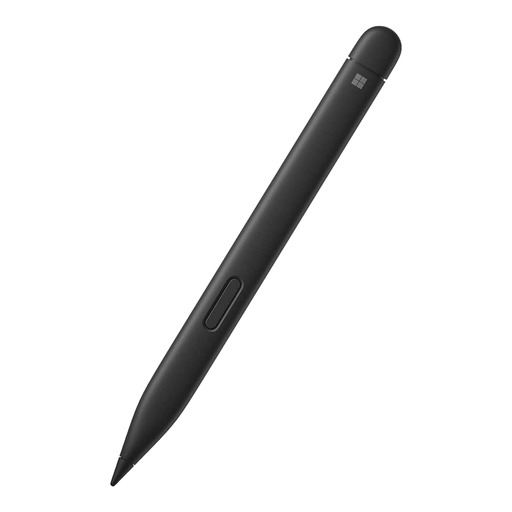
Microsoft Surface Slim Pen 2 Black 8WV-00002
An option for sketching on a compatible Surface device. Check that your tablet model works with this pen.
View at Joybuy
 No image available
Logitech Crayon (USB-C), silver
For drawing and sketching on a compatible iPad. The product information lists iPad models from 2018 onwards and iOS 12.2 or later. Check that your combination meets these requirements.
View at Joybuy
 No image available
Apple Pencil Pro 2024
An option if you want to work on furniture outlines and details on a compatible iPad. Check your exact model: compatibility is limited to certain iPad Pro, iPad Air and iPad mini models.
View at Joybuy
 No image available
Apple Pencil (USB-C), white
For sketching and annotation on a compatible iPad. This model charges via USB-C; its magnetic attachment is for storage.
View at Joybuy
 No image available
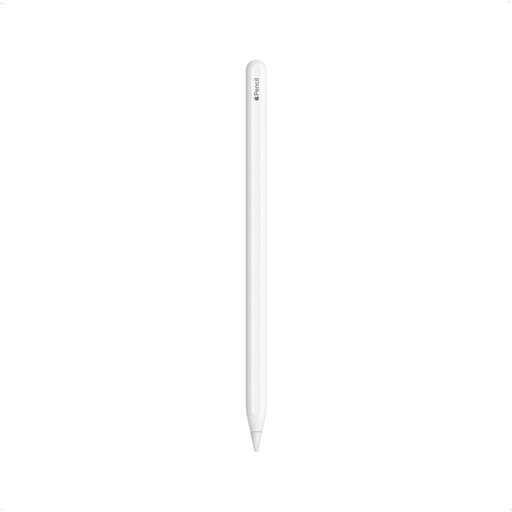
Apple Pencil (2nd generation)
For sketching on the compatible iPads listed: iPad Pro 12.9-inch (3rd, 4th, 5th and 6th generation), iPad Pro 11-inch, iPad Air (4th and 5th generation) and iPad mini (6th generation). Check that your exact model is included.
View at Joybuy
Frequently asked questions
How can I check whether an Apple Pencil works with my iPad?
First, find your exact iPad model and compare it with Apple’s compatibility list for the Pencil model you’re considering. Check the required iPadOS version too; having a USB-C port alone doesn’t confirm compatibility.
Will a stylus automatically make my furniture drawing to scale?
No, your drawing app also needs to offer the right tools. Check whether you can set a scale and units of measurement, and whether any grid or snapping features are available on your platform.
How do I charge the Apple Pencil (USB-C)?
Apple says this model connects and charges via a USB-C charging cable. Its magnetic attachment to the iPad is for storing the pen.
What should I do if a pen I bought online is faulty?
For consumer purchases in the Netherlands, the seller is responsible for providing a solution if a product isn’t working properly, according to the Dutch government. A manufacturer’s warranty or additional guarantee may offer further cover.
Can I return a stylus bought online in the Netherlands?
When you buy from a business at a distance, you’ll usually have a 14-day cooling-off period. Check the applicable terms and exceptions; online purchases from a private seller aren’t automatically covered by the same rules.


