Start by checking your exact tablet model and software version: styluses for iPad, Galaxy Tab, reMarkable and Kindle Scribe are not interchangeable. Then decide whether you need basic writing and sketching or extra drawing controls, and compare how each pen pairs, charges and stores away.
Who is this choice relevant to?
Diagram-drawer with an existing tablet
You first want to know whether a separate pen will work with your tablet and software version. To check, consult the compatibility information published by manufacturers such as Apple, Samsung and Adonit for their pen models.
Teacher who sketches often
You regularly switch between lines, tools and annotations while drawing. The drawing and control features Apple, Samsung and Adonit list for certain models may therefore influence your choice.
Shared-desk user
You want to be able to pick up, charge and put away your pen easily during work sessions. Compare how it charges and stores away; Apple and Logitech describe different options for their iPad pens.
What should you look for when buying?
First, check that the pen works with your tablet. Then compare its drawing features and the everyday tasks that matter at a shared workspace.
| What to consider |
What to look for |
Who is this most important to? |
| Compatibility |
Check the manufacturer’s compatibility list for your exact tablet model and any software requirements. |
If you first want to know whether the pen will work with your existing tablet, compatibility is your main concern; around 36% of consumers prioritise it. |
| Line and drawing control |
Check whether the pen and drawing app support the tilt, pressure or control features you want. |
If you want to draw varied strokes as well as add text and arrows, focus on the drawing controls; around 29% of consumers put this need first. |
| Getting started and storage |
Check whether the pen needs pairing and whether it charges via USB-C or magnetically; magnetic storage does not always mean magnetic charging. |
If you want to get started quickly and put the pen away easily at a shared desk, these practical details matter; around 21% of consumers prioritise them. |
| Maintenance and purchase terms |
Check whether the tip is replaceable and who the seller is, especially when placing a business order. |
If you want to know how to replace a worn tip and which purchase terms apply to your order, maintenance is your main concern; around 14% of consumers have this as their primary concern. |
Common buying mistakes
-
Assuming ‘for tablets’ means it’s compatible
Manufacturers list compatibility for each pen version and tablet model. Samsung, for example, distinguishes between different S Pen versions.
Before buying, compare the pen’s full model name with your tablet model and check any software requirements.
Charging may not work as you expect at a shared desk; you might need to use a cable.
-
Assuming personal-use terms apply to an office purchase
Consumer protection also depends on how the agreement is used. ACM ConsuWijzer distinguishes between a purchase made as a consumer and an agreement used mainly or exclusively for business purposes.
Before placing a business order, check who the contracting party is and which terms apply to the purchase.
Brands to compare
Apple
Apple Pencil versions are designed for the iPads compatible with each pen.
- Apple lists tilt recognition and USB-C pairing and charging for the Pencil (USB-C). For the Pencil Pro, Apple lists additional drawing controls and magnetic pairing and charging with supported iPads.
- Compatibility lists vary by version. Check your exact iPad and the features you need.
Samsung
The Galaxy Tab S11 Series S Pen featured here is designed for the Galaxy Tab S11 and S11 Ultra.
- Samsung lists pressure sensitivity and a replaceable tip for this pen version.
- Supported devices and features vary by S Pen. Don’t assume it will work with every Galaxy Tab.
Logitech
According to Logitech, the Crayon (USB-C) is designed for writing, drawing and annotating on supported iPads.
- Logitech lists tilt recognition, no need to pair via Bluetooth, and USB-C charging.
- Check that your exact iPad is supported and that the features suit your drawing needs.
Adonit
According to Adonit, the Note⁺ 2 is designed for the iPads on the brand’s compatibility list.
- Adonit lists pressure sensitivity, palm rejection, interchangeable tips and shortcut controls.
- Adonit excludes older iPads, Android devices and Microsoft devices. The brand also notes an exception to magnetic attachment for certain 2024 iPads.
Styluses at Joybuy
These products are styluses for the tablets listed in their product details, including certain iPads, reMarkable models and Kindle Scribe. Check that your exact tablet is supported before buying.
 No image available
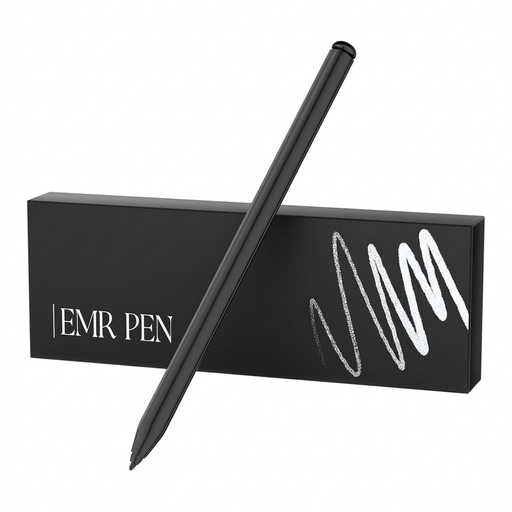
Zspeed SP-18 EMR stylus with eraser, black
The product details list reMarkable 1 and 2 and Kindle Scribe; check compatibility with your device.
The product description mentions 4096 pressure levels, battery-free operation and magnetic attachment.
View at Joybuy
 No image available
iPad stylus with USB-C charging port
The product details list drawing and annotation on selected iPad models; check whether yours is included.
The description mentions tilt detection, palm rejection and operation without Bluetooth pairing or an app. Magnetic attachment is for storage, not wireless charging.
View at Joybuy
 No image available
Logitech Crayon USB-C, silver
For sketching and annotating on a supported iPad; Logitech lists iPads from 2018 onwards.
The product description mentions tilt detection, palm rejection, USB-C charging and getting started without pairing. The stated software requirement is iOS 12.2 or later; also check support for your exact iPad.
View at Joybuy
 No image available
Apple Pencil Pro 2024
For drawing on a compatible iPad; check that your exact model is supported.
The product description mentions pressure and tilt sensitivity, controls for tools, and magnetic pairing and wireless charging with a compatible iPad.
View at Joybuy
 No image available
Apple Pencil (USB-C), white
For drawing and annotating on a compatible iPad; check your model’s compatibility first.
The product description mentions tilt sensitivity and magnetic attachment for storage. It charges via USB-C.
View at Joybuy
Frequently asked questions
Will any stylus work with the tablet already at the office?
No. First, check your exact tablet model against the pen’s compatibility list. Apple lists different supported iPads for each Pencil version; the Samsung S Pen featured here is designed for the Galaxy Tab S11 and S11 Ultra.
How do you pair and charge a stylus?
It varies by version. Apple describes USB-C pairing and charging for the Pencil (USB-C), and magnetic pairing and charging for the Pencil Pro with supported iPads. Logitech says the Crayon (USB-C) works without Bluetooth pairing and charges via USB-C.
What should you do if the tip wears down?
Check the exact pen model before choosing a replacement tip. Samsung describes tip replacement for the Galaxy Tab S11 Series S Pen; Adonit lists interchangeable tips for the Note⁺ 2.
What cooling-off period and warranty apply to a purchase in the Netherlands?
For online distance purchases, you generally have 14 days to change your mind, according to the Dutch government. Consumer purchases are covered by a legal guarantee: the product must do what you can reasonably expect, according to ACM ConsuWijzer. If the agreement is used mainly or exclusively for business purposes, the same consumer protection does not automatically apply, according to ACM ConsuWijzer.


