What should you look for when buying?
When choosing a tablet stylus for digital collages, key considerations include compatibility with your tablet, the type of editing you’ll do and how you’ll use it at your workspace.
| What to consider |
What should you look for? |
Who is this important for? |
| Compatibility |
Check the full tablet model, the stylus version and any software requirements. |
If I want to make sure my stylus works with my tablet, I’ll check the exact model combination first. Around 33% of consumers put compatibility first. |
| Editing and drawing |
Check whether your collage app supports the stylus features you want to use, such as the drawing controls you need. |
If I want to arrange photos precisely and add drawn details, I’ll check which features really support the way I edit. Around 27% of consumers prioritise detailed collage editing and drawing. |
| Total cost |
First check whether your tablet already comes with a suitable stylus, and see what’s included with the version you’re considering. |
If I want to avoid an unnecessary purchase, I’ll check whether my tablet already includes a compatible stylus and what I’ll need for the option I choose. Around 20% of consumers put cost first. |
| Using it at a small desk |
Compare the charging methods and distinguish between magnetic storage and magnetic charging. |
If I want to pick up and put away my stylus easily during short work sessions, I’ll check how it charges and can be stored. Around 20% of consumers prioritise practical use at their workspace. |
Tablet stylus options at Joybuy
This selection includes several styluses for collage work on iPad, a Logitech Crayon (USB-C) and an active stylus whose product title says it’s designed for multiple device platforms. Check that the specific version is compatible with your tablet.
 No image available
Stylus for selected iPad models with USB-C
An option for sketching and taking notes on a compatible iPad model.
The product title lists tilt detection, palm rejection, magnetic attachment and an LED battery-level indicator. It charges via USB-C; the magnetic attachment is for storage and doesn’t support wireless charging.
View at Joybuy
 No image available
Logitech Crayon (USB-C), silver
A stylus for writing, annotating and drawing on a supported iPad.
Logitech lists tilt sensitivity and palm rejection, and describes using the stylus without separate Bluetooth pairing. The Logitech manual says the Crayon isn’t pressure-sensitive.
View at Joybuy
 No image available
Apple Pencil Pro 2024
An option if you want to use gesture-based drawing controls as well as work with collage elements on a compatible iPad.
Apple describes squeeze and rotation features, haptic feedback, and magnetic pairing and charging on supported models. The product description lists iPad Pro M4, iPad Air M2 and iPad mini A17 Pro models; check compatibility with your exact iPad.
View at Joybuy
 No image available
Apple Pencil (USB-C), white
An option for sketching, note-taking and collage work on a compatible iPad.
Apple describes tilt sensitivity and pairing and charging via a USB-C cable. Check which iPad models are compatible with this version.
View at Joybuy
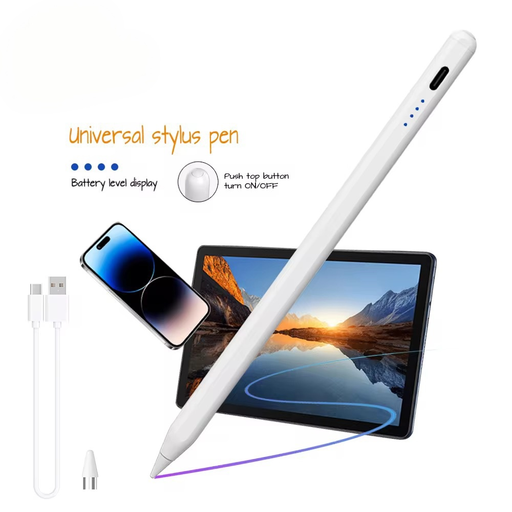 No image available
VoxorAI HL-U05 active stylus, white
An option for exploring drawing or sketching on a capacitive touchscreen.
The product title lists iOS, iPad, Android and Microsoft. The product description says it works with capacitive touchscreens; check that the stylus works with your specific device.
View at Joybuy
Frequently asked questions
How do I start a photo collage on an iPad?
In Procreate for iPad, you can add a photo or file to an existing piece of work; the image is inserted as a new layer. According to Procreate, a PSD file inserted into an existing piece of work is added as a flattened image. These steps relate to the app and aren’t a feature of any one particular stylus.
How do I pair and charge an Apple Pencil?
It depends on the model and iPad. Apple describes pairing and charging the Apple Pencil (USB-C) via a USB-C cable, while the Apple Pencil Pro attaches magnetically to a compatible iPad to pair and charge. First, check Apple’s compatibility information for your iPad.
What should I do if the tip of my Logitech Crayon is worn?
Logitech says a worn or damaged Crayon tip should be replaced to help prevent damage to the screen, and that replacement tips are available. For other styluses, follow the care instructions for that specific version.
Do I have a cooling-off period and a warranty when buying online in the Netherlands?
According to the Dutch government, consumers buying from a business at a distance usually have a 14-day cooling-off period, although there are exceptions. ACM ConsuWijzer explains that your statutory guarantee depends on what you could reasonably expect from the product with normal use, and applies in addition to any manufacturer’s warranty.


