
Tablet owner who draws diagrams
You want to add lines, arrows and short notes to your existing tablet. First, check which stylus works with your exact model: Apple, Samsung and Lenovo set compatibility according to the device and stylus version.


Start by checking your exact tablet model: a stylus that isn’t supported isn’t a practical choice, whatever its charging method. Then choose between a stylus that doesn’t need charging, one that charges via the tablet, and a USB-C stylus that needs a planned charging session. Extra drawing controls matter most if you’ll use them for your diagrams too.
You want to add lines, arrows and short notes to your existing tablet. First, check which stylus works with your exact model: Apple, Samsung and Lenovo set compatibility according to the device and stylus version.
You use your stylus in lessons or at a shared workspace and want to know in advance how both the tablet and stylus are powered. Apple, Samsung and Logitech describe different charging methods for their styluses.
You make visual notes and want to check whether features such as tilt detection, palm rejection and replaceable tips suit the way you work. Logitech and Lenovo, for example, describe features for drawing and writing; always check the exact version.
Choose this if: you have a device that Samsung lists as compatible with this stylus and don’t want to plan separate charging for it.
Bear in mind: Samsung doesn’t list Bluetooth or Air Actions for this version; your tablet still needs power.
Choose this if: you have a compatible iPad and want to use extra drawing controls without a separate charging cable for the stylus.
Bear in mind: the stylus charges via the iPad and only works with supported models.
Choose this if: you use a compatible iPad for diagrams and notes and can plan a USB-C charging session.
Bear in mind: both need charging via USB-C. The Apple Pencil (USB-C) attaches magnetically for storage, but doesn’t charge magnetically.
Choose this if: Lenovo lists your tablet as compatible and you want to use pressure levels and tilt detection.
Bear in mind: the stylus needs charging and connects via Bluetooth; it won’t automatically work with every Android tablet.
| What to consider | What should you check? | Who is this important for? |
|---|---|---|
| Compatibility | Look up your full tablet model in the manufacturer’s compatibility information. Some Apple Pencil models may also require a minimum iPadOS version. | If I want to keep using my current tablet, the stylus needs to match the model exactly. Around 31% of consumers prioritise compatibility. |
| Power | Check whether the stylus needs no charging, charges via the tablet or requires its own USB-C charging session. If needed, plan time to connect a cable before the lesson. | When there are hardly any sockets available during a lesson, I want to know in advance whether the stylus itself needs charging. Around 31% of consumers prioritise power. |
| Drawing controls | Compare tilt detection, pressure levels and palm rejection for each exact stylus; check that the features suit the diagram app you use. | For arrows, labels and sketches, I want to adjust my lines and annotate quickly. Around 25% of consumers prioritise drawing controls. |
| Tips and essentials | Check which tips are included and whether they can be replaced, and whether your setup needs a cable or adapter. | If I take notes often, I want to know which replacement tips and accessories I’ll need. Around 13% of consumers focus mainly on maintenance and extra essentials. |
Support can vary by device, stylus version and sometimes software version. A general description such as ‘for iPad’ or ‘S Pen’ isn’t enough to tell you whether your combination will work.
Make a note of your tablet’s full model name and check the manufacturer’s latest compatibility information before you order.
The Apple Pencil (USB-C) attaches magnetically to an iPad, but Apple says it charges via USB-C. The Apple Pencil Pro charges magnetically via a compatible iPad.
Check the charging method for the exact version and, if necessary, plan a charging session before using the stylus in a lesson.
Samsung lists different features for different S Pen versions. Samsung doesn’t list Bluetooth or Air Actions for the S Pen Creator Edition.
Compare the features of the version you’re considering and check that your device is supported.
Apple Pencil versions are designed for supported iPads. Your choice depends on the exact model and how you want to charge the stylus.
S Pen versions are designed for supported Galaxy devices. The Creator Edition is worth considering if you don’t want to plan separate charging for the stylus.
The Crayon (USB-C) is an option for compatible iPads, for visual notes and diagrams.
The Tab Pen Plus ZG38C05190 is designed for Lenovo devices that Lenovo lists as compatible.
This selection focuses on styluses for diagrams and annotations on iPad, with options that charge via the tablet as well as USB-C models. Check compatibility and charging method for each model.
 No image available
An option for drawing and note-taking on a compatible iPad, with magnetic pairing and charging via the tablet.
The product information lists the iPad Pro 11- and 13-inch (M4), iPad Air 11- and 13-inch (M2) and iPad mini (A17 Pro). Check that your exact model is supported.
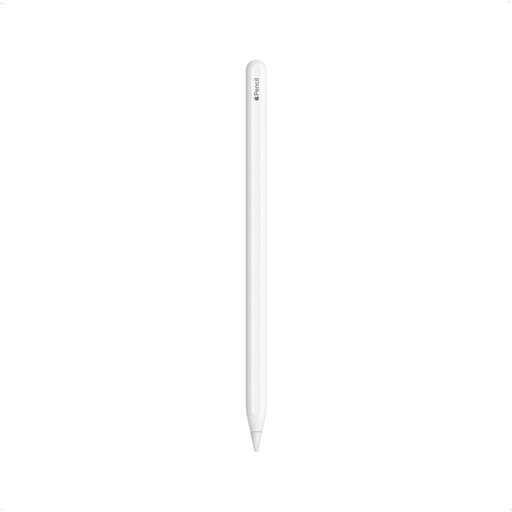 No image available
A stylus option for diagrams and annotations on the iPad models compatible with this version.
The product title lists the iPad Pro 12.9-inch (3rd to 6th generation), iPad Pro 11-inch, iPad Air (4th and 5th generation) and iPad mini (6th generation). Check your exact model.
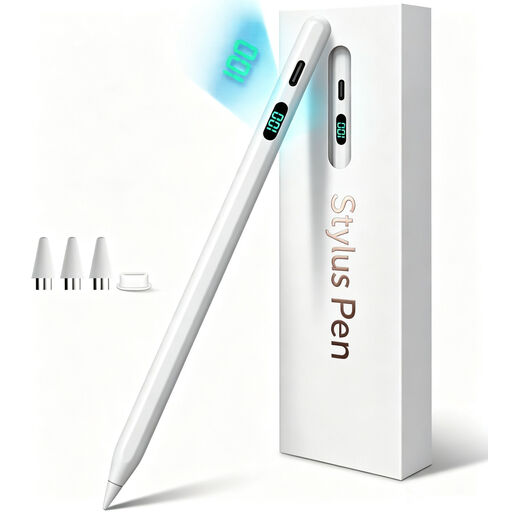 No image available
An option for drawing and note-taking on a compatible iPad model; plan a USB-C charging session for this stylus.
The title lists iPad models from 2018–2026. Check compatibility with your exact model; magnetic attachment is for storage, not wireless charging.
 No image available
An option for sketching and annotating on iPad if you can plan a USB-C charging session.
The product title lists tilt detection, palm rejection and an LED battery indicator. Magnetic attachment is for storage; wireless charging isn’t supported. Check that your iPad model is compatible.
 No image available
For diagrams and annotations on a compatible iPad; Logitech says tilting the stylus changes the line thickness, and it also has palm rejection.
The stylus charges via USB-C. Logitech says the Crayon isn’t pressure-sensitive; check that your exact iPad model is supported.
No. First check your exact tablet model, then check the stylus version in the manufacturer’s compatibility information. Apple products may also require a minimum iPadOS version.
Not always. Apple says the Pencil (USB-C) attaches magnetically but charges via a USB-C cable; the Pencil Pro charges when attached magnetically to a compatible iPad.
Check how your exact stylus charges, whether you need a cable and whether both the stylus and tablet have enough charge. Logitech lists up to 7 hours of active writing for its separate Crayon education version; this manufacturer’s specification applies to that version and isn’t a measured battery life for every Crayon.
Check which replacement tips fit your specific stylus and what’s included. If a product is faulty, you can contact the seller; the Government of the Netherlands says there is no fixed statutory warranty period of exactly two years in the Netherlands.
For online distance sales from a business, you generally have 14 days to change your mind, but there are exceptions. The Government of the Netherlands also distinguishes between buying from a business and buying from a private seller; check which terms apply to your purchase.