Start by checking your exact tablet model and the pen technology it supports: a pen that works on your screen won’t necessarily offer the features you need for hand-drawn lettering. Choose the level of line control that suits your workflow and drawing app; if you add lettering with a text tool, you may not need features designed for hand-drawn brush strokes. There’s no substantiated ranking of how quietly different pen-and-screen combinations work, so try yours out if working quietly matters to you.
Which pen is right for you?
Tablet owners looking for a compatible pen
If you want to create comic lettering on the tablet you already own, first check its exact model and the pen protocol it supports. Apple Support NL, Samsung NL and Wacom explain compatibility in terms of specific models or protocols.
Hand-lettering artists who want control over their lines
If you draw your letters by hand, check which line-control features are supported by the pen and your drawing app. Tilt sensitivity and pressure sensitivity are different features; Apple Support NL and Logitech NL describe tilt-controlled capabilities, among other things.
Artists working in a quiet study
If you want to work quietly, try the pen on your own screen rather than relying on a general promise about how natural it feels to write with. STAEDTLER and Wacom describe pen tips and power sources, but don’t provide comparable sound measurements.
What should you look for when choosing?
Apple Pencil Pro with a compatible iPad
Choose this option: if you draw by hand and want to use the pen controls and magnetic charging described by Apple.
Bear in mind: Apple limits compatibility to certain iPad models and iPadOS versions; also check whether your drawing app supports the features you want.
Apple Pencil (USB-C) or Logitech Crayon
Choose this option: if you sketch on a compatible iPad, want to control lines by tilting the pen, or mainly add and edit text boxes.
Bear in mind: Apple describes tilt sensitivity and charging by cable; Logitech describes tilt-controlled line thickness for the Crayon. This isn’t automatically the same as pressure-controlled brush strokes.
S Pen or EMR pen with a compatible Galaxy Tab
Choose this option: if you have a compatible Galaxy Tab and want a pen designed for that tablet family or a compatible EMR screen.
Bear in mind: Samsung distinguishes between S Pen versions for different tablet families. An EMR pen won’t necessarily work with every Galaxy Tab.
Wacom Bamboo Ink with a compatible Windows tablet
Choose this option: if your Windows device is on Wacom’s list of tested devices and supports the required pen protocol.
Bear in mind: this pen uses an AAAA battery; according to Wacom, the maximum stated number of pressure levels depends on the device.
First, note down your exact tablet model, then decide whether you’ll draw letters by hand or add text in the app. The breakdown below shows which of these practical concerns may matter most to shoppers.
| What to consider |
What should you check? |
Who is this important for? |
| Compatibility |
Compare your tablet model, generation and operating system with the support information for the exact pen version. For Windows devices, check the pen protocol too. |
I want to keep using my existing tablet and first find out whether my chosen pen will work with it. Around 36% of consumers prioritise tablet compatibility. |
| Hand-drawn lines |
Decide whether you’ll draw letters or add them with a text tool; then check the pen features and your drawing app’s support. |
If I draw letters by hand, I want to control how my lines look. Around 29% of consumers give control over hand-drawn lines the highest priority. |
| Quiet working |
If possible, try the pen on your own screen, including when writing small letters. A natural writing feel doesn’t, by itself, tell you how much noise the pen makes. |
In a quiet study, I want to find out beforehand how the pen tip and screen sound together. Around 21% of consumers say quiet use is their main concern. |
| Supplies and maintenance |
Check how the pen is powered, whether replacement tips are available and what support comes with it. |
I want to know what my chosen pen requires in terms of tasks and supplies. Around 14% of consumers put maintenance and support ahead of other buying concerns. |
Things to watch out for when buying
-
‘Compatible with tablets’ doesn’t mean every feature will work
Compatibility may depend on the exact tablet model, software version or pen protocol. A pen that isn’t suited to your device may not offer the features you’re choosing it for.
Before buying, compare your tablet’s full model number with the information for the exact pen version.
-
Adding text and drawing letters aren’t the same thing
In a comic app, you can add and edit dialogue with a text tool; drawing letters yourself calls for control over brush strokes.
First decide how you’ll work, then choose a pen and app with the features to match.
-
A ‘natural writing feel’ doesn’t mean a pen is quiet
Specifications about a pen tip or writing feel don’t provide comparable sound measurements on tablet glass.
If noise is a deciding factor, try the pen on your screen using the pressure you’d normally write with.
-
A manufacturer’s guarantee isn’t the same as your statutory rights
According to ACM ConsuWijzer, your statutory guarantee applies alongside any guarantee from the manufacturer or seller. If a product is faulty, the seller is your point of contact.
Keep your proof of purchase and contact the seller if there’s a fault to discuss an appropriate solution.
Brands to compare
Apple
Apple Pencil Pro and Apple Pencil (USB-C) are designed for different iPad models, as specified by Apple.
- For Pencil Pro, Apple describes features including squeezing, rotating and magnetic charging; for Pencil (USB-C), Apple lists tilt sensitivity and charging by cable.
- Check your iPad model and software version. The pen features described don’t prove that every feature is available in every drawing app.
Samsung
Samsung S Pens are model-specific; the pen described for the Galaxy Tab S9/S10 family is compatible with the tablet models listed.
- Samsung describes drawing, magnetic storage and Air Command for the pen mentioned.
- Air Command features can vary by app. Don’t assume this information means the pen is compatible with every Galaxy tablet.
Logitech
The Crayon USB-C is an iPad pen for anyone looking for the tilt-controlled line thickness described by Logitech.
- Logitech describes USB-C charging, tilt-controlled line thickness and palm rejection.
- Make sure you distinguish between the USB-C and Lightning versions. The features described don’t confirm that the pen offers pressure-controlled line variation.
STAEDTLER
Noris digital classic 180 22-1 is designed for a demonstrably compatible EMR screen.
- STAEDTLER lists a replaceable 0,7 mm tip, 4.096 pressure levels and use without charging or pairing.
- These specifications don’t confirm that every tablet supports EMR or that the pen is quiet.
Wacom
Bamboo Ink is designed for tested Windows devices with Wacom Active ES or Microsoft Pen Protocol.
- Wacom lists an AAAA battery and replaceable tips, available separately.
- According to Wacom, the maximum stated number of 4.096 pressure levels depends on the device. Check the list of tested devices.
Choosing a tablet stylus on Joybuy
This selection includes pens for Microsoft Surface and compatible iPads, including Apple Pencil and Logitech Crayon models.
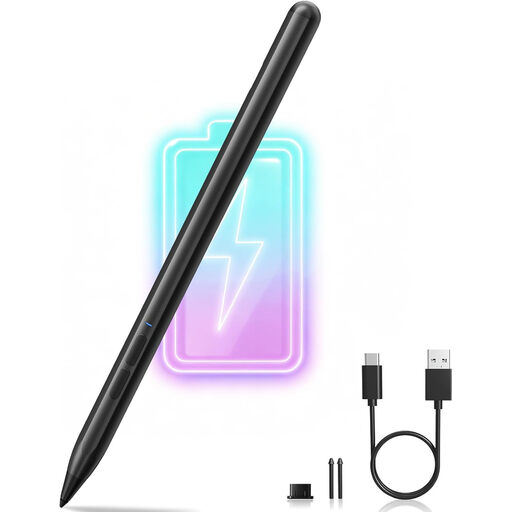 Image unavailable
MP-02 stylus for Microsoft Surface, black
An option for drawing and writing on the Surface models listed in the product information.
The product name lists 4.096 pressure levels and palm rejection. Check whether your Surface model is supported.
View on Joybuy
 Image unavailable
iPad stylus with USB-C connector
An option for drawing and sketching on the iPad models listed in the product information.
The product information lists tilt detection and palm rejection. Wireless charging isn’t supported; check which iPads are compatible.
View on Joybuy
 Image unavailable
Logitech Crayon USB-C, silver
An option for hand-drawn lines on a compatible iPad; the product information lists tilt-controlled line thickness and palm rejection.
According to the product information, this version is designed for iPad models from 2018 or later with iOS 12.2 or above. Check support for your exact model.
View on Joybuy
 Image unavailable
Apple Pencil Pro 2024
An option for hand-drawn lines and squeeze or rotation controls, for the compatible iPad models listed in the product information.
The product information lists pressure and tilt sensitivity, as well as magnetic pairing and charging. Check compatibility with your iPad.
View on Joybuy
 Image unavailable
Apple Pencil (USB-C), white
An option for drawing and sketching with tilt sensitivity on a supported iPad.
The product information lists magnetic attachment and charging via USB-C under the cap. Check whether your iPad model is supported.
View on Joybuy
Frequently asked questions
Does a stylus need to be pressure-sensitive for comic lettering?
Not if you mainly add lettering with a text tool and adjust the spacing in the app. If you draw letters yourself using varied strokes, check which line-control features are supported by the exact pen and your app; tilt sensitivity isn’t automatically the same as pressure sensitivity.
How do I get started with the pen and maintain the tip?
Follow the instructions for your model. Apple describes magnetic pairing and charging for Pencil Pro, and charging with a USB-C cable for Pencil (USB-C); for Noris digital classic, STAEDTLER lists a replaceable tip and use without charging or pairing, but only with a compatible EMR screen.
What if I find out after buying that the pen isn’t compatible with my tablet?
For an online consumer purchase in the Netherlands, ACM ConsuWijzer says you generally have a 14-day cooling-off period from delivery, subject to statutory exceptions. If the product is faulty, you may also have statutory guarantee rights against the seller; the period isn’t automatically two years for every stylus.


