Start by checking your exact tablet model, then decide whether you need a sketch, an editable diagram or a file for design software. A suitable stylus may be enough for sketching and annotating, but technical design also requires the right software and file sharing options. Then compare charging methods and extra features: they only matter if your tablet and app support them and they suit the way you work.
Who is this guide for?
Sketching on a tablet you already own
You want to draw a diagram or add notes to an image at home without buying a new tablet first. Your exact tablet model determines which styluses you can consider. Apple, Samsung, Microsoft and Lenovo publish compatibility information for each device and stylus.
Creating editable diagrams
You want to be able to change symbols and connections later, or use a diagram in your existing software workflow. First choose an editor and the file format you need; draw.io explains how to connect elements in diagrams, while KiCad offers software downloads for desktop operating systems.
Working from home and annotating regularly
You write or make corrections for longer periods, so you’ll want to consider features such as palm rejection, the stylus tip and charging. What works depends on the combination of tablet, stylus and app; Logitech and Microsoft provide details about features and compatibility for specific devices.
What should you look for in a tablet stylus?
| What to consider |
What to look for |
Who is this important for? |
| Compatibility |
Compare your exact tablet model with the compatibility list for the specific stylus. |
If I want to keep using my current tablet, I need to know for sure that the stylus works with my model. Around 36% of consumers put compatibility first. |
| Editable diagram |
Check that your chosen app saves symbols and connections in an editable format and can create the file you need. |
If I need to change symbols later or share the diagram, I’ll choose a suitable editor and file format first. Around 29% of consumers prioritise this editable workflow. |
| Control while drawing |
Check that features such as palm rejection and tilt work with your tablet and app. |
When working with small symbols and connections, I want to place and correct lines accurately. For around 21% of consumers, drawing and writing control is the main consideration. |
| Charging and replacement |
Check how the stylus charges, what’s included with the tablet and whether suitable replacement tips are available. |
If I want to minimise interruptions and unnecessary purchases, I’ll check which accessories are included and how the stylus charges. Around 14% of consumers prioritise running costs and replacement parts. |
Avoiding common buying mistakes
-
Confusing magnetic attachment with magnetic charging
With Apple Pencil (USB-C), magnetic attachment doesn’t mean magnetic charging: Apple says it charges via a USB-C cable. Depending on the device, the Surface Slim Pen 2 may need a separate charger.
Compare the charging method for the exact stylus version with the equipment you already have at home.
Allow for a suitable charging cable or charging accessory if needed.
-
Mistaking a neat drawing for an editable technical design
An image of lines isn’t automatically a diagram whose symbols and connections you can change later. The editor and the way it stores data determine what you can edit and share.
Before buying, decide which file your design software or recipient needs to be able to open.
-
Buying an extra S Pen without checking your tablet and stylus version
Samsung lists S Pens by compatibility and says that certain Galaxy Tab models already come with an S Pen.
Check what’s in your tablet box and compare the full model number of a replacement stylus with Samsung’s compatibility information.
Brands to compare
Apple
Apple Pencil models are designed for specific compatible iPads; check the list for your exact stylus and tablet.
- Apple positions Apple Pencil (USB-C) for note-taking, sketching and annotating. The stylus charges via a cable.
- The USB-C stylus can attach magnetically to the iPad, but it doesn’t charge magnetically. Apple Pencil Pro pairs and charges magnetically, but has a more limited compatibility list.
Samsung
S Pen models are worth considering if you already use a supported Galaxy Tab or need a compatible replacement.
- Samsung lists use with Samsung Notes and magnetic storage among the features of the EJ-PX510.
- Features and compatibility vary by S Pen. Check your exact tablet and whether a stylus is already included.
Logitech
The Crayon (USB-C) is an option for iPads that Logitech lists as supported.
- Logitech says you can write straight away without complicated Bluetooth pairing, and lists tilt support and palm rejection on iPad.
- The Crayon charges via USB-C. The listed features are manufacturer information, not the result of an independent performance test.
Microsoft
Surface Slim Pen 2 is designed for Surface devices that support pen input.
- This stylus may suit a workflow on a compatible Surface.
- Compatibility and features vary by Surface model. A separate charger may be needed; haptic feedback won’t necessarily work in every app.
Lenovo
Precision Pen 3 is worth considering for Lenovo systems where compatibility has been confirmed separately.
- For this model, Lenovo lists magnetic pairing and charging, tilt support, 4096 pressure levels and an extra stylus tip.
- These specifications don’t mean the stylus works with every Lenovo tablet; Lenovo recommends checking compatibility for your specific system.
Tablet stylus options at Joybuy
This selection focuses on tablet styluses for iPad, from Apple and Logitech models to other iPad styluses. Check each stylus for compatibility with your exact iPad model and the features supported by your drawing app.
 No image available
Apple Pencil Pro 2024
Worth considering for drawing and sketching if you have a compatible iPad and will use the extra controls.
Listed compatible devices include iPad Pro 11-inch (M4), iPad Pro 13-inch (M4), iPad Air 11-inch (M2), iPad Air 13-inch (M2) and iPad mini (A17 Pro).
The product information lists pressure and tilt sensitivity, gesture controls, and magnetic pairing and charging.
Joybuy
 No image available
Logitech Crayon USB-C, silver
An option for writing, drawing and annotating on an iPad that’s compatible with this stylus.
The product information lists palm rejection and USB-C charging.
Check iPad compatibility; the listed usage information specifies iPad models from 2018 onwards and iOS 12.2 or later.
Joybuy
 No image available
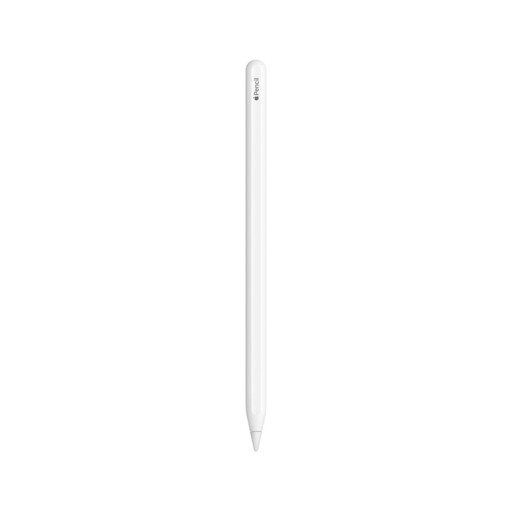
Apple Pencil (2nd generation)
Worth considering for drawing and note-taking if your iPad supports this specific model.
Check compatibility with your iPad model before buying. According to the product information, replacement tips are sold separately.
The product information warns that magnetic components may affect medical devices.
Joybuy
 No image available
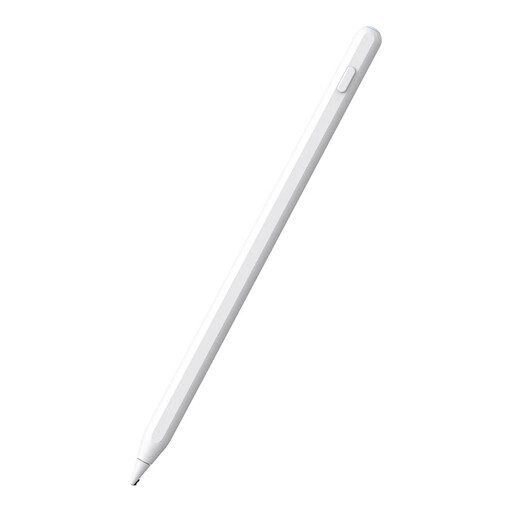
White iPad stylus, 16.5 × 0.9 × 0.9 cm
An option to explore if you’re looking for a stylus for drawing and annotating on a compatible iPad.
The product information lists magnetic charging and palm rejection. Check that the stylus works with your iPad before buying.
Joybuy
 No image available
iPad stylus with USB-C charging
Worth considering for drawing and annotating if tilt detection and palm rejection suit your app and tablet.
The product information lists USB-C charging and tilt detection, but not pressure sensitivity. Check compatibility with your iPad model.
Joybuy
Frequently asked questions
Can I create an editable electronic circuit diagram with any tablet stylus?
No, the stylus alone won’t make a diagram editable. Check that your editor saves symbols and connections in an editable format and supports the file type you need. draw.io explains connections for electrical diagrams and saving and export options; KiCad lists downloads for Windows, macOS and Linux.
How can I avoid interruptions during a drawing session?
Check in advance how your stylus charges and whether your tablet or accessory can charge it. Apple Pencil (USB-C) pairs and charges via USB-C; Microsoft says the Surface Slim Pen 2 may need a separate charger.
What if a stylus I bought online isn’t suitable or breaks too soon?
According to ACM ConsuWijzer, online purchases usually come with a cooling-off period of up to 14 days after delivery. Separately, in the Netherlands you’re entitled to a product that lasts for as long as you can reasonably expect it to. If it breaks sooner during normal use, the seller must resolve the issue.


