
Diagram creator with an existing tablet
You want to know whether a pen works with your exact iPad, Galaxy Tab or Surface, and offers the features your app needs. Apple Support, Samsung and Microsoft list compatibility by model.


Start by checking your exact tablet model and choosing a stylus that’s supported. Then decide whether you want to sketch freely or need an editable technical circuit diagram. The pen handles input, but the app determines whether symbols and connections can be edited and checked. At a standing desk, screen position, arm support and how you charge or store the pen also matter.
You want to know whether a pen works with your exact iPad, Galaxy Tab or Surface, and offers the features your app needs. Apple Support, Samsung and Microsoft list compatibility by model.
You want to be able to edit or check symbols and electrical connections later. So start by choosing your software workflow: KiCad documents features including netlists and electrical rule checking.
You regularly make notes or rough sketches at a standing desk, so screen readability, arm support and interruptions for charging matter too. Arboportaal covers points to consider when working with screens, while draw.io explains how to draw diagrams on a touchscreen.
First check the pen and device, then decide which features you need in your drawing app, and finally assess your workspace and charging needs.
| What to consider | What should you check? | Who is this important for? |
|---|---|---|
| Compatibility | Compare the brand, full tablet model and operating system version with the manufacturer’s compatibility information. Also check which pen features your app supports. | If I want to draw on my existing tablet, I want to be sure the pen and app will work with it; around 36% of consumers put compatibility first. |
| Type of diagram | Test in your chosen app whether you can edit symbols and connections, and save the required file. | If you need to edit or check a circuit later, choose the software before the pen; around 29% of consumers prioritise this workflow. |
| Standing workspace | Try different tablet positions and check that symbols are easy to read and you can keep your arm supported. | If I draw standing up regularly, I want to be able to read the screen without reaching for long periods; around 21% of consumers put workspace setup first. |
| Charging and pen tips | Check how the exact version charges, whether any charging accessories are needed and whether replacement tips are available. | If you want to minimise interruptions and additional running costs, consider charging and maintenance; around 14% of consumers make this their top priority. |
Manufacturers list compatibility and pen features for each device and version. Arboportaal highlights screen readability and varying screen-based work as points to consider, so assess your whole drawing setup, not just the pen.
A stylus lets you enter information, but features such as netlists and electrical rule checking are part of the software workflow. A drawn image won’t provide these features by itself.
First, create a test diagram in your chosen app. Edit a connection and check that you can save the file you need.
Recreating a sketch later in schematic software can take extra time.
Apple lists tilt sensitivity for the Pencil (USB-C), as does Logitech for the Crayon with USB-C. This does not, by itself, confirm pressure sensitivity.
If you need pressure input, check separately that the exact pen and app support it.
Samsung lists pen versions by model. Information about Bluetooth, charging or Air actions for a different S Pen does not confirm that the EJ-PX510 has these features.
Compare the full model number with your tablet, and check charging and controls in the information for that specific model.
Arboportaal highlights points to consider, including screen readability and varying screen-based work. A different stylus won’t automatically fix an awkward screen position.
Try the tablet position, readability and arm support during a real drawing task, and vary your activities.
Apple Pencil versions are designed for supported iPads. The right choice depends on your exact iPad model and the pen features you need.
S Pen versions are designed for selected Galaxy devices. Check compatibility with your exact Tab model.
The Surface Slim Pen is worth considering if you draw on a Surface that supports pen input.
The Crayon with USB-C is an option for sketching, note-taking and annotations on supported iPad models.
A Wacom One pen tablet is an alternative if you’d rather draw on a separate input surface than directly on your tablet screen.
These Joybuy products are designed for sketching or annotating with a compatible Surface or iPad. For an editable technical diagram, your choice of app remains key.
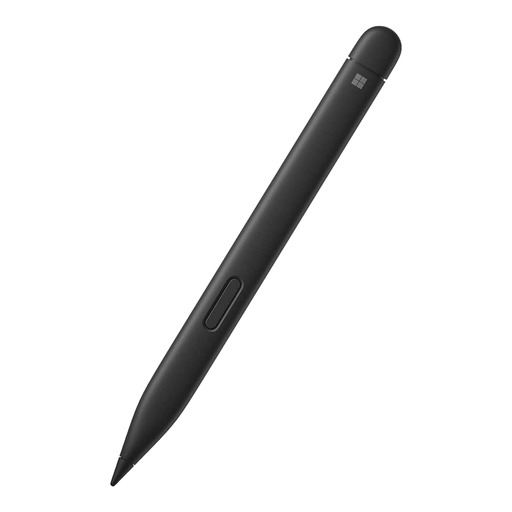 No image available
An option for sketching on a Surface that supports this pen. Check compatibility with your exact device.
Microsoft says that a charging accessory for the Surface Slim Pen may need to be purchased separately.
 No image available
An option for sketching on a compatible iPad. Before buying, check that your exact iPad model is supported.
 No image available
Worth considering for sketching on a compatible iPad. Check your iPad model and operating system version.
Apple describes this version as precise and tilt-sensitive. It charges via USB-C and requires iPadOS 17.1.1 or later.
 No image available
An option for sketching or annotating on an iPad that supports this pen. Check compatibility with your model and app.
Logitech lists tilt sensitivity and palm rejection. The replaceable tip is sold separately, and the pen won’t work while charging.
No. A stylus won’t automatically work with every tablet model. Check the exact model and pen version in the manufacturer’s information, then test the drawing app you want to use.
No. The software needs to support the features you require. KiCad documents features including symbols, netlists and electrical rule checking. Test whether your chosen app can handle the file and edits you need.
Check how the exact pen charges and whether you need a separate accessory. Logitech says the Crayon with USB-C can’t be used while charging and has a replaceable tip. Microsoft says a charging accessory for the Surface Slim Pen may be sold separately.
When you buy as a consumer, you’re entitled to a product of satisfactory quality, but the Netherlands does not have a fixed statutory guarantee period. According to the Dutch government and ACM ConsuWijzer, the retailer is your point of contact if the product doesn’t perform as you could reasonably expect under normal use. This is separate from any manufacturer’s guarantee.
Arboportaal says screen-based work should be alternated at regular intervals with other work or a break. The applicable workplace requirements depend on your working situation; this isn’t a buying requirement for every stylus user.