
Sketcher with an existing tablet
You’re looking for a stylus that works with your tablet so you can draw components and connections by hand. Check compatibility for your exact tablet and stylus variant.


First, choose a stylus that works with your exact tablet model, then decide whether you need a sketch or an editable electronic schematic. For sketching, both the stylus and the features of the app you use matter; for a KiCad workflow, a supported computer system is more important than extra features on a standalone stylus. Before settling down to work in a quiet study space, also check how the stylus connects, charges and can be stored.
You’re looking for a stylus that works with your tablet so you can draw components and connections by hand. Check compatibility for your exact tablet and stylus variant.
You want to mark up diagrams or PDFs and find them again later. The features of the app you use matter just as much as the stylus; Samsung Notes, for example, supports annotating PDFs with an S Pen.
You want to know where a quick tablet sketch ends and an editable electronic schematic on a supported computer system begins. KiCad offers downloads for Windows, macOS and Linux.
| What to consider | What to look for | Who should consider this most? |
|---|---|---|
| Compatibility | Check the exact tablet model, stylus generation and any software requirements. | If you mainly want to avoid finding that the stylus doesn’t work with your existing iPad, Galaxy Tab or Surface, compatibility should be your first concern. Around 36% of consumers put this first. |
| Type of schematic work | Decide whether you want to draw lines and add notes, or continue editing an electronic schematic. | If you want to edit components and connections later in schematic software, don’t assume that a drawing in a note-taking app will do the same thing. Around 29% of consumers prioritise this distinction. |
| Working at your study space | Check how it charges and connects, and whether you’ll need a charger or cable. | If you don’t want to be searching for a flat stylus or a missing cable while studying, focus on charging and storage. Around 21% of consumers make this their main consideration. |
| Accessories required | Check what’s included and whether you’ll need an adapter or a separate charging accessory. | If you want to avoid extra accessories, check in advance what your tablet and stylus need. Around 14% of consumers prioritise additional requirements. |
Apple lists compatibility by Pencil variant and iPad model. A stylus that works with one generation may not be suitable for another iPad.
Find your exact iPad model and compare it with the compatibility information for the Pencil you’re considering.
Note-taking apps can be used for drawing and annotation; KiCad is a separate schematic editor for symbols and electrical connections. Stylus features don’t make these software workflows interchangeable.
Before you buy, decide whether sketching and annotating will be enough, or whether you want to continue editing the schematic in specialist software.
S Pen models vary. Samsung notes that some styluses, including those for the Galaxy Tab S9 FE and S10 FE, don’t support Bluetooth.
If you need Bluetooth features, check Samsung’s information for your exact tablet and stylus model.
How a stylus charges depends on the stylus and the device. Apple describes pairing and charging the Apple Pencil (USB-C) via a cable; some Surface combinations may require a separate charging accessory.
Check the charging method and what’s included in the box for the combination you’re considering.
Apple Pencil variants are designed for specific iPads and may be suitable for sketching and annotation.
S Pen models are designed for supported Galaxy devices and use with Samsung Notes.
The Logitech Crayon with USB-C is an option for writing and sketching on a compatible iPad.
The Surface Slim Pen is designed for supported Surface devices, for example if you want to use a stylus on the same computer system.
The Precision Pen 3 is an example of an Android tablet stylus whose compatibility should be checked by model.
This selection includes styluses for sketching on compatible iPads and Surface devices. Before you buy, check that your exact device works with the stylus and that its charging method suits your study space.
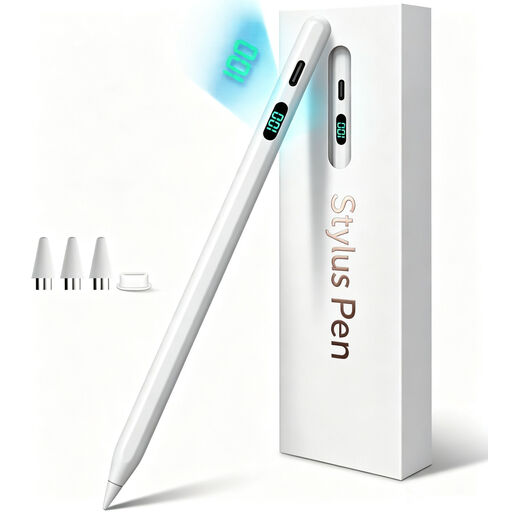 No image available
An option for sketching on an iPad; check that your exact tablet model is supported.
With this stylus, magnetic attachment doesn’t mean wireless charging.
 No image available
Designed for sketching and note-taking on selected iPad models; check whether your device is supported.
The magnetic attachment is for securing the stylus, not for charging it wirelessly.
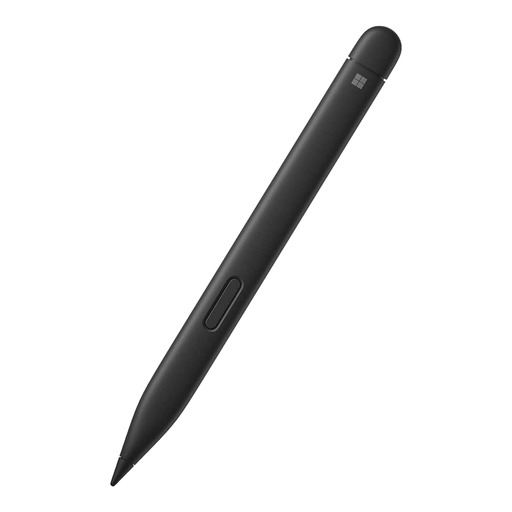 No image available
A stylus option for drawing on a supported Surface; check compatibility and charging options for your Surface model.
Microsoft says that the pen features available vary by Surface model.
 No image available
For sketching on a compatible iPad. Logitech describes use without Bluetooth pairing; check that your iPad and app are supported.
Listed compatibility applies to iPads from 2018 onwards running iOS 12.2 or later.
 No image available
For sketching on a compatible iPad Air or iPad Pro. Check the exact iPad models and software requirements before choosing.
Apple lists magnetic charging for the Pencil Pro on supported iPads.
No, the stylus alone doesn’t determine this. Note-taking apps can be used for drawing or annotation, while KiCad is a separate schematic editor for symbols and electrical connections. KiCad is available for Windows, macOS and Linux.
Apple describes a ruler in the iPad user guide that you can use to draw straight lines in Notes. Also check whether similar tools are available in the app you’re using.
No. According to Apple, the USB-C model pairs and charges via a USB-C cable; magnetic attachment isn’t the charging method described.
According to the Authority for Consumers & Markets, online consumer purchases usually come with a statutory cooling-off period of up to 14 days after delivery, subject to legal exceptions. If a product is faulty, the seller is responsible for the statutory guarantee; a commercial manufacturer’s warranty is separate.