Start with your exact tablet model: an Apple Pencil, S Pen or Surface Pen isn’t automatically interchangeable. Then choose based on the way you sketch: pressure sensitivity can help you vary line weight, while tilt support, palm rejection and a practical way to charge and store the pen may matter for short sketching sessions. Also check whether you’ll need a suitable cable, adapter or replacement nib. Apple, Samsung and Microsoft list compatibility and features by model.
Who is this buying guide for?
Costume sketcher with an existing tablet
Wants to check first whether a pen works with their iPad, Galaxy Tab or Surface, then look at its drawing features. Apple Support, Samsung Netherlands and Microsoft Support list compatibility by device or model.
Detail-focused artist
Draws fabric folds, shadows or lines with varying weight, so looks for explicitly supported pressure and tilt features. Apple Support and Samsung Netherlands describe the features available on specific pen models.
Quick sketcher at a shared desk
Wants to pick up a pen quickly, rest their hand on the screen and easily put the pen away or charge it after use. Logitech Netherlands, Apple Support and Microsoft Support describe different ways to start using, store and charge their pens.
What should you look for when buying?
First, check that the stylus is compatible with your tablet. Then compare its drawing features with your sketching style, and finally consider how you want to use and charge the pen at a shared desk.
| What to consider |
What should you check? |
Who is this most important for? |
| Compatibility |
Note down your exact tablet model and generation. Compare them with the compatibility list and check any software requirements; Apple Support, Samsung Netherlands and Microsoft Support provide model-specific information. |
If I want to sketch on my existing tablet, I need to know first whether the pen will work with it. Around 36% of people choosing this sketching setup put compatibility first. |
| Line control |
Check separately whether the pen is pressure-sensitive and supports tilt, and whether your drawing app uses these inputs. Apple Support describes pressure and tilt sensitivity for Apple Pencil (1st generation); Samsung lists pressure detection for the Galaxy Tab S11 Series S Pen. |
If I want to draw folds and shadows using different types of line, I look for features that my pen and app actually support. Around 29% of people put drawing control first. |
| Use at a shared desk |
Check whether the pen is ready to use straight away, and whether magnetic attachment is just for storage or also charges it. Logitech says Crayon can be used without separate Bluetooth pairing; Apple describes cable charging for Pencil (USB-C). |
If I do short sketching sessions, I want to pick up the pen quickly and give it a dedicated spot afterwards. Around 21% of people are mainly looking for an easy desk setup. |
| Replacement nibs and accessories |
Check how the pen charges, what’s included and which replacement nib fits the exact model. Apple lists an adapter for Pencil (1st generation) with certain iPads; Microsoft says a standalone Surface Slim Pen charger is sold separately. |
If I want to avoid being caught out later by needing a charger, adapter or nib, I check these details in advance. Around 14% of people put accessories for future use first. |
Common buying mistakes
-
Choosing a pen based on the tablet brand alone
Even within the same tablet family, different pen versions may be supported. For iPad (A16) and iPad (10th generation), Apple lists a USB-C to Apple Pencil Adapter for pairing and charging Pencil (1st generation).
Before buying, compare your exact tablet model and generation, any software requirements and the charging method with the manufacturer’s information.
-
Confusing tilt sensitivity with pressure sensitivity
Tilt and pressure are different input features. If you want to vary line thickness by pressing harder with the pen, tilt sensitivity alone doesn’t mean the pen can do this.
Look up the pressure-sensitivity specification for the exact pen model and check whether your drawing app supports this input.
-
Assuming magnetic attachment means the pen charges
A pen can attach magnetically to a tablet without charging there. Apple says Pencil (USB-C) charges via a USB-C cable; Microsoft lists charging options for each Surface device and accessory.
Check how your combination of pen and tablet charges, and whether the required cable or charger is included.
Brands to compare
Apple
The Apple Pencil range is designed for specific iPads. Compare compatibility and features for the exact version you’re considering.
- Apple Support describes pressure and tilt sensitivity for Pencil (1st generation); according to Apple, Pencil (USB-C) supports tilt and charges via a USB-C cable.
- Pencil Pro only works with the iPads listed by Apple. With Pencil (USB-C), magnetic attachment doesn’t mean the pen charges magnetically.
Samsung
The Galaxy Tab S11 Series S Pen is a model-specific option for the Galaxy Tab S11 and S11 Ultra.
- For this model, Samsung lists pressure detection, a replaceable nib and side storage.
- These features and compatibility don’t automatically apply to every S Pen or Galaxy Tab.
Logitech
Crayon (USB-C) is an option for sketching and writing on an iPad. Being able to start using it quickly without separate Bluetooth pairing may be useful.
- Logitech lists tilt support, palm rejection and USB-C charging.
- The Dutch comparison consulted doesn’t list pressure levels for Crayon, so don’t assume it offers pressure-sensitive line weight.
Microsoft
Surface Slim Pen is designed for supported Surface devices; check the pen features available for your specific Surface model.
- Microsoft describes pen features and compatibility for each Surface model.
- Charging options vary by device or accessory. A standalone charger may be sold separately.
Huion
The HA200 is a model-specific alternative for certain iPads; check Huion’s compatibility and charging information for your model.
- Huion lists tilt sensitivity and provides a table of iPad models and charging options.
- The product specifications cited don’t confirm pressure sensitivity for this model.
Styluses at Joybuy
This selection focuses on styluses for compatible iPads and Galaxy Tab S9 FE and S9 FE+ models. It’s for sketching where line control and storage at a shared desk are important considerations.
 No image available
Logitech Crayon (USB-C), silver
Suited to short sketching sessions on a compatible iPad when tilt support and being able to rest your hand on the screen matter.
Logitech lists support for iPads from 2018 or later running iOS 12.2 or higher. Also check that your app supports the drawing input you want to use.
Joybuy
 No image available
Apple Pencil Pro 2024
Suited to sketchers looking for a Pencil Pro for a compatible iPad who want to attach the pen to the tablet after use.
Apple lists Pencil Pro features for specific iPad models. Check that your exact iPad is on the compatibility list before ordering.
Joybuy
 No image available
Apple Pencil (USB-C), white
Suited to sketchers with a compatible iPad who value tilt sensitivity and want to factor in how the pen charges when planning their desk setup.
Apple lists tilt sensitivity and charging via a USB-C cable. Magnetic attachment is for storage, not magnetic charging.
Joybuy
 No image available
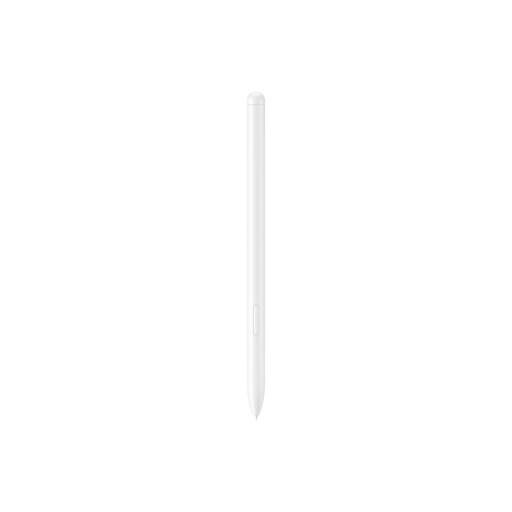
Samsung EJ-PX510 S Pen, 8.7 g, beige
Suited to sketching on a Galaxy Tab S9 FE or S9 FE+ if you’re looking for a pen designed for that specific tablet model.
The product information lists these two Galaxy Tab models and magnetic attachment. Check compatibility with your exact tablet.
Joybuy
 No image available
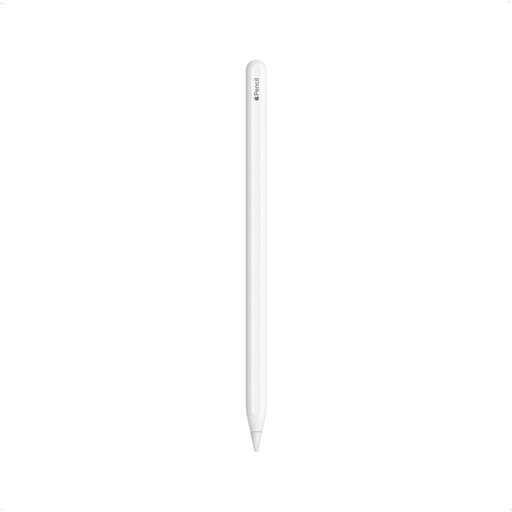
Apple Pencil (2nd generation)
Suited to sketching on an iPad that supports this specific Pencil generation.
The product title lists certain iPad Pro, iPad Air and iPad mini models as compatible. Check the full list for your exact generation.
Joybuy
Frequently asked questions
How do I check whether an Apple Pencil works with my iPad?
Look up your exact iPad generation and compare it with Apple’s compatibility list. Also check the iPadOS version listed for Pencil models with a software requirement. A USB-C port alone isn’t enough to confirm compatibility.
Does a pen charge when it’s attached magnetically to a tablet?
Not always. Apple says Pencil (USB-C) attaches magnetically, but pairs and charges via a USB-C cable. Check storage and charging as separate features.
What should I do if my stylus nib wears out?
Use a replacement nib made for your exact pen model. Logitech recommends replacing a worn or damaged Crayon tip to help prevent damage to the iPad screen; Apple lists which Pencil versions work with its replacement nibs.
What are my rights when buying a stylus online in the Netherlands?
For many online distance purchases from a business, the Dutch government allows a 14-day cooling-off period; check whether an exception applies. You’re also entitled to a product that meets legal standards. If something is faulty, contact the seller, not the manufacturer, to find a solution. This statutory right is separate from any manufacturer’s warranty.


