Start by checking the exact model of your tablet or Surface device: Apple Pencil, Samsung S Pen and Windows pens are not automatically interchangeable. Then choose based on the way you sketch. Pressure sensitivity matters for pressure-controlled strokes, while easy set-up and storage may be more important for outlines and notes. Also check that the features you want work with your device and drawing app.
Who is this stylus guide for?
Concept sketchers with their own tablet
If you want to draw outlines and details directly on the screen you already own, first check which type of pen works with your device. Apple, Samsung and Microsoft publish compatibility information for their devices and pens.
Sketchers who often change workspaces
If you regularly clear a shared desk, how the pen starts up, charges and stores may matter just as much as its drawing features. Apple, Logitech and Microsoft describe different pairing and charging options.
Designers who want to control line weight
If you want to vary lines while sketching by changing the pressure or angle of the pen, check which input features it supports. Apple, Samsung and Wacom describe features that can vary by pen and device.
What should you look for when choosing?
Apple Pencil for iPad
Best for: a supported iPad, with a choice of more advanced controls or a pen for sketching and note-taking.
Bear in mind: model and software compatibility vary; Apple Pencil (USB-C) pairs and charges via a cable.
Samsung S Pen
Best for: a Galaxy device that supports S Pen.
Bear in mind: S Pen versions are not automatically interchangeable, so check compatibility with your exact model.
Pen for Surface or Windows
Best for: a Surface device that supports pen input, or a Windows device with the required pen protocol.
Bear in mind: features and charging options vary by device; some Surface set-ups may require a separate charger.
| What to consider |
What should you check? |
Who is this important for? |
| Compatibility |
Compare the full device name and generation with the compatibility list; check the software version or pen protocol too, if needed. |
If I want to keep using my existing tablet, I first need to know whether the pen will work with it. Around 36% of consumers prioritise compatibility with their own device. |
| Line control |
Check separately whether the pen is pressure- or tilt-sensitive, and whether your drawing app supports that input. |
If I want to use pressure or the pen angle to control line weight and shading, I look specifically for those features. Around 29% of consumers give control over their strokes the highest priority. |
| Set-up and storage |
Check how the pen is activated, paired, charged and stored; magnetic attachment does not always mean magnetic charging. |
If I want to clear a shared desk quickly, I look for an easy set-up and storage routine. Around 21% of consumers put getting started and packing away quickly at the top of their list. |
| Tips and charging accessories |
Check which replacement tips or charging accessories are included, and what your device can already charge. |
If I want to know in advance which extra parts I’ll need, I check what’s included and how charging works. Around 14% of consumers want to keep additional essentials to a minimum. |
How to avoid common buying mistakes
-
Assuming ‘suitable for tablets’ means confirmed compatibility
A general product description doesn’t tell you whether the pen will work with your specific device. Apple lists iPad generations, Microsoft describes features by Surface model, and Wacom highlights compatibility with certain Windows pen protocols.
Make a note of your device’s full model name and compare it with the information from the manufacturer of the exact pen version.
-
Confusing tilt sensitivity with pressure sensitivity
Using the angle of the pen and changing lines by pressing harder are two different features. Logitech states that Crayon is not pressure-sensitive, even though tilt is described as a way to vary line thickness.
Decide whether your sketches need pressure-controlled brush strokes, and check that both the pen and your drawing app support this input.
-
Assuming magnetic storage means magnetic charging
A pen can attach magnetically to a device without charging. Apple says Pencil (USB-C) charges via a cable; charging options for Surface pens depend on the device or accessory.
Before you buy, check how the exact pen is charged and whether you’ll need a suitable cable, charging space or charger.
Stylus brands to consider
Apple
Apple Pencil Pro and Apple Pencil (USB-C) are designed for different iPad models and uses specified by Apple.
- Apple describes features for Pencil Pro including magnetic pairing and charging.
- Pencil (USB-C) pairs and charges via a cable; check iPad and software compatibility for both versions.
Samsung
Samsung describes S Pen versions for devices that support S Pen, including a version for the Tab S11 series.
- Samsung says the S Pen Creator Edition is tilt-sensitive and comes with two tips.
- Samsung specifies that the pen for the Tab S11 series is compatible with the Tab S11 and S11 Ultra; don’t assume different versions are interchangeable.
Microsoft
Surface Slim Pen is designed for selected Surface devices that support pen input.
- Microsoft describes features and charging options for each Surface model.
- Depending on your set-up, you may need a separate charger; check that your Surface supports pen input.
Logitech
Crayon (USB-C) is an option for supported iPads if quick start-up and tilt sensitivity matter to you.
- Logitech describes starting without Bluetooth pairing and tilt sensitivity for iPad.
- According to Logitech’s instructions, Crayon is not pressure-sensitive; also check compatibility for the exact version.
Wacom
Wacom Bamboo Ink Plus is a possible option to look into for Windows devices with Wacom AES or Microsoft Pen Protocol.
- Wacom lists up to 4,096 pressure levels; tilt support depends on the other device.
- Wacom warns that performance varies by hardware and software, and that this pen does not work with Apple products.
Stylus pens at Joybuy
These Joybuy products are aimed at sketching on an iPad or a compatible Surface device. Check that the exact pen is compatible with your device before choosing.
 No image available
iPad stylus with USB-C charging port
Could suit sketching on a supported iPad model if you want tilt detection and palm rejection.
USB-C charging port and LED battery indicator. Magnetic attachment is for storage, not wireless charging.
Compatibility is limited to selected iPad models; check your model.
Joybuy
 No image available
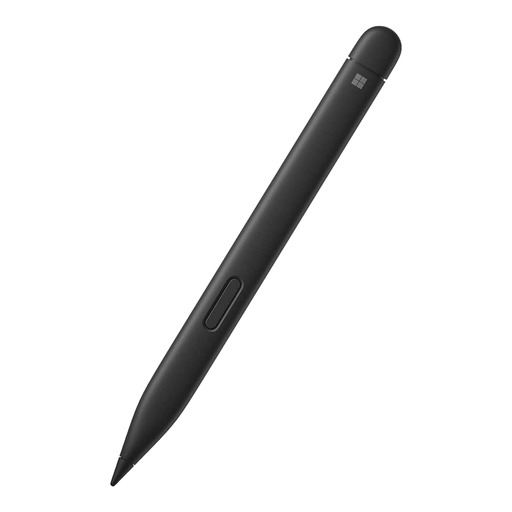
Microsoft Surface Slim Pen 2 Black 8WV-00002
An option for pressure-controlled sketching with a compatible Surface set-up.
The product description lists 4,096 pressure levels and haptic feedback.
The description mentions compatibility with Type Covers for Surface Pro 8 or Surface Pro X. Pen features and compatibility vary by Surface model; check the charging set-up too.
Joybuy
 No image available
Logitech Crayon USB-C, silver
Could suit drawing outlines and sketching on a compatible iPad if starting without Bluetooth pairing is important to you.
USB-C charging, tilt sensitivity and palm rejection. Logitech says Crayon is not pressure-sensitive.
The product description lists iPad models from 2018 onwards with iOS 12.2 or later; check that your device is compatible.
Joybuy
 No image available
Apple Pencil Pro 2024
Could suit concept sketching with pressure and tilt sensitivity on a supported iPad.
The product description lists squeeze and rotation controls, haptic feedback, magnetic pairing and wireless charging.
The description lists iPad Pro models with M4, iPad Air models with M2 and iPad mini with A17 Pro. Check that your exact iPad model is supported.
Joybuy
 No image available
Apple Pencil (USB-C), white
Could suit sketching and hatching on a compatible iPad if tilt matters more to you than pressure-controlled strokes.
Tilt sensitivity, magnetic attachment for storage and USB-C charging.
Check which iPad models and software versions are supported before choosing.
Joybuy
Frequently asked questions
How do you check whether an Apple Pencil works with your iPad?
Find the exact model of your iPad and compare it with Apple’s compatibility list. As well as listing supported models, Apple specifies iPadOS 17.5 or later for Pencil Pro and iPadOS 17.1.1 or later for Pencil (USB-C).
Do you need to pair Surface Slim Pen 2 first?
Charge the pen first. Microsoft says Bluetooth pairing is needed to use the shortcut button to open apps and access other shortcuts. Also check that your Surface supports the pen and charging features you want.
What should you do if a stylus tip wears out?
Use the replacement tip made for your specific pen and follow the manufacturer’s instructions. Samsung explains how to replace the Tab S11 S Pen tip; Microsoft lists a removable Slim Pen 2 tip and warns against removing it repeatedly.
What cooling-off period and guarantee apply to online purchases in the Netherlands?
For a distance purchase made by a consumer from a business, the Dutch government generally provides a 14-day cooling-off period, with some exceptions. You’re also entitled to a product that is fit for purpose; in the Netherlands, there is no fixed statutory guarantee period of two years. These consumer rules do not necessarily apply to a business purchase for an office.


