
Illustrator working on fine details
You draw veins, outlines or shading and want to check which stylus features your tablet and drawing app support. Apple Support, Microsoft Support and Adonit explain compatibility and features by model or app.


Start by checking the exact model of your tablet, then make sure both the stylus and your drawing app support the features you want. Next, choose according to the way you draw, and check how the stylus charges and stores away. Features and compatibility vary by model.
You draw veins, outlines or shading and want to check which stylus features your tablet and drawing app support. Apple Support, Microsoft Support and Adonit explain compatibility and features by model or app.
You’re looking for a stylus for your specific iPad, Galaxy Tab or Surface, without having to choose a different tablet. Check the stylus maker’s model information, such as that provided by Apple Support, Samsung and Microsoft Support.
You want to be able to put away or take with you the stylus and any charging accessories after drawing. Storage and charging options vary by model; Apple Support, Samsung and Microsoft Support explain the relevant requirements.
First, check the exact model of your tablet and the drawing app you use. Then compare the line controls you want, how the stylus stores and charges, and whether any parts can be replaced.
| Buying concern | What to look for | Who is this important to? |
|---|---|---|
| Compatibility | Check the tablet model and generation; where necessary, also check the software version required. | If I want to keep using my current tablet, I first want to know whether the stylus is compatible. Around 33% of consumers give compatibility top priority. |
| Fine lines and shading | Check whether pressure or tilt sensitivity works with the exact stylus and drawing app; these are different features. | If I want precise control over outlines and shading, I check which controls my drawing app supports. Around 27% of consumers give line control top priority. |
| Storage and charging | Check where the stylus can be stored and how it actually charges; magnetic attachment doesn’t automatically mean magnetic charging. | If I want to clear a shared desk after drawing, I want to know where the stylus and charging accessories will go. Around 20% of consumers give storage and charging top priority. |
| Parts and support | Check whether the tips can be replaced and which charging accessories you need. If a product is faulty, the seller is the point of contact for a solution, according to the Dutch Government. | If I want to plan for replacement tips, accessories and any problems later on, I check these details before buying. Around 20% of consumers give maintenance and support top priority. |
Compatibility and available features can depend on the exact model and generation. A stylus that isn’t supported won’t suit the drawing you have in mind.
Before buying, note down your tablet model, generation and, where relevant, software version. Compare these details with the stylus maker’s compatibility information.
These are different ways to control a stroke. Logitech says that the Crayon variant reviewed isn’t pressure-sensitive; according to Logitech, tilting it can affect line thickness.
Decide how you want to control line thickness in your drawing app, then check that feature for the exact stylus variant.
According to Apple, Apple Pencil Pro charges magnetically on a compatible iPad. Apple Pencil (USB-C) pairs and charges using a USB-C cable; charging the Surface Slim Pen depends on the device or an accessory.
Check separately how you store, pair and charge the stylus.
A separate charger may be needed for some Surface configurations, according to Microsoft Support.
Pairing, charging and stylus features can depend on the combination of stylus and tablet. For the Samsung EJ-PX510, Samsung describes magnetic storage with the specified Galaxy Tab models.
Check the official instructions for your exact stylus and tablet, particularly for pairing and charging.
Apple Pencil models are designed for specific iPad generations; available features vary by model.
S Pen models are designed for specific Galaxy Tab models; check the full model designation.
Surface pens are designed for supported Surface devices; compatibility and features can vary by model.
Note⁺ 2 is an option to compare with an iPad, provided you check both the exact model and the app you use.
Crayon is an iPad stylus to consider if drawing with tilt suits the way you work.
This selection includes styluses for compatible iPads, the specified Galaxy Tab models and devices that support MPP. Before buying, check that the stylus works with your tablet and drawing app.
 No image available
An option for drawing with a compatible iPad; check that your iPad model and drawing app support the features you want.
Apple lists the iPads compatible with Pencil Pro and specifies iPadOS 17.5 or later. Apple describes magnetic charging on a compatible iPad.
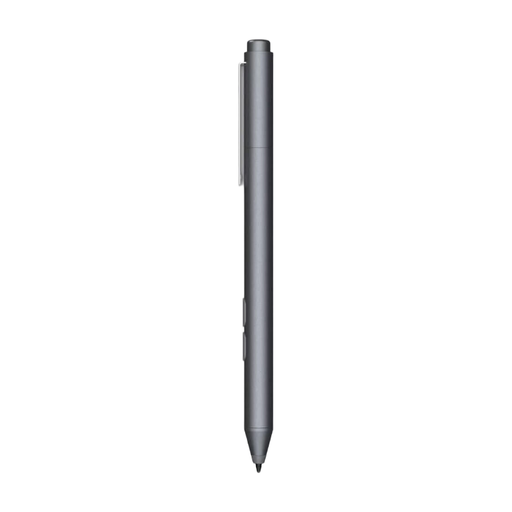 No image available
An option to consider if you draw on a device that supports MPP; check compatibility with your own device.
The product name lists customisable buttons and one replaceable tip. The product information specifies an AAAA battery.
 No image available
An option for drawing on the Galaxy Tab S9 FE and S9 FE+, as specified in the product information; don’t assume it’s compatible with every Galaxy Tab.
Samsung describes magnetic storage for the specified tablets. Check the instructions for your stylus and tablet for pairing and charging.
 No image available
An option for drawing on the iPad models named in the product title; check your tablet’s exact generation before buying.
The product title lists the iPad Pro 12.9-inch (3rd, 4th, 5th and 6th generations), iPad Pro 11-inch, iPad Air (4th and 5th generations) and iPad mini (6th generation).
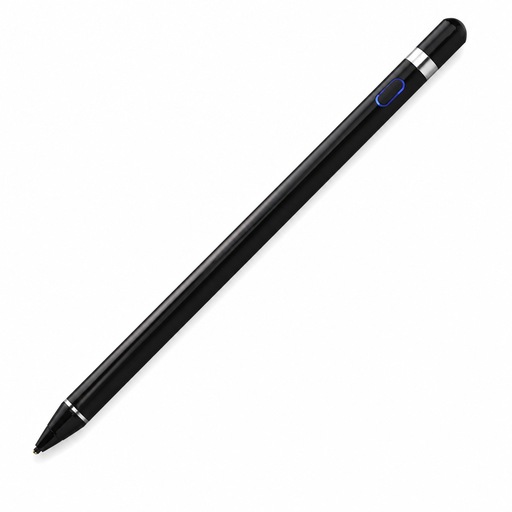 No image available
An option to compare for a capacitive touchscreen; check that your device and the accompanying app are supported.
The product name lists iOS, iPad, Android and PC. The product information specifies Bluetooth pairing via the accompanying app.
First, find the exact generation of your iPad and compare it with Apple’s compatibility list for the Pencil model in question. Apple specifies iPadOS 17.5 or later for Pencil Pro, and iPadOS 17.1.1 or later for Pencil (USB-C).
No. According to Adonit, you need to pair Note⁺ 2 in specific supported apps to use pressure sensitivity and shortcut buttons. Check whether your drawing app is supported.
That depends on the model and tablet. Apple describes magnetic charging for Pencil Pro on a compatible iPad, while Pencil (USB-C) pairs and charges with a USB-C cable. For the Surface Slim Pen, check with Microsoft which compatible device or accessory charges it.
For a consumer purchase in the Netherlands, the product must be of satisfactory quality; if it’s faulty, the seller is the point of contact, according to the Dutch Government. When buying online from a business, you usually have 14 days to change your mind, subject to applicable terms and exceptions.