
Detail drawing in daylight
You draw fine lines or read measurement notes close to a bright window and want to assess reflections and available screen space first. Apple, Samsung and Wacom describe screen features that are relevant to this decision.


First, choose between a pen for a compatible tablet, a standalone tablet with a pen, and a pen display that connects to a computer. Then assess the screen finish by your window and check that the pen, device and drawing app work together. A different pen won’t reduce screen reflections.
You draw fine lines or read measurement notes close to a bright window and want to assess reflections and available screen space first. Apple, Samsung and Wacom describe screen features that are relevant to this decision.
You want to draw or annotate drawings without a computer. Match the pen to the exact tablet model and check that your app and files work on that device. Apple and Samsung publish information about their devices and pens.
You mainly work with files and software on your computer and are considering a pen display for drawing directly on screen. Wacom and Huion describe models designed for use with a computer.
When drawing architectural details beside a bright window, screen visibility, pen compatibility, your file workflow and the complete setup are four separate things to consider.
| What to consider | What to look for when buying | What matters to shoppers |
|---|---|---|
| Screen in light from a window | Compare the exact screen finish and any suitable screen protector; consider where the window is and your viewing angle. | If I need to see fine lines beside a bright window, I want to assess the screen finish in the light where I’ll use it. Around 33% of shoppers in this situation put reflections first. |
| Pen and controls | Check the full tablet model and required software version in the pen’s compatibility information. | When I draw small details, I want to know whether the pen works with my device and app, and whether I need any extra controls. Around 27% of shoppers give checking the pen top priority. |
| App and files | Check the current system requirements and features for your specific app, file format and computer or tablet workflow. | If I want to keep using my existing drawing files or computer workflow, I first check that the chosen app and device are suitable. This is the main consideration for around 20% of shoppers. |
| Complete setup | Check what’s included with the exact version and whether you’ll also need a pen, screen protector, computer or connections. | I want to know in advance what I’ll need to draw and whether I can work without a computer. Around 20% of shoppers prioritise the complete purchase and the flexibility of the setup. |
Pen controls and screen reflections are separate features. A new pen won’t change the reflections on your existing screen.
First, look at the light in your space and the exact screen finish. Then compare pens that work with your device.
A Wacom Cintiq or Huion Kamvas is a pen display for use with a computer, not a tablet you can use without one.
Decide whether you want to draw on the go, work independently or draw using your existing computer. If you choose a pen display, also check the connections and setup required.
Samsung lists an S Pen as included with the Galaxy Tab S12+, but the anti-reflective screen protector is a separate accessory. Apple offers nano-texture glass only as an option on certain iPad Pro versions.
Check the full model name, storage option and box contents before deciding what else you need.
Worth considering if you’re looking for a standalone iPad setup or already have a compatible iPad.
The Galaxy Tab S12+ is a standalone tablet that Samsung lists with an S Pen.
The Cintiq 16 is a pen display for anyone who works on a computer and wants to draw directly on screen.
The Kamvas Pro 16 V2 is a pen display for a computer workstation.
The Artist Pro 16 (Gen 2) is a pen display to compare as part of a computer workflow.
This Joybuy selection includes standalone tablets with a pen and a separate stylus for certain E Ink tablets. Check each product to make sure it suits your device, drawing needs and visibility requirements in light from a window.
 No image available
A standalone tablet with a pen for sketching and annotating documents; the product description lists drawing as one of its uses.
The title lists a 12.1-inch screen with 2.5K resolution, 8 GB RAM and 256 GB storage.
 No image available
The product name describes an E Ink tablet with a stylus for taking notes. The product information mentions handwritten notes and PDF annotations.
The product name specifies an 8.2-inch screen. Check that this screen type and its features suit your drawing needs; it isn’t described as a solution for reflections on a bright tablet screen.
 No image available
The product information mentions drawing, sketching and design work with the included stylus.
The title lists a 12.7-inch screen with 2K resolution and 20 GB RAM, made up of 8 GB RAM and 12 GB virtual memory, plus 256 GB storage.
 No image available
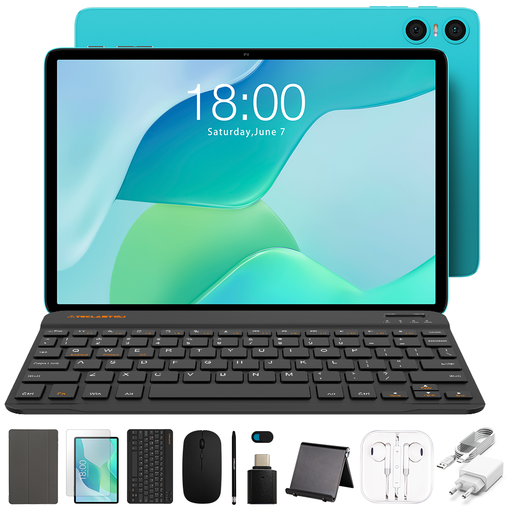
A tablet bundle whose title lists a stylus and accessories, for anyone looking for this combination for creative use on the go.
The title lists a 10.1-inch screen, 9 GB RAM (3 GB + 6 GB virtual expansion) and 64 GB storage. Listed accessories include a case, Bluetooth keyboard, mouse and stand.
 No image available
A separate stylus for anyone who already uses a compatible E Ink tablet; the product description mentions drawing and writing.
The product name lists 4096 pressure levels. According to the product description, the pen is designed for reMarkable 1 and 2 and Kindle Scribe. Check your exact device; a separate pen won’t change screen reflections.
No. Apple offers nano-texture glass as an option on certain iPad Pro versions; Samsung describes a separate anti-reflective screen protector for the Galaxy Tab S12+. Check the exact tablet version and accessory.
No. Apple publishes compatibility information for each Pencil and iPad model, and also specifies a required iPadOS version where necessary. Check your exact iPad model first.
Yes. Treat these models as pen displays for use with a computer, not as standalone tablets. Check the connections, power supply and drivers required for the version you choose.
Start with your task and file format. Autodesk lists mobile features for DWG files; for SketchUp for iPad, SketchUp lists iPadOS 18.0 or later among its requirements. Check that the mobile app’s features suit your workflow; this information doesn’t mean the app offers all the desktop features.
According to the Dutch government, when you buy online from a business, you’ll often have a 14-day cooling-off period, although exceptions apply. You’re also entitled to a product that meets legal requirements; if there’s a problem, contact the seller.