
Student with an existing tablet
Wants to find a stylus that works with their iPad or Android tablet, rather than buying a new tablet straight away. Apple, Samsung and Lenovo list compatibility by device model.


First, choose a stylus that’s compatible with the exact model of your existing tablet; a stylus for a different version isn’t a suitable alternative. For pressure-sensitive brush strokes, you’ll need a compatible stylus and a drawing app that supports the feature, while tilt sensitivity may be enough for sketching and outlining. Also check how the stylus charges and whether you’ll need an adapter or replacement nibs.
Wants to find a stylus that works with their iPad or Android tablet, rather than buying a new tablet straight away. Apple, Samsung and Lenovo list compatibility by device model.
Wants to use pressure to control brush strokes when creating album artwork. The stylus, tablet and drawing app must all support this combination; Procreate explains how pressure can affect brush output.
Creates ideas on a tablet and wants to share or edit the design later. That’s why your chosen app’s export options matter too, not just the stylus.
Start by using compatibility with your current tablet as your main selection criterion. Then consider whether you need pressure-sensitive brush strokes, and check which accessories and file export options your app and stylus offer.
| What to consider | What to look for | Who is it important for? |
|---|---|---|
| Compatibility | Check the exact tablet model and stylus version; also see whether a software version or adapter is required. | If I want to keep using my existing tablet, I first need to know whether the stylus and tablet work together. Around 36% of consumers prioritise compatibility. |
| Line and brush control | Check whether the stylus is pressure-sensitive and whether the drawing app supports pressure-sensitive brushes; tilt sensitivity is not the same thing. | For drawn album covers, I want to control brush strokes with pressure, not just tilt the stylus. Around 29% of consumers prioritise pressure-sensitive brush control. |
| Accessories needed | Check whether you need an adapter and what’s included; also check which replacement nibs fit the stylus. | As a student, I want to know in advance whether I’ll need an adapter or replacement nibs. Around 21% of consumers want to avoid extra purchases. |
| Transferring files | Check whether the drawing app can export in the format you need to share or edit the design further. | If I want to share an album cover or have it edited later, I need to know which files my app can export. Around 14% of consumers prioritise file transfer. |
Compatibility can vary by tablet generation and stylus version. A general description doesn’t tell you whether the combination will work with your device.
Look up your tablet’s full model name in the manufacturer’s compatibility information before choosing a stylus.
A stylus that responds to tilt doesn’t automatically offer pressure-sensitive brush control. Both the stylus and drawing app need to support this feature for it to affect brush output.
Check the features of the exact stylus version and consult your drawing app’s documentation to see which inputs it supports.
With some combinations, you may need an adapter or compatible replacement nibs. For example, Apple lists a USB-C to Apple Pencil Adapter for the Apple Pencil (1st generation) with iPad (A16) and 10th-generation iPad.
Compare what’s in the box with your tablet and check which type of replacement nib fits your chosen stylus.
For an Apple Pencil (1st generation) used with the iPad models mentioned, check whether you already have the adapter. Apple also sells replacement nibs for the Pencil versions it lists.
Apple Pencil versions are designed for specific iPad models. They’re worth considering if you already own an iPad and choose a stylus that matches its exact version.
Samsung S Pen versions are designed for specific Galaxy Tab models, including FE models listed by Samsung.
The Tab Pen Plus is an option for Lenovo tablets that the manufacturer confirms are compatible.
The Crayon (USB-C) is designed for sketching and writing on supported iPads.
These products include styluses for specific e-ink tablets, as well as different iPad and tablet versions. Before choosing, check that your exact device and drawing app are compatible.
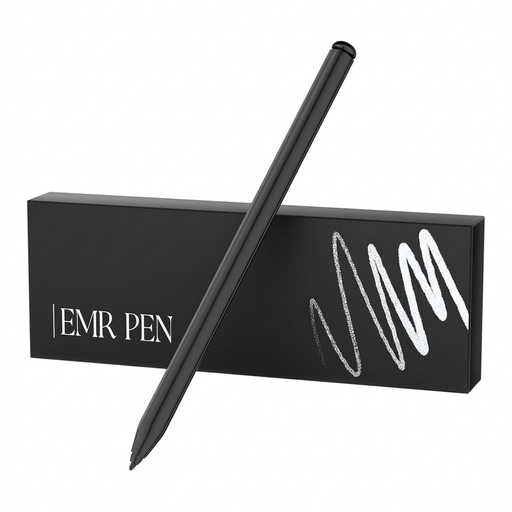 No image available
Worth considering if you draw on a reMarkable 1, reMarkable 2 or Kindle Scribe; check that your device version is supported.
The product name lists 4096 pressure levels, an eraser and the Black SP-18 version.
 No image available
A possible choice for sketching and outlining on an iPad, provided your exact tablet version is compatible.
The product name lists USB-C and Silver. The product information mentions iPad models from 2018 onwards and iOS 12.2 or later; check that your device meets these requirements.
 No image available
A possible choice for creating illustrations with pressure-sensitive brush strokes, provided your specific iPad model is compatible.
The product name mentions iPad Air and iPad Pro. Check compatibility with your exact tablet model before choosing this version.
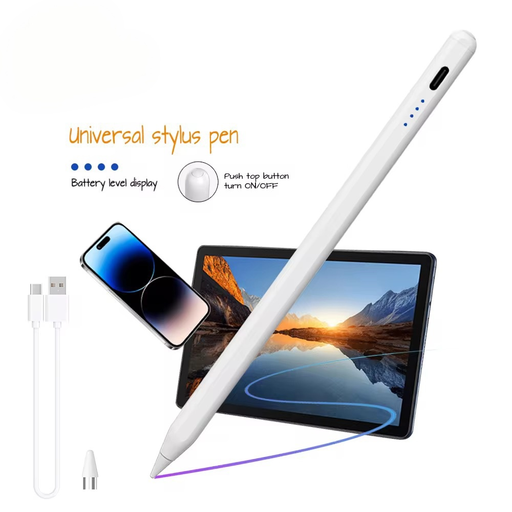 No image available
Consider this stylus only if it works with your capacitive screen and the relevant app; check compatibility with your exact device.
The product name mentions iOS, iPad, Android and Microsoft. The product information describes pairing via an app.
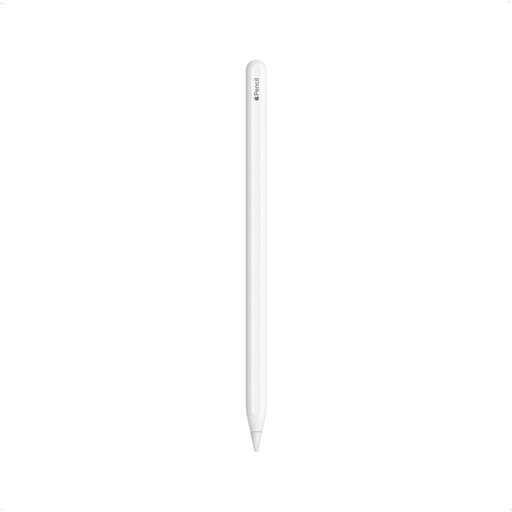 No image available
An option for drawing on a compatible iPad; check whether your tablet generation is among the versions listed.
The product title lists 12.9-inch iPad Pro (3/4/5/6th Gen), 11-inch iPad Pro, iPad Air (4/5th Gen) and iPad mini (6th Gen).
First, find your exact iPad generation and compare it with the compatibility information for your chosen Pencil version. For Apple Pencil (USB-C), Apple specifies iPadOS 17.1.1 or later. The Apple Pencil (1st generation) requires a USB-C to Apple Pencil Adapter when used with iPad (A16) and 10th-generation iPad.
It depends on how you want to draw. Tilt sensitivity may be enough for sketching and outlining, but it doesn’t automatically provide pressure-sensitive brush control. If you need this feature, check that both the stylus and your drawing app support pressure-sensitive brush strokes.
That depends on the drawing app, not just the stylus. Procreate documents export as a layered PSD, or as a JPEG or PNG; according to its documentation, the latter two are flattened image formats.
Check what comes with the stylus and whether you need an adapter or compatible replacement nibs for your tablet. The Dutch government says that many online purchases come with a 14-day cooling-off period; check whether this applies to your purchase. ACM ConsuWijzer explains that you’re entitled to a product that meets the expectations you could reasonably have of it.
Not without permission. The Dutch government says that you may only use copyright-protected photos with the creator’s permission; a private copy for personal use must not be shared or made public.