
Student using a specific modelling app
You need to open course files in a particular app and provide feedback. The app’s features are therefore more important than the screen specifications alone.


Start with your course’s app and model file: a large screen is no help if the app lacks the review feature you need. Then choose a more manageable size if you’ll often hold and carry the tablet, or more screen space if you’ll mainly be looking at details and comments together. Also check whether the stylus is included and what the app can do.
You need to open course files in a particular app and provide feedback. The app’s features are therefore more important than the screen specifications alone.
You regularly take your tablet with you and hold it during short discussions. Its size and weight are therefore important factors to consider.
You often put the tablet down to look at model details and comments with other people. A larger screen may suit the way you work better.
A good fit if: your course uses SketchUp for iPad, or you’re looking for a manageable iPad to take with you regularly.
Things to consider: Apple lists the Wi-Fi versions of the iPad Air as weighing 464 grams for the 11-inch model and 616 grams for the 13-inch model. SketchUp for iPad requires iPadOS 18.0 or later and an active subscription; the listed iPad Air package does not include the Pencil.
A good fit if: your course’s Android app works with the model file and you want to give feedback with a stylus.
Things to consider: Samsung lists a 10.9-inch screen and an S Pen for the Galaxy Tab S10 FE. SketchUp has not supported Viewer for Android since 29 August 2025, so check which other app or workflow your course uses.
A good fit if: the tablet will usually be laid flat and extra room for model details matters more than being able to hold it for long periods.
Things to consider: Lenovo lists an Idea Tab Pro version with a 12.7-inch screen and a stylus. Check the bundle for the exact version; a larger screen won’t make an unsuitable app suitable.
A good fit if: your course requires Windows software and you also need a laptop-style workflow.
Things to consider: Microsoft says the keyboard and Slim Pen are sold separately. Check in advance that your design software works on the Windows version you choose.
| What to consider | What should you check? | Who is this most important for? |
|---|---|---|
| App and file | Test the app with an actual course file to check that it opens the file format and supports the task you need: viewing, adding comments or editing. | If your course requires a specific app or feature, first check that it works with the file. Around 33% of consumers put app compatibility first. |
| Portability | Compare the weight and dimensions of the exact version, including the case or keyboard you’ll be carrying. | If you often move between rooms and hold the tablet during discussions, portability matters even more. Around 27% of consumers say this is their main consideration. |
| Stylus and comments | Check stylus compatibility, what’s included in the box and whether the app supports annotation. | If you want to make notes during a discussion, both the stylus and the app you use need to support this. Around 20% of consumers give annotation the highest priority. |
| Room for details | Open a representative model at the screen size you’re considering and check that details and comments are easy to view. | If you put the tablet down to look at details together, extra screen space may matter more than ease of holding. Around 20% of consumers prioritise screen space. |
An app may let you view models or add comments without supporting modelling. Autodesk describes Fusion Mobile as suitable for viewing and commenting, not modelling. SketchUp Viewer for Android is no longer supported.
Use an actual course file to check which app and tasks you’ll need.
If the required feature is missing, you may need different software or another device.
Apple lists Pencil support for the iPad Air, but the Pencil isn’t included in the package specified. Lenovo lists an Idea Tab Pro version with a stylus; check whether it comes with the bundle for the exact version.
Read the box contents for the exact model and check that the stylus is compatible with your app.
A stylus may be a separate accessory, so check whether you’ll need to buy one separately.
Apple says the 13-inch Wi-Fi iPad Air weighs 616 grams, compared with 464 grams for the 11-inch version. The Consumentenbond points out that larger tablets can be impractical to hold for long periods.
Consider the screen size with the case and any stylus, and think about how you’ll carry the tablet between rooms.
The iPad Air comes in 11- and 13-inch sizes for people who use iPad apps and want to choose between portability and screen space.
The Galaxy Tab S10 FE range offers an Android-based workflow with an S Pen and a choice of screen sizes.
The Idea Tab Pro may suit anyone looking for a larger Android screen for model discussions.
Surface Pro is a Windows 2-in-1 for courses that require a Windows-based workflow.
These product picks are suited to carrying a tablet and viewing or discussing course models. Before buying, check that the required app and model file work on the tablet you’ve chosen.
 No image available
Worth considering if you’re looking for a larger screen and stylus annotations; check that the required app supports your model file.
The product name lists a 12.1-inch, 2.5K screen, 8 GB RAM, 256 GB storage and a stylus.
 No image available
A portable iPad option if your course uses the required iPad app and you’ll be taking the tablet with you regularly.
Apple lists the 11-inch Wi-Fi iPad Air as weighing 464 grams. The Pencil is not included in the listed package.
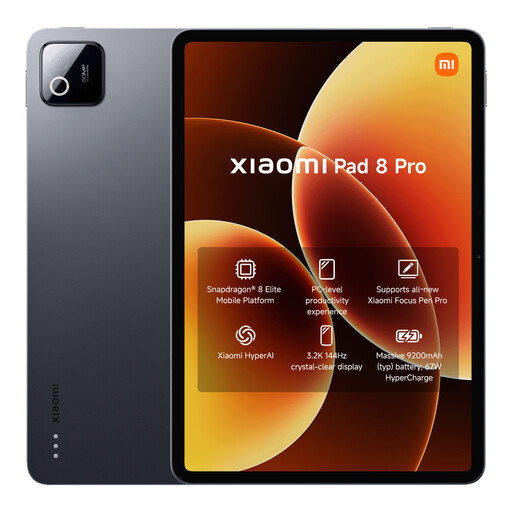 No image available
Only consider this tablet if your course’s app and model file work with it.
The product name lists 12 GB RAM and 512 GB storage.
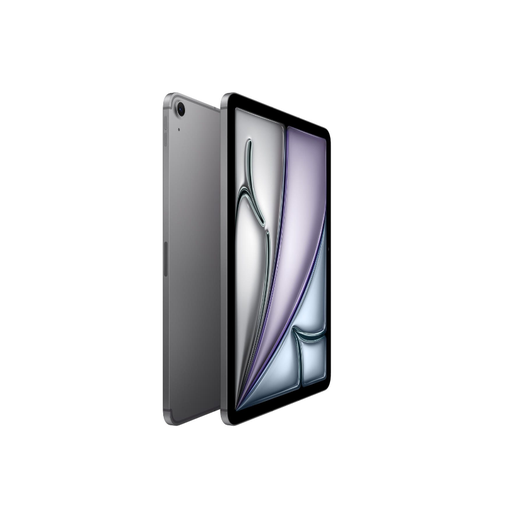 No image available
An 11-inch iPad option to compare if you often move between rooms; check that the required design app is available and offers the features you need.
The product name lists Wi-Fi + Cellular and 512 GB storage.
 No image available
Worth considering if you’re mainly looking for a tablet for note-taking; check whether the required modelling app and files work on it.
The product name lists a 10.65-inch E-Ink screen.
Not necessarily: features vary by app. Autodesk describes Fusion Mobile as an app for viewing and adding comments, not modelling. SketchUp for iPad offers features for editing 3D models, but requires iPadOS 18.0 or later and an active subscription. Ask your course which app and tasks are required.
Check the offline features of the app you actually use and open a representative file in advance. Autodesk describes offline access with later synchronisation for AutoCAD on mobile; that doesn’t mean every modelling app or cloud file will work offline.
Check whether the stylus and, if needed, the keyboard are included with the version you choose, and find out what the required app needs. Microsoft says the Surface keyboard and Slim Pen are sold separately; SketchUp for iPad requires an active subscription.
According to the Authority for Consumers & Markets, online tablet purchases generally come with a statutory cooling-off period of up to 14 days after delivery, subject to applicable exceptions. If a product is faulty, you also have rights against the seller; the ACM states that the statutory guarantee in the Netherlands does not have a fixed term of exactly two years.