Start by checking your exact tablet model: an Apple Pencil, S Pen and Surface Slim Pen are not interchangeable. Then base your choice on the features your drawing app uses, such as pressure sensitivity for varying line thickness, and check how the pen charges and is stored. If you’re working in a quiet study space, you’ll need to judge the sound of your particular pen-and-screen combination for yourself.
Who is this guide for?
Storyboard artists with an existing tablet
You want to keep using your current iPad, Galaxy Tab or Surface. First, note down the exact model and check the compatibility information from Apple Support Netherlands, Samsung Netherlands or Microsoft Support.
Artists who vary their line weight
You switch between thin and thick lines when drawing scenes and characters. Check that both the pen and your drawing app support pressure sensitivity; Procreate explains how pressure can affect brush size.
Sketchers who work for long sessions
You don’t want to be caught out by an unexpected charge or have to search for your pen while you’re working. Check how your chosen pen charges and is stored, as these features vary by model.
What should you consider when choosing a stylus?
If you’re storyboarding on a tablet you already own, check compatibility first, then look at drawing features and how the pen performs during longer sessions.
| What to consider |
What should you look for? |
Who is this important for? |
| Compatibility |
Check the exact tablet model and generation, and look for any software requirements. |
I want to keep using my existing tablet and avoid choosing a pen that isn’t compatible. Around 36% of consumers say compatibility is their main concern when buying. |
| Line weight |
Check that both the pen and drawing app support pressure sensitivity; tilt sensitivity is a separate feature. |
If I want to draw outlines and shading with different line weights, pressure input is what matters most to me. Around 29% of consumers prioritise this kind of line control. |
| App features |
Check that pressure, tilt and any shortcuts work with your particular pen, tablet and app combination. |
I want to use features that my storyboard app actually supports, not just features listed for the pen. Around 21% of consumers give app support the highest priority. |
| Charging and storage |
Check whether the pen charges via the tablet, a cable or a separate charger, and how you’ll store it. |
During long sketching sessions, I want to know where my pen is and when it needs charging. Around 14% of consumers say this is their main consideration. |
Pitfalls to avoid when buying a tablet stylus
-
Assuming ‘works with iPad’ means ‘works with my iPad’
Apple pairs Pencil models with specific iPad generations; Samsung and Microsoft also specify support by device model.
Note down your exact tablet model and check the manufacturer’s compatibility list before comparing features.
-
Confusing tilt sensitivity with pressure sensitivity
If your app varies line thickness based on pressure, a pen without pressure sensitivity won’t support that input. Tilt sensitivity is not a substitute for pressure input.
Check the features of the exact pen model and see whether your storyboard app uses them.
-
Assuming every pen charges magnetically
Magnetic storage, magnetic charging and charging via a cable are different features. Some Surface Slim Pen combinations may require a separate charger.
Before buying, check how the pen charges and which accessories you’ll need for your setup.
A separate charger may be an extra accessory to factor in.
-
Taking an old Logitech Crayon listing as proof that it’s still available
Logitech announced that production of all Crayon models has ended and that global sales will end from 19 May 2026, or continue while stocks last.
Check current availability and whether it’s the exact USB-C or Lightning version before choosing this pen.
Which stylus brands are worth considering?
Apple
Apple Pencil models are designed for different iPad generations, so check compatibility for your particular combination.
- Apple says Pencil Pro pairs and charges magnetically and offers extra gestures.
- Pencil (USB-C) pairs and charges via a cable and doesn’t have pressure sensitivity. Not every drawing app uses all the pen’s features.
Samsung
Samsung S Pen versions are designed for specific Galaxy devices that support the S Pen.
- Samsung lists tilt sensitivity and spare nibs as features of the Creator Edition.
- Features such as Bluetooth and Air Actions vary by version; don’t assume information about another S Pen applies to the Creator Edition.
Microsoft
Surface Slim Pen models are designed for compatible Surface devices.
- Microsoft lists 4096 pressure levels for various Surface Pro models.
- Available pen features and the charging solution you need depend on the Surface model and accessory.
Adonit
Adonit Note⁺ 2 is an alternative for the iPads specifically listed by Adonit.
- Adonit lists pressure sensitivity and replaceable nibs among this pen’s features.
- Features vary by app. Adonit says magnetic attachment isn’t available with certain 2024 iPads.
Logitech
The Logitech Crayon is described as a pen for sketching and writing on compatible iPads.
- Logitech describes it as ready to use without complicated Bluetooth pairing.
- Logitech announced that production of all Crayon models has ended and global sales will end from 19 May 2026, or continue while stocks last. Check current availability.
Stylus picks on Joybuy for storyboarding
These Joybuy product picks are suited to sketching, varying line weight and longer drawing sessions on a compatible iPad or Surface. Check that each model is compatible with your tablet.
 No image available
iPad stylus with USB-C charging port
An option for sketching and shading on selected iPad models.
USB-C charging, tilt detection and palm rejection.
The product information states that it offers up to 8 hours of use after charging. Magnetic attachment is for storage; wireless charging isn’t supported.
View on Joybuy
 No image available
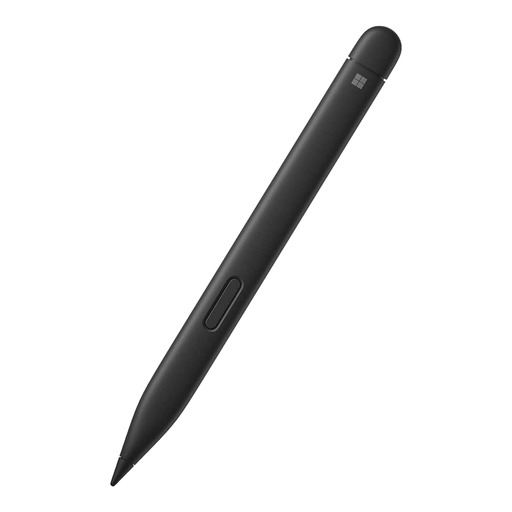
Microsoft Surface Slim Pen 2 Black 8WV-00002
An option for drawing on a Surface model that supports this pen.
The product information lists 4,096 pressure levels, haptic feedback and Zero Force Inking.
Compatibility and available pen features vary by Surface model; also check which charging solution is right for your combination.
View on Joybuy
 No image available
Logitech Crayon USB-C Silver
A pen to consider for sketching on a compatible iPad, once you’ve confirmed the exact combination and availability.
The product information lists USB-C charging, tilt for variable line thickness, palm rejection and use without pairing.
Logitech announced that production of all Crayon models has ended and global sales will end from 19 May 2026, or continue while stocks last.
View on Joybuy
 No image available
Apple Pencil Pro (2024)
An option for pressure-controlled lines and extra controls on a compatible iPad.
The product information lists pressure and tilt sensitivity, plus squeeze and barrel-roll gestures. Apple describes magnetic pairing and charging.
Check your exact iPad model and software requirements; the pen doesn’t work with every iPad.
View on Joybuy
 No image available
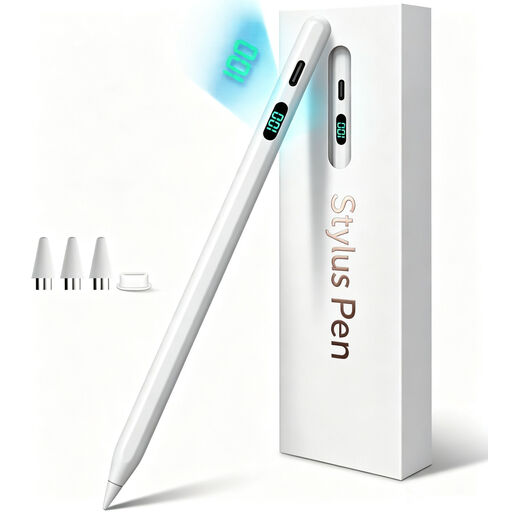
iPad stylus with USB-C fast charging
An option for sketching and shading if pressure-controlled line thickness isn’t essential.
The product information lists tilt detection, palm rejection, USB-C fast charging and up to 10 hours of use after charging.
This pen doesn’t have pressure sensitivity. Magnetic attachment is for storage only and doesn’t charge the pen wirelessly.
View on Joybuy
Frequently asked questions
How do you find out which Apple Pencil is right for your iPad?
Find your exact iPad model and generation, then compare them with Apple’s compatibility list for each Pencil. For Pencil Pro and Pencil (USB-C), also check the required iPadOS version.
Can you change the line thickness of any stylus by pressing harder?
No, it depends on the pen and drawing app. Procreate can link brush size to supported pressure input; Apple Pencil (USB-C) doesn’t have pressure sensitivity.
Does an S Pen for Galaxy Tab always need charging or Bluetooth pairing?
No. Samsung doesn’t list charging, Bluetooth or Air Actions for the Creator Edition. Check which S Pen version you have, as features of another model don’t automatically apply to this pen.
What can you do if your Surface Slim Pen isn’t ready to use?
Microsoft recommends charging the pen briefly before using it for the first time. Check which charging dock or charger is right for your Surface and accessory; a separate charger may be needed.
What consumer rights apply when you buy a stylus online in the Netherlands?
When you buy online from a business, you generally have a statutory cooling-off period of up to 14 days after delivery, with some exceptions. The seller must also resolve issues with a product that, under normal use, doesn’t meet what you could reasonably expect under the statutory guarantee. ACM ConsuWijzer explains that there isn’t one fixed statutory two-year guarantee period for every stylus.


